
In this guide, learn how to enhance the functionality and design of the “Buy Now” button in your WooCommerce store. These adjustments can significantly improve user experience and streamline the purchasing process.
Customize the Buy Now Button on Product Pages
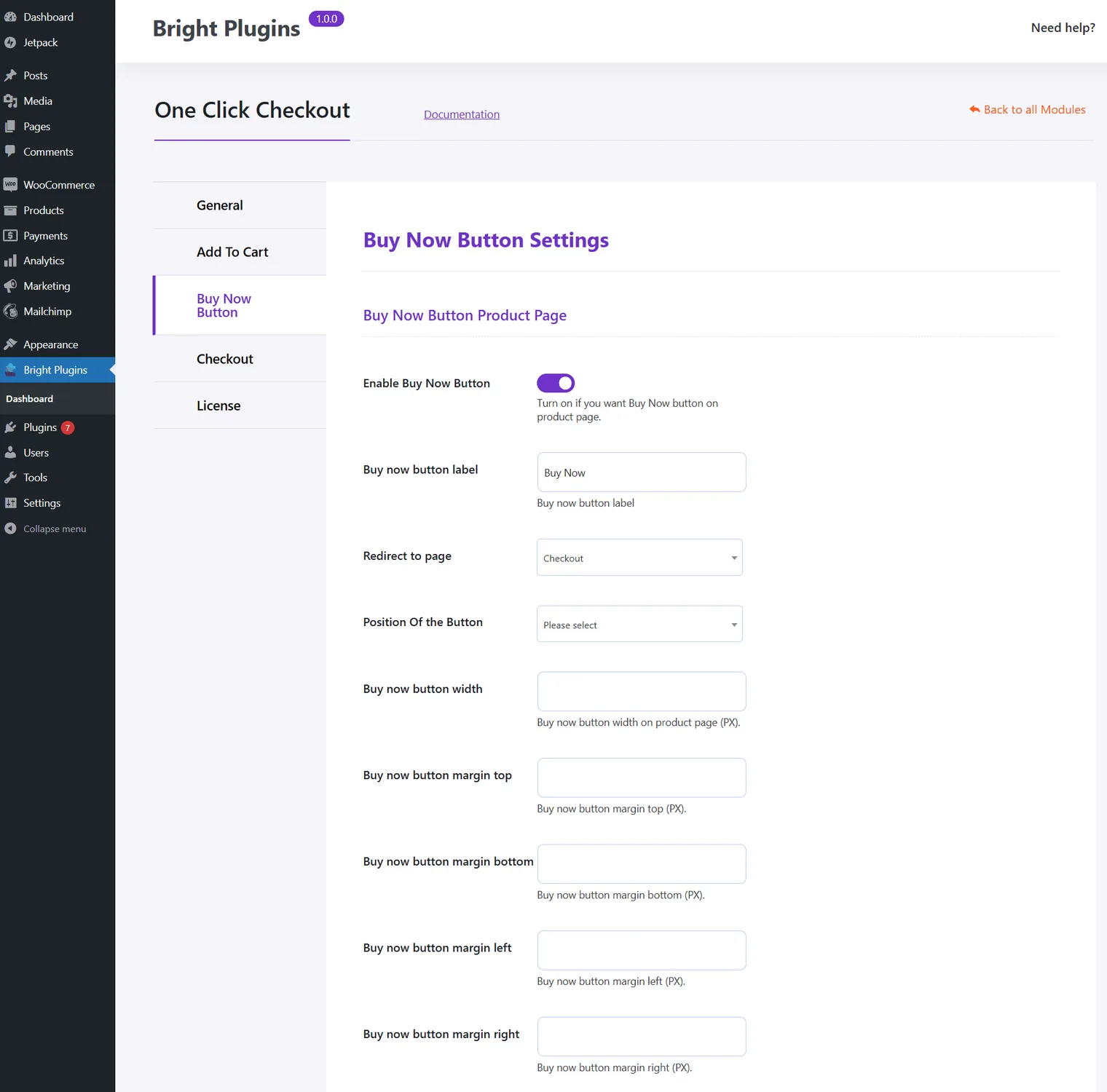
To begin, navigate to the Buy Now Button Settings to tailor the button’s behavior on product pages.
- Enable Buy Now Button: Activate this feature to display the button prominently.
- Buy Now Button Label: Create a compelling label that aligns with your brand.
- Redirect to Page: Specify where customers should go after clicking.
- Position of the Button: Choose an optimal position, such as below the price.
- Buy Now Button Width: Define the width in pixels for better visibility.
- Margin Settings: Adjust top, bottom, left, and right margins for perfect alignment.
Enhance the Buy Now Button on Product Archive Pages
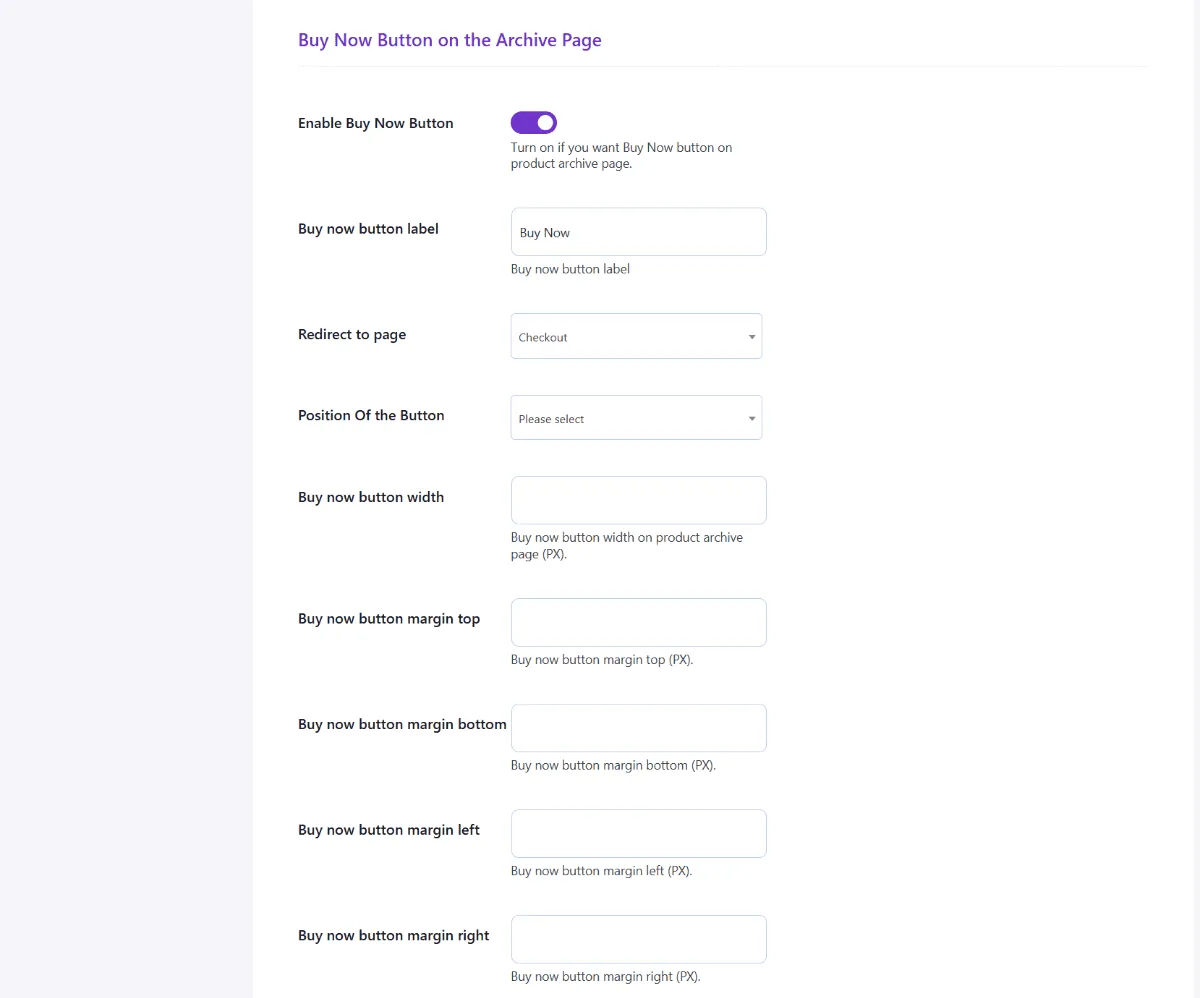
Next, focus on the product archive or category pages to ensure consistency.
- Enable Buy Now Button: Display the button across archive pages.
- Buy Now Button Label: Use a consistent label here as well.
- Redirect to Page: Direct customers efficiently to the next step.
- Position of the Button: Set its location for easy access.
- Width and Margin Adjustments: Ensure uniform appearance and spacing.
Fine-Tune the Buy Now Button Design
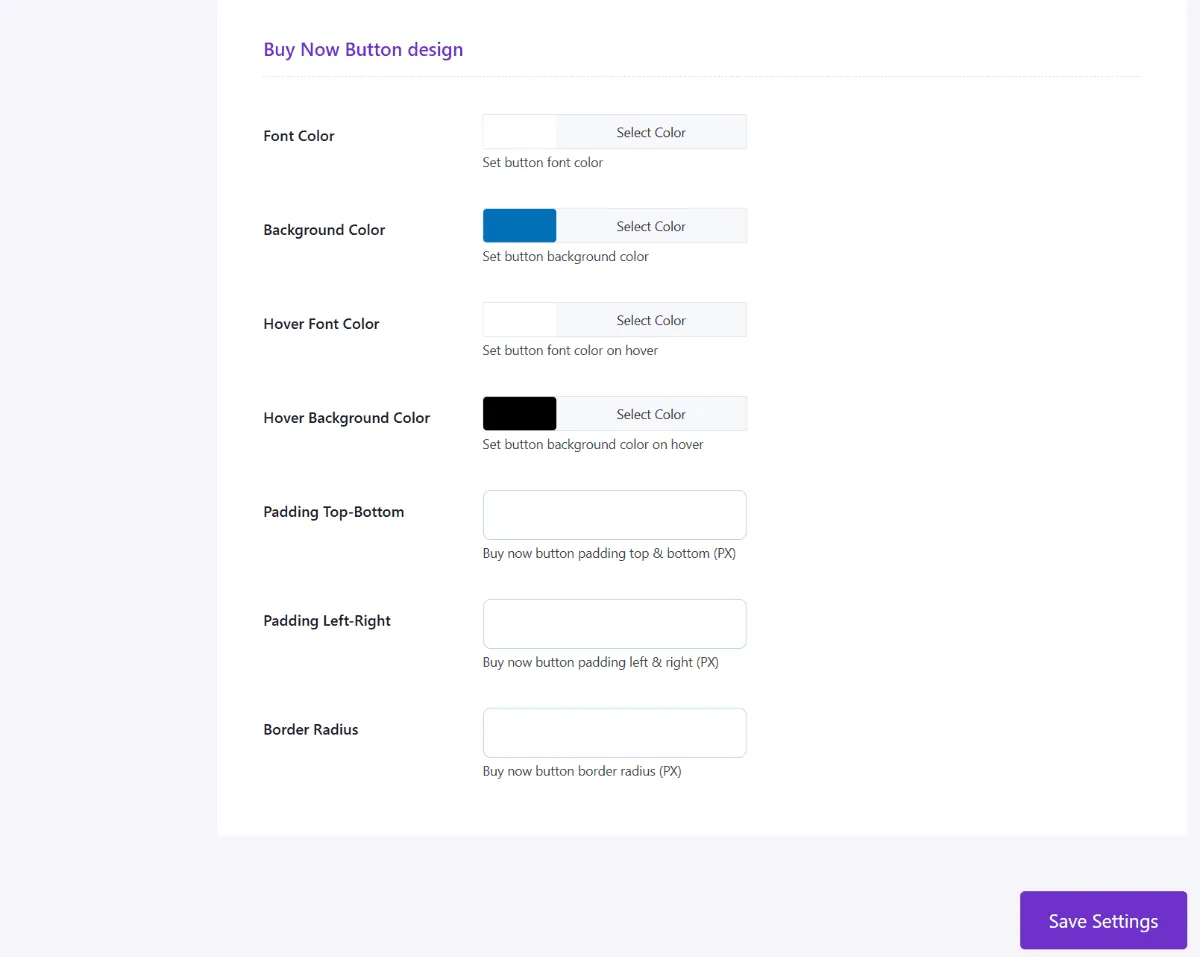
Finally, customize the aesthetics to match your store’s theme.
- Font and Background Colors: Select colors that enhance readability and match your style.
- Hover Effects: Choose hover colors for interactive feedback.
- Padding and Border Radius: Adjust these to create a visually appealing button.
By following these steps, you can fully customize the “Buy Now” button in WooCommerce, providing a seamless and attractive shopping experience for your customers.
Updated on April 17, 2026 · Need help? Open a support ticket