
To get rapid and quality support it is important that you provide as much detailed information about your environment and issue as possible. If you raise a support ticket without this information it is likely that you will be asked anyway delaying any resolution.
A support request should include
- Plugin name and version
- WordPress environment information (WP version, PHP version, theme, other plugins – see providing info below)
- The actual behaviour, including screen shots or screen recordings of the issue with any displayed errors, and any Critical/Fatal errors emailed to the site admin
- A description of the expected behaviour
- Any errors in server / debug logs as requested (see providing server logs)
- Any browser console errors ( see inspecting browser console )
Provide WordPress Environment Information#
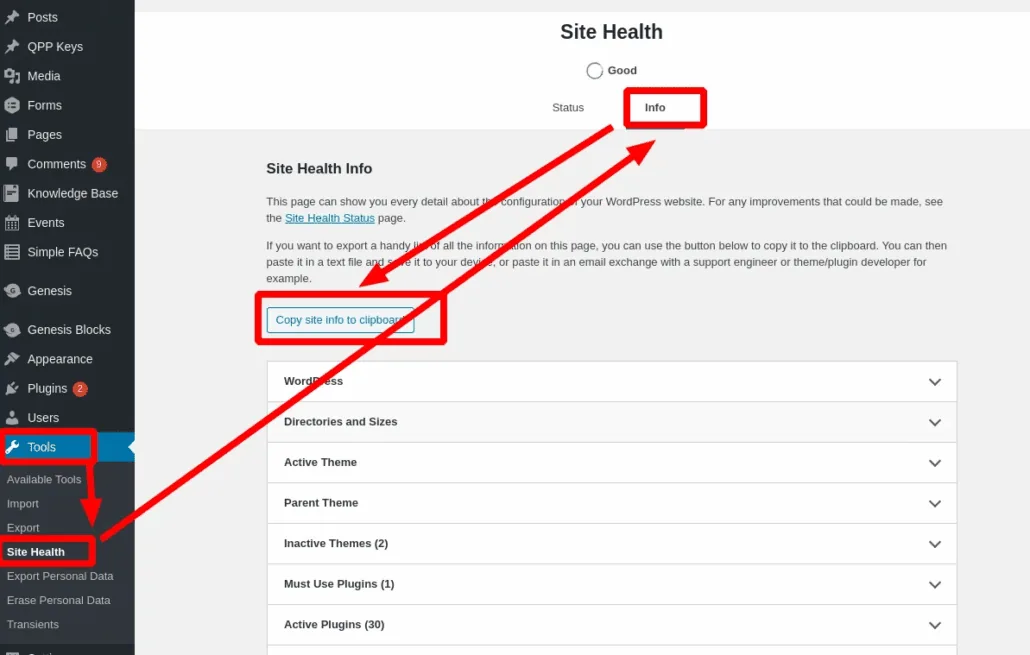
Go to Dashboard -> Tools, select Site Health, select Info, click on Copy site info to Clipboard – paste this into your support ticket
Providing Server Logs#
Normally your website will email the admin with detailed critical errors, please provide these. If you got a Critical Error but no email you may need to delve into the logs.
PHP error are recorded in your server error logs. These are normally accessible from your hosts’ control panel, if you are unsure you can ask your hosting support.
Additionally, you can turn your WordPress site into debug mode, this will create a log and also for some plugins log extra information. You may be asked to turn on debugging specifically.
Make a note of the time of the errors, and examine the log close to the appropriate time. Please note NOTICES and WARNINGS are not ERRORS, we are only interested in FATAL ERRORS.
A warning looks like
[08-Mar-2021 17:47:37 UTC] PHP Warning: include_once(): Failed opening '/var/www/html/wp-content/plugins/quick-paypal-payments/vendor/ayecode/wp-super-duper/wp-super-duper.php' for inclusion
A notice looks like
[08-Mar-2021 16:55:19 UTC] PHP Notice: Undefined index: custom in /var/www/html/wp-content/plugins/quick-paypal-payments/legacy/quick-paypal-payments.php on line 1983Neither are any use in debugging a critical issue and they do not impact the functionality of a site
But a Critical error looks like
[08-Mar-2021 17:47:37 UTC] PHP Fatal error: Class 'WP_Super_Duper' not found in /var/www/html/wp-content/plugins/quick-paypal-payments/ui/user/class-form.php on line 38and it is very useful to have the following Stack Trace which looks like
[08-Mar-2021 17:47:37 UTC] PHP Stack trace:
[08-Mar-2021 17:47:37 UTC] PHP   1. {main}() /var/www/html/wp-admin/admin-ajax.php:0
[08-Mar-2021 17:47:37 UTC] PHP   2. require_once() /var/www/html/wp-admin/admin-ajax.php:22
[08-Mar-2021 17:47:37 UTC] PHP   3. require_once() /var/www/html/wp-load.php:37
[08-Mar-2021 17:47:37 UTC] PHP   4. require_once() /var/www/html/wp-config.php:84
[08-Mar-2021 17:47:37 UTC] PHP   5. do_action() /var/www/html/wp-settings.php:560
[08-Mar-2021 17:47:37 UTC] PHP   6. WP_Hook->do_action() /var/www/html/wp-includes/plugin.php:484
To turn on debug mode – see this WordPress tutorial
tl;dnr ? for a production site set this in wp-config.php
define( 'WP_DEBUG',true );
define( 'WP_DEBUG_LOG', true );
define( 'WP_DEBUG_DISPLAY', false );
and the log will be wp-content/debug.log
set WP_DEBUG to false and delete the log file when done
Browser Console Errors#
Inspecting the browser console for errors varies by browser.
See this WordPress support article on diagnosing JavaScript Errors.
Most users seem to use Chrome so the following is from Chrome.
Right click the page and select ‘inspect’ ( or Ctl+Shift+I ) to open DevTools – go to the Console Tab, you may need to refresh you page to find errors – errors look like

Updated on April 17, 2026 · Need help? Open a support ticket