
One of the most difficult aspects of WordPress troubleshooting is determining is there is a theme or plugin conflict, with literally tens of thousands of themes and plugins means that there are some half a billion combinations, naturally that is impossible to check without being methodical.
After examining the logs and console and you can not see an obvious reason ( see the article on raising a support ticket for information ) , conventional wisdom is turn off all plugins except the one you suspect and set the theme to the WordPress default theme, if it functions correctly now you likely have a conflict.
The next step in this process of elimination is to switch back the theme, if it fails – you have a culprit, if not then on to plugins.
If you have lots of plugins then you may find it quicker to do what I normally do, which I call the binary chop. Make a note of the first half of plugin, turn them on, now you know the problem is in the first half or second, next step, quarter the suspect half an repeat until the number is manageable. 20 plugins can be narrowed down in 4 steps instead of maybe 20 …
But my website is LIVE I can’t do this?
In an ideal world you will copy your live website to a local install, or a staging site and do this all in the background.
However some times that isn’t practical or suitable for your technical skills. There is a way you can do this in live
Step 1
Take a backup -always take a backup – and make sure it is good and safe
Step 2
Install the Health Check & Troubleshooting plugin this is a third party plugin and so I cannot support you if it breaks your site ( see backup above – this is your resposibility )
Step 3
The plugin extends Dashboard>Tools>Site Health with two new tabs
‘troubleshooting’
‘tools’
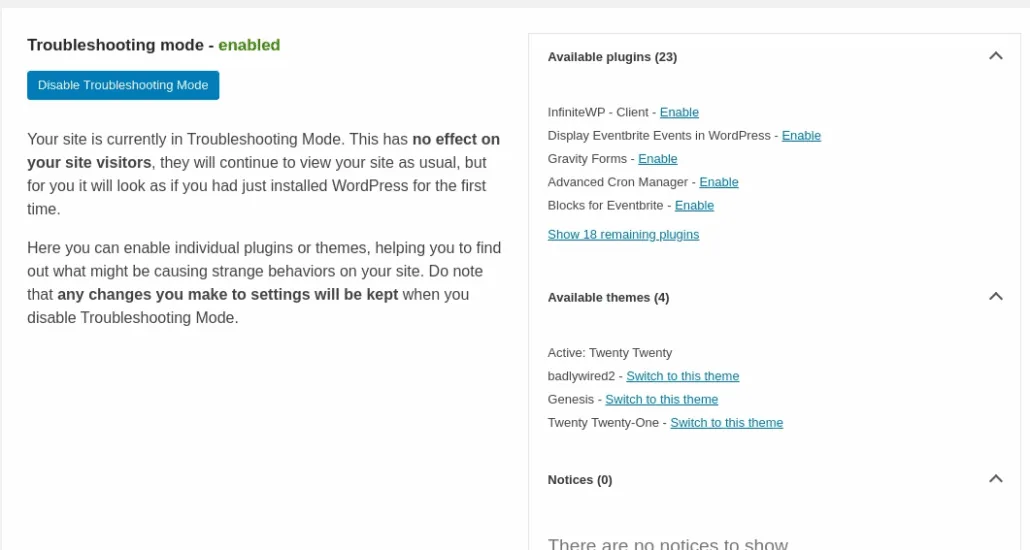
Enter ‘troubleshooting’ and [Enable Troubleshooting]
From then you can control plugins and themes without impacting visitors
Updated on April 17, 2026 · Need help? Open a support ticket