
Your privacy choices

We use cookies to see how the site is used and, with Google and Meta, to measure our ads. Nothing is set until you choose. You can change your choice at any time under Cookie settings.

Privacy Policy

We use cookies to see how the site is used and, with Google and Meta, to measure our ads. You can change your choice at any time under Your Privacy Choices.

Your privacy choices

Choose which cookies we may use. Your choice applies on every page and lasts 12 months.

Your opt-out preference signal has been honored. Advertising stays off while your browser sends it.

NecessaryKeeps the site working: your privacy choice here, the language you are reading in, the documentation search, and Cloudflare's protection of the site.
Always on
Google Analytics and Cloudflare Web Analytics, and WooCommerce's own record of the page your visit started on: which pages are read, how the site is used, and which of them lead to an order.
Google Ads and the Meta pixel: measuring and improving our ads, including on other sites.
ThriveDesk, which runs the live chat on our support page. It is run by another company and stores an identifier in your browser.
Privacy Policy

Set Up Multiple Ticket Types | Bright Plugins Docs

2 min read Updated April 20, 2026 By the Bright Plugins team

Get Event Manager Pro

With Quick Event Manager you can set yo several different ticket types at different prices, e.g. Adult and Child, Standard and VIP

You can see an example here ( click any where on the below image to see the live example )
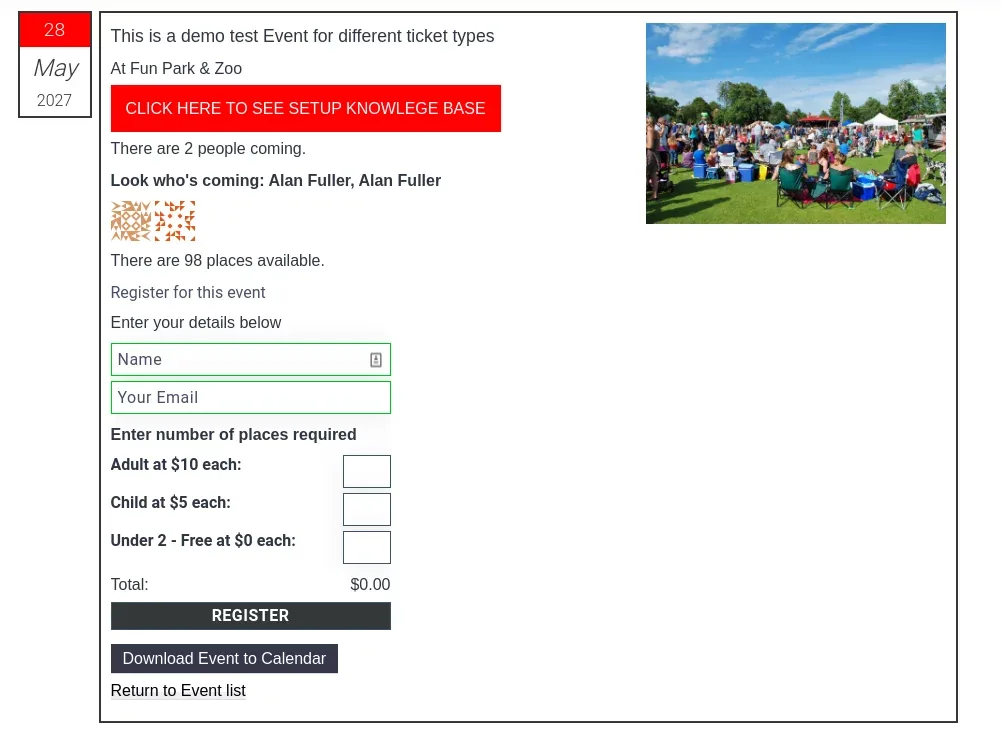
Quick Event Manager: Setting Up Multiple Tickets Types Register

This example event is set up as follows
First go to Dashboard>Events and click Add New

The above is an image – click on it to go to the live event
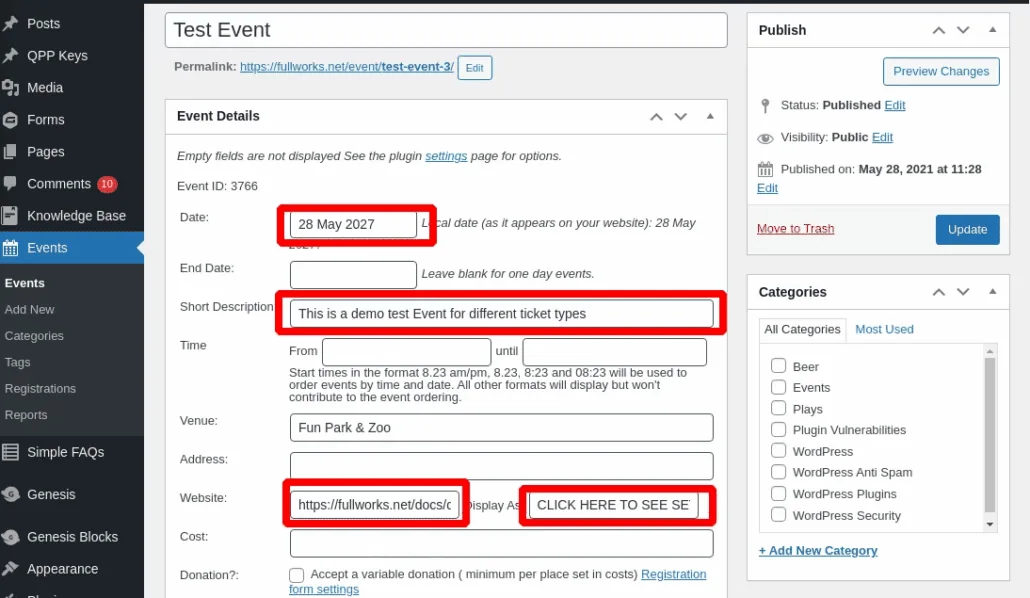
Quick Event Manager: The event editor for a test event, with the Date, Short Description, Website and Display As fields marked

Start by adding a date, and optionally you can have and end date for multi day events.

The short description is optional, as is venue.
If you add an address and you have maps enabled the map will appear.

Website and website URL are optional, but in this case I’m using it to link from the event to this document.

You don’t need to enter anything in cost, as you will have costs later in multiple ticket types, but you can add descriptive costs e.g. tickets from £xx
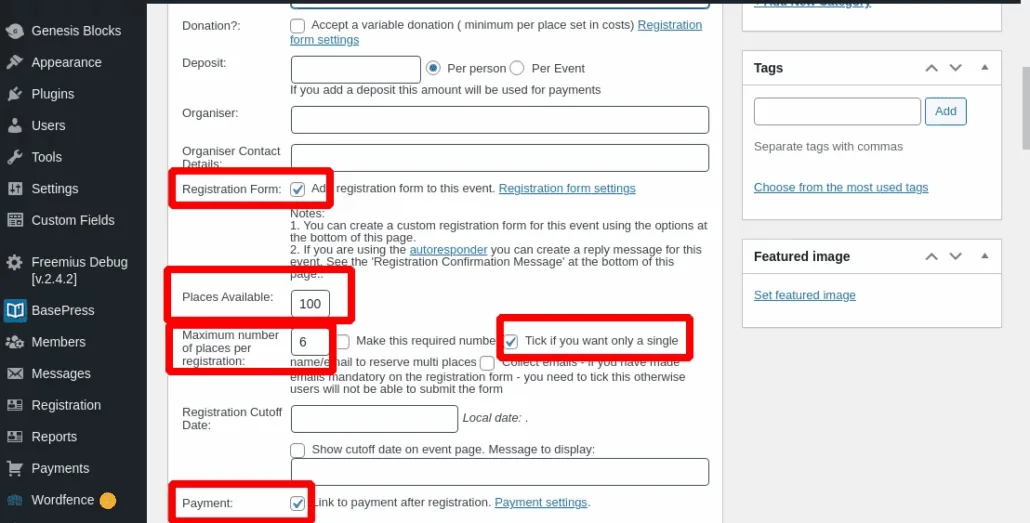
Quick Event Manager: The event editor with Registration Form ticked, Places Available set to 100, Maximum places per registration set to 6, and the single name per registration option ticked

You need to tick registration form, as that is where the multiple ticket type will be displayed.

Optional is places available, e.g. 100 which sets your venue maximum. This has proved very useful for COVID restrictions.

Maximum places per registration has also proved very useful during COVID where party size is restricted.

If you tick ‘single name/email’ this allows a person to book multiple tickets without listing every name, if you want names then choose a different option.

You can tick ‘payment’ if you are taking payment via PayPal ( or Stripe if pro ), if you are not taking payment online. e.g. at the door, then untick.
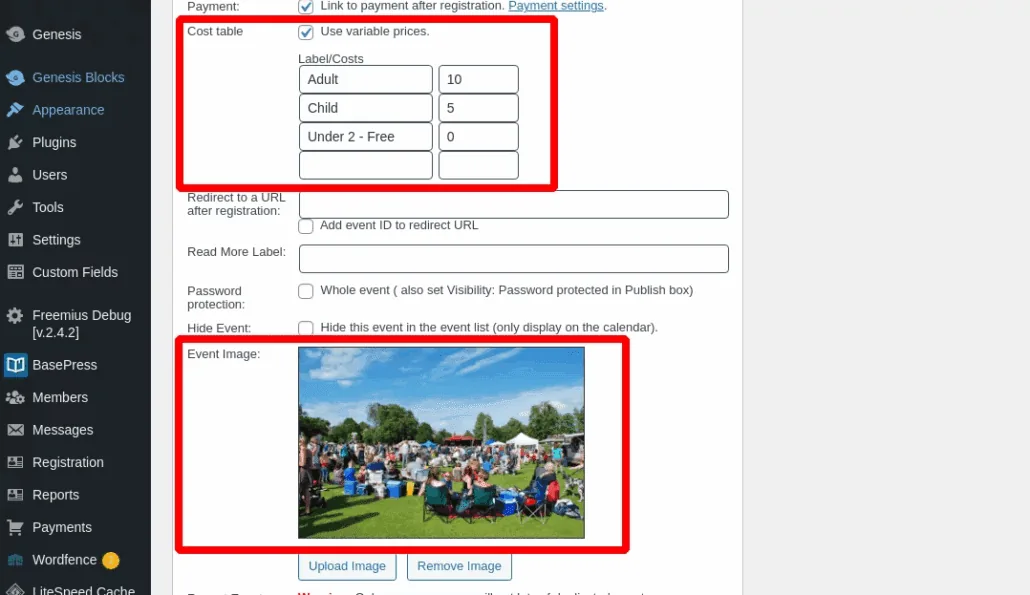
Quick Event Manager: The event editor cost table using variable prices, with Adult 10, Child 5 and Under 2 free, and the event image below

Now the multiple -ticket part. Tick ‘Cost Table – Use Variable Prices’. This allows you to then add up to 4 ticket types for this event.

Of course, you can add your event image and any other event details as required.

Updated on April 20, 2026 · Need help? Open a support ticket