
In the Pro version of the plugin, several settings are available to customize the brand page in your WooCommerce store. Below are the available options and instructions on how to configure them to optimize the presentation of your brands.
Brand Page Settings
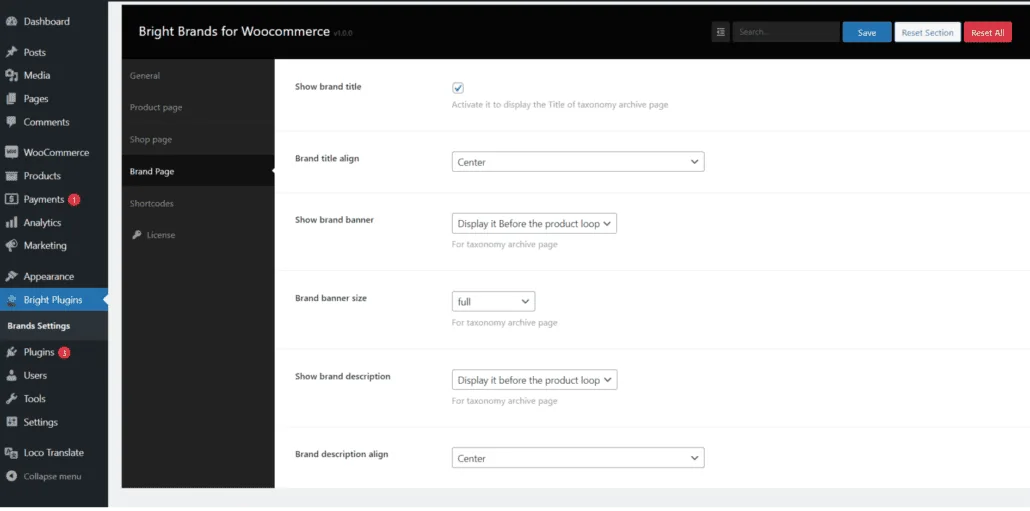
Show Brand Title
Description: Enables or disables the display of the brand name.
- Default Value: Enabled
Brand Title Alignment
Description: Defines the position of the brand title (left, center, right).
- Default Value: Centered
Show Brand Banner and Its Position
Description: Enables or disables the display of the brand banner and selects its location on the page.
- Default Value: Before the product loop
Show Brand Description and Its Position
Description: Enables or disables the display of the brand description and selects its location on the page.
- Default Value: Before the product loop
Choose the Banner Size
Description: Selects the size of the brand banner.
- Available Options: Small, Medium, Large, Full
- Default Value: Full
Example Brand Page Configuration
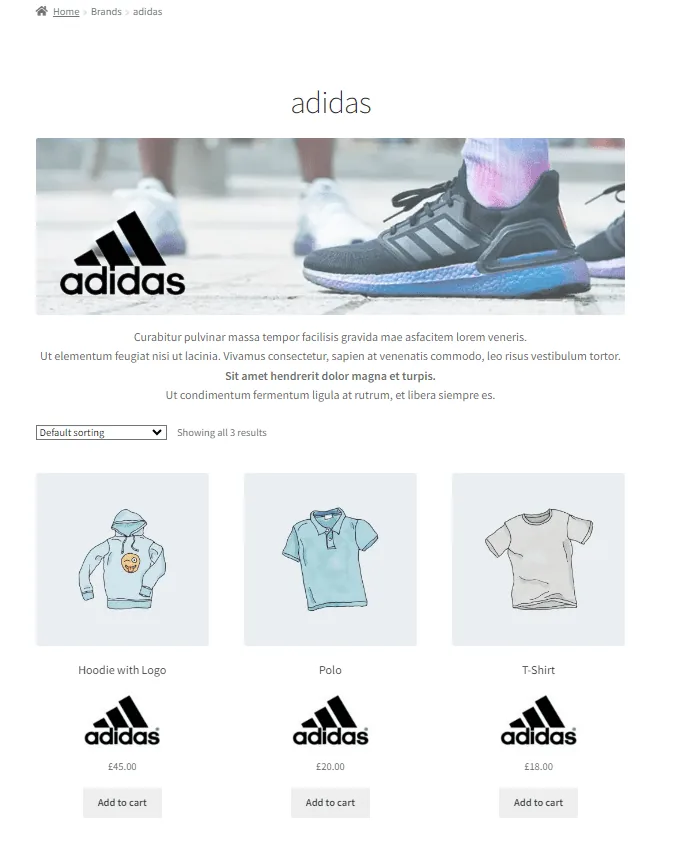
In this example, the most common settings for a brand page are shown:
Plugin Settings on the Brand Page Tab:
- Show Brand Title: Checked
- Show Brand Banner: Display it before the product loop
- Show Brand Description: Display it before the product loop
- Brand Banner Size: Full
- Brand Description Alignment: Center
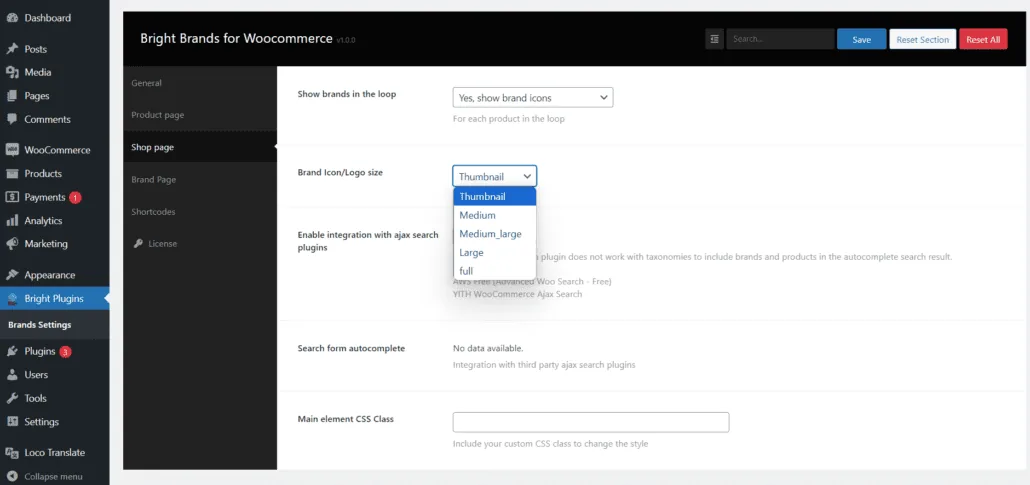
Plugin Settings on the Shop Page Tab:
- Show Brands in the Loop: Yes, Show brand icon
- Brand Icon/Logo Size: Large
Additional Tips for Brand Page Optimization
To make the most out of your brand page settings, consider the following tips:
- High-Quality Images: Always use high-quality images for brand banners to give a professional look.
- Consistent Branding: Ensure that the colors, fonts, and style elements reflect your brand’s identity consistently across the page.
- Engaging Descriptions: Write compelling brand descriptions that highlight the unique selling points of each brand.
- Responsive Design: Make sure that the brand page is mobile-friendly and looks good on all devices.
- Customer Reviews: Include customer reviews or testimonials for each brand to build trust and credibility.
Conclusion
Properly configuring the brand page options in the Pro version of the plugin can significantly enhance the presentation and user experience in your WooCommerce store. Follow the guidelines above to optimize your store and effectively showcase your brands.
Updated on April 17, 2026 · Need help? Open a support ticket