
1. Access the Products Tab:
Navigate to the “Products” tab in the left-hand navigation panel and click on “Add New”.
By default, it will be set as a simple product. If you want to know how to do it with variable products.
How to add preorder feature into a variable product? >
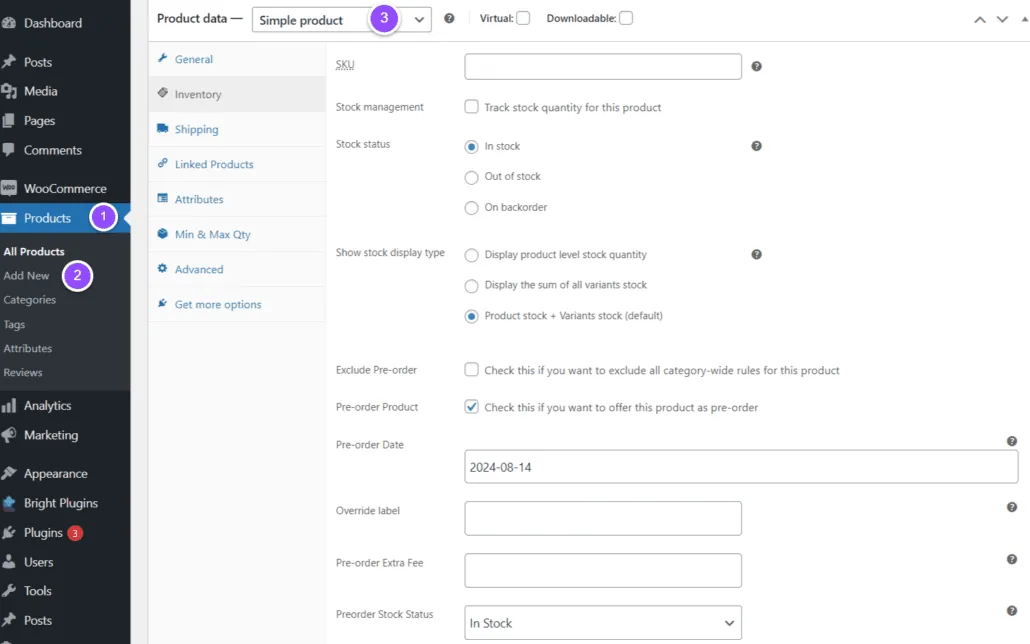
2. Configure Product Data:
In the “Product Data” panel, select the “Inventory” tab.
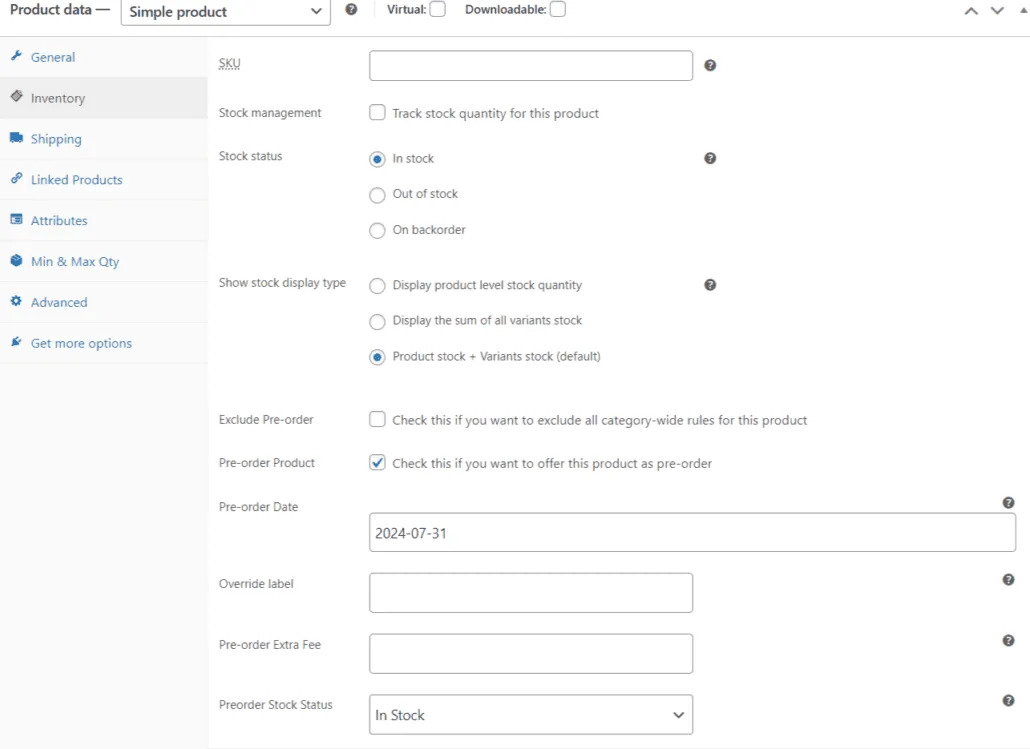
On the right-hand side, you will see the settings for “Pre-Order”. Check the box to enable the product for pre-orders.

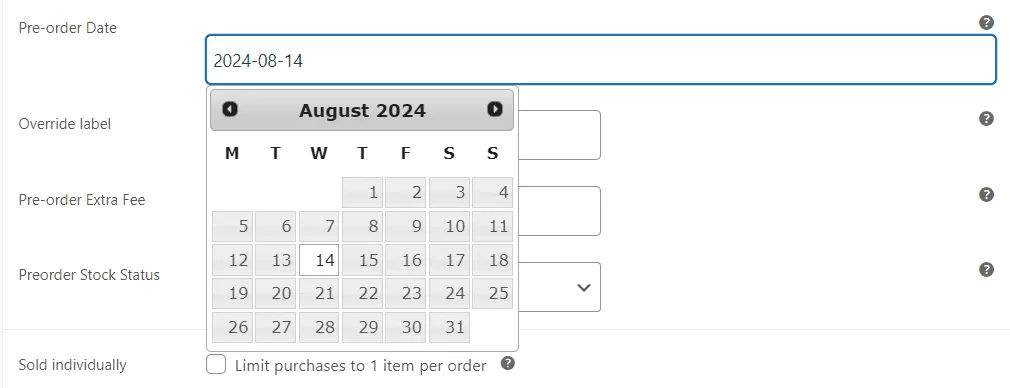
3. Set Availability Date:
Set the date when your Pre-Order Product will be available.
4. Publish the Product:
Your product is now ready for pre-orders. Click “Publish” and then view the product page.
5. Review the Product Page:
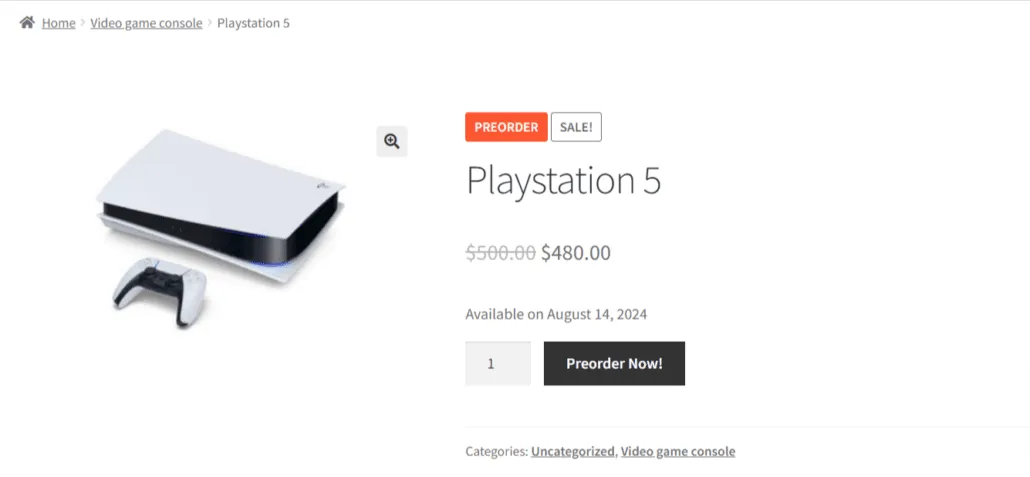
Go to the new “Product Page”. The product button will now state “Preorder Now!” along with the date when the product will be available.
This information can be changed or hidden in pre-order settings >
6. View the Cart:
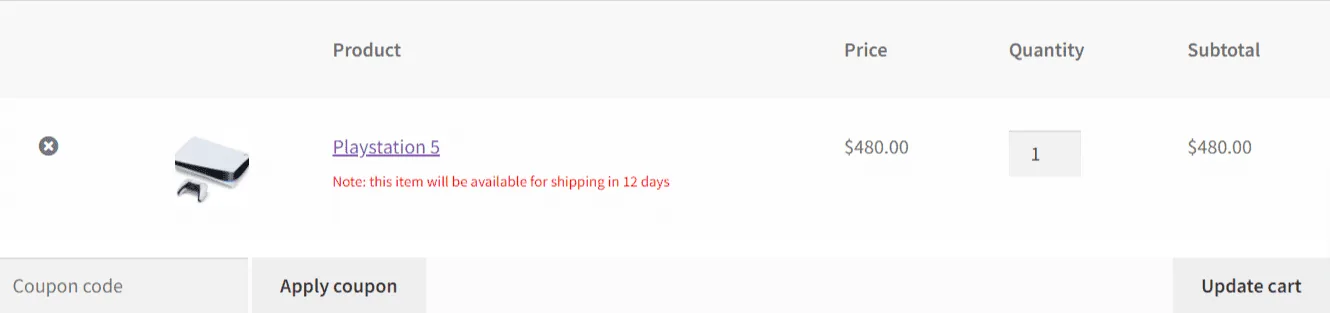
When viewing the cart, you will notice a “Note” in red stating when the product will be available, based on the date selected on the product page.
This information can be changed or hidden in pre-order settings.
Suggested Title >
How to add preorder feature into a variable product?>
Updated on April 22, 2026 · Need help? Open a support ticket