
Every string a customer reads on a pre-order — the button, the availability notice, the cart warning — is editable. This guide covers where each one lives and how to write replacements that hold up.
Where the settings live#
All customer-facing text sits in one place: WooCommerce → Settings → Pre-Orders → Texts & Labels.
Leave a field empty and the plugin falls back to its default wording, so you can override only the strings you care about rather than filling in the whole form. This also means clearing a field is how you undo a change — there is no separate reset.
Button and status labels#
These are the shortest strings on the page and the ones customers actually read. They appear on single product pages, in shop archives, and in the customer's account area.
- Pre-order button — replaces "Add to cart" on any product marked as a pre-order
- Pre-order badge — the label sitting on the product image in listings
- Order status label — what the customer sees against the order in their account
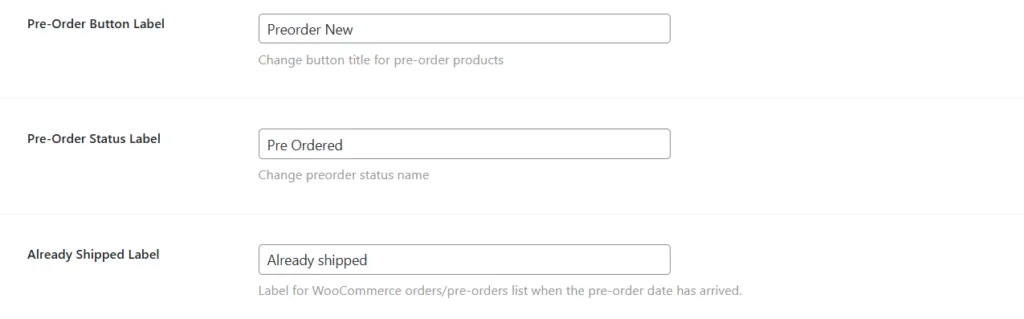
Keep the button short. It has to survive a narrow mobile column and a shop grid where three products sit side by side, and a label that wraps onto three lines reads as broken rather than informative.
Availability and date text#
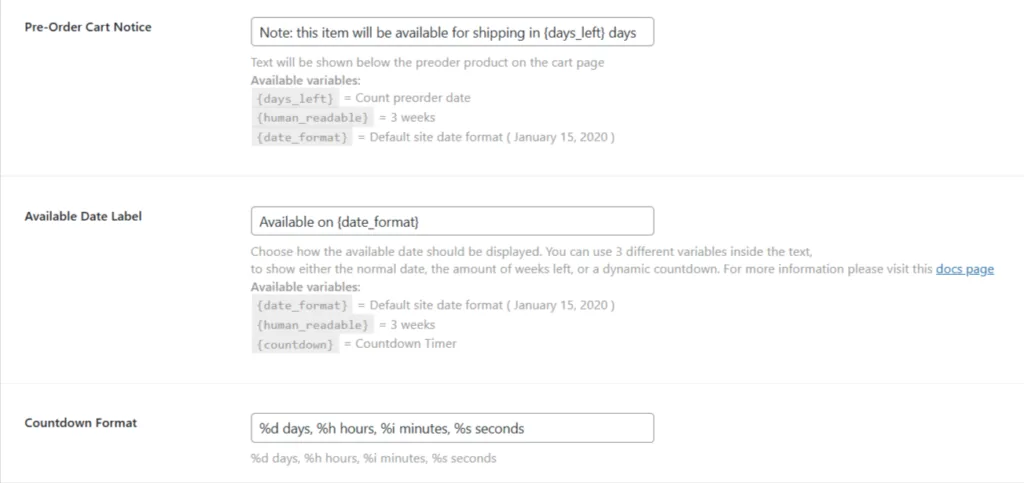
The availability notice is the sentence carrying the actual promise, so it deserves more care than the rest. It appears under the price on the product page and again in the cart.
Two decisions matter here. First, whether you state a date or a period — "Ships 14 March" against "Ships in about six weeks". A date is clearer and easier to hold you to; a period gives you room. Second, whether you name what happens to the payment, because a customer who does not know when they are charged will ask.
Cart and checkout messages#
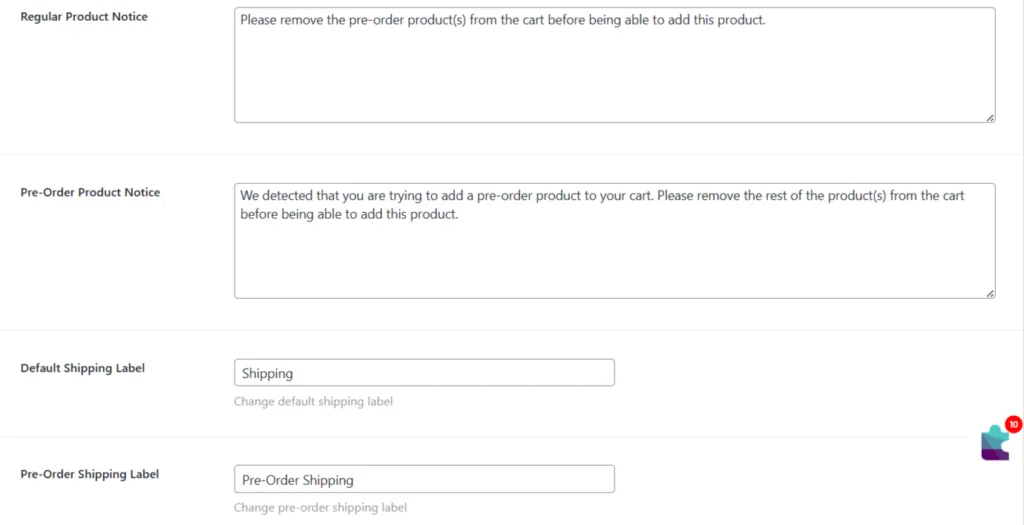
These strings fire when a customer does something the store cannot fulfil — mixing a pre-order with an in-stock item when your settings do not allow it, or exceeding a per-order limit.
Write them as instructions rather than refusals. "Pre-orders must be bought on their own — remove the other items, or place a second order" tells someone what to do next. "Invalid cart contents" does not, and it produces a support ticket.
Using dynamic variables#
Several fields accept placeholders that the plugin replaces at render time, so one string serves every product:
{availability_date}— the product's availability date, in your site's date format{product_name}— the product being pre-ordered{days_remaining}— days between today and the availability date
A notice reading "{product_name} ships on {availability_date}" stays correct across your whole catalogue, and stays correct when a date moves. Hard-coding the date into the label means editing it in two places and eventually forgetting one.
Variables render as literal text if you misspell them, so check one product page after editing rather than trusting the field.
Writing labels that work#
- Say when the customer is charged. It is the most common pre-order question and the cheapest to answer up front.
- Use the same words everywhere. If the button says "Reserve", the notice should not say "pre-order".
- Check the strings on a phone. Most of these fields render in tight spaces.
- If you run a multilingual store, translate these strings through your translation plugin rather than typing one language into the field.
Next steps#
Updated on April 16, 2026 · Need help? Open a support ticket