
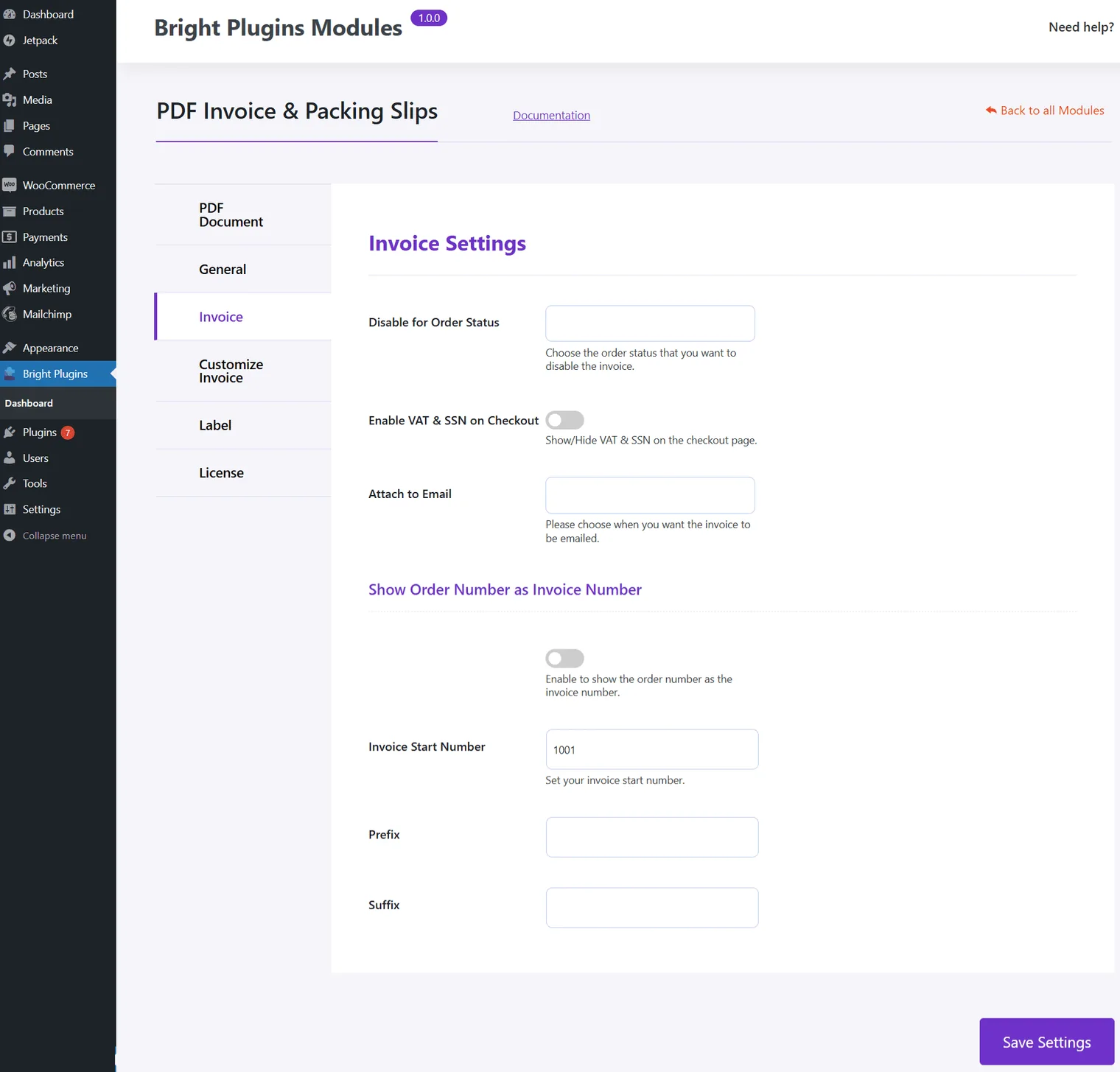
The Invoice Settings section allows you to manage the availability and attachment of invoices based on order statuses. Here’s how to customize it:
Disable Invoice for Specific Statuses
- Prevent invoices from being generated for specific order statuses such as:
- Pending Payment
- Processing
- On Hold
- Simply check the boxes corresponding to the statuses where invoices should not be created.
Attach Invoice
- Choose the scenarios where you want to attach the invoice automatically.
- Check the boxes for events like order completion, customer email notifications, or others based on your store’s workflow.
This feature ensures you have full control over when and where invoices are used, streamlining your order management process.
Configuring Invoice Number Settings
Customize your invoice numbering system for a more organized and professional approach:
- Invoice Number Format: Choose the desired format for your invoice numbers to align with your store’s branding and requirements.
- Order Number as Invoice Number: Turn ON the switch if you prefer to use the order number as the invoice number. This keeps things straightforward and consistent.
- Invoice Start Number: Define a specific starting number for your invoices. Enter the number in the Invoice Start Number field. This is particularly useful if you’re starting a new sequence or migrating from another system.
- Suffix and Prefix: Add a unique Prefix and/or Suffix to your invoice numbers to differentiate them or add context (e.g., “INV2024-” for invoices from 2024).
By customizing these settings, you can ensure your invoices are clear, recognizable, and aligned with your operational needs.
Updated on April 16, 2026 · Need help? Open a support ticket