
Display the Available Date
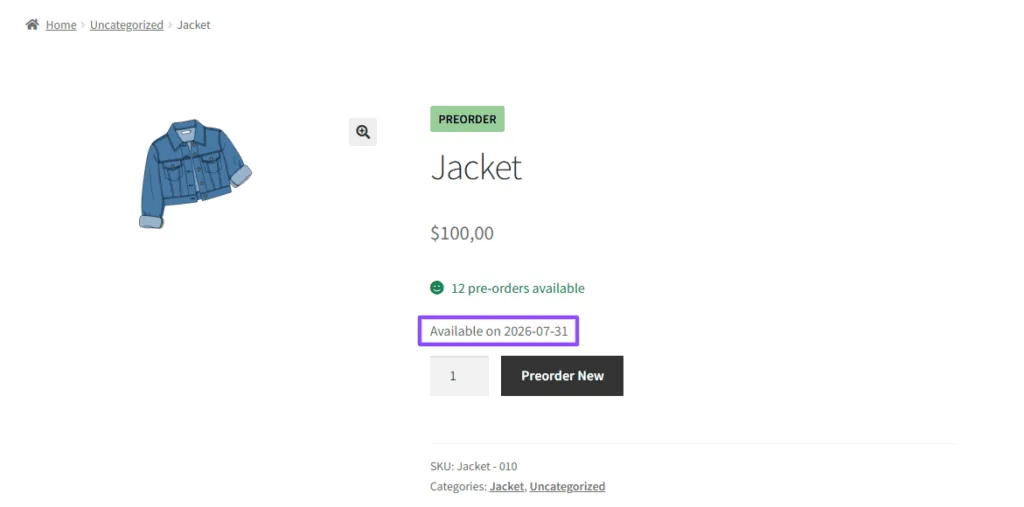
Available Date Position
- Description: Choose the position where the available date text will be displayed on the Single Product Page.
- Example: Below is an example of how the available date text could appear when the “Single Product Page” option is checked.
Note: Remember to navigate to Brightplugins > Pre-Order Settings > General tab in your dashboard.
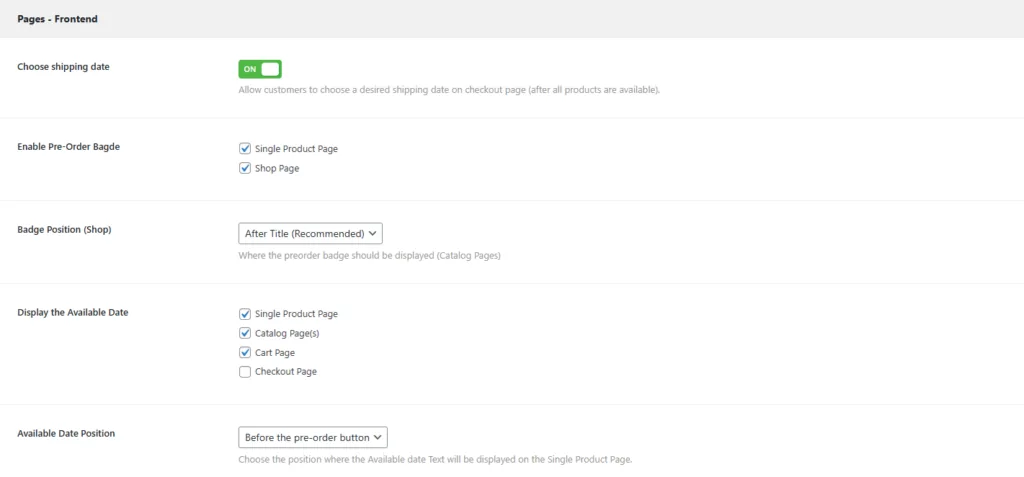
Enable Pre-Order Badge
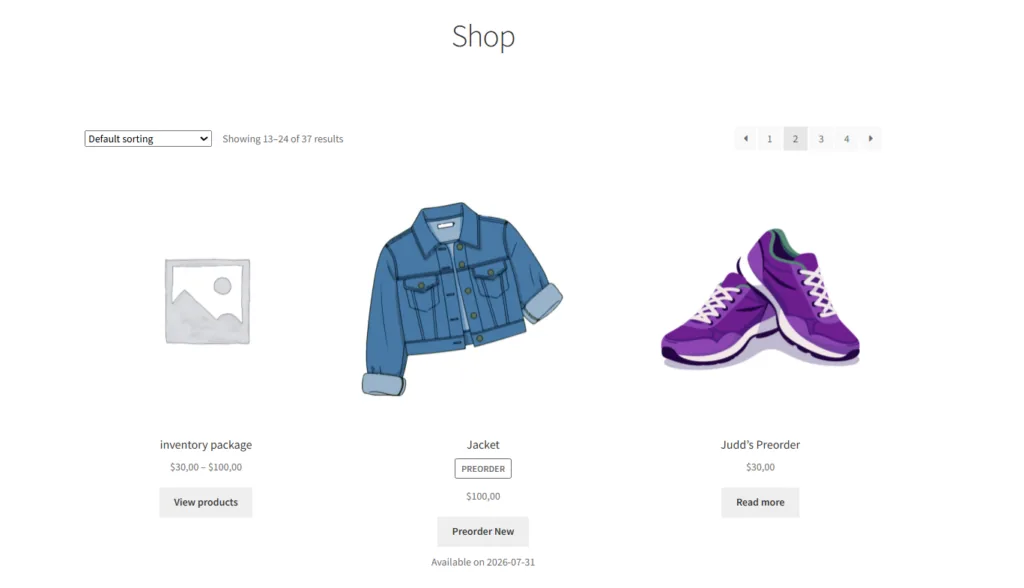
- Description: Enable the pre-order badge to display on the shop page. This badge uses the same theme style as the “Sale” badge in WooCommerce.
- Example: Below is an example of the pre-order badge on the shop page.
How Can I Manage Pre-Order Transition Status and Unify Shipping Costs in WooCommerce?>
Updated on July 14, 2026 · Need help? Open a support ticket