
Managing product quantities in your WooCommerce store is crucial for ensuring inventory control and providing a seamless shopping experience for your customers. In this guide, we’ll walk you through the steps to set up minimum and maximum quantities using the Min-Max Quantities plugin by Bright Plugins.
Step 1: Plugin Installation and Initial Setup
First, install and activate the Min-Max Quantities plugin. Once the plugin is installed, navigate to Bright Plugins > Min-Max Quantities in your WordPress dashboard. This is where you will configure the global settings for your store.
Step 2: Enable Global Minimum and Maximum Quantities
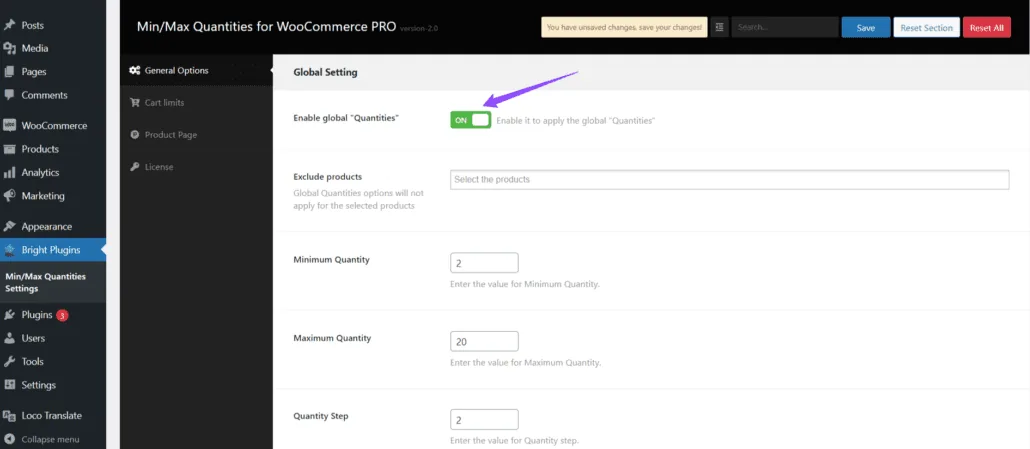
In General Options, you will see Global Setting. Enable global “Quantities” to apply the configuration globally in the store. This option will ensure that the minimum and maximum quantity rules you set will apply to all products across your store.
If you do not enable this option, the min/max quantity rules will not be applied globally, and you will need to configure them individually for each product.
To see how to set min/max quantities for individual products, click here.
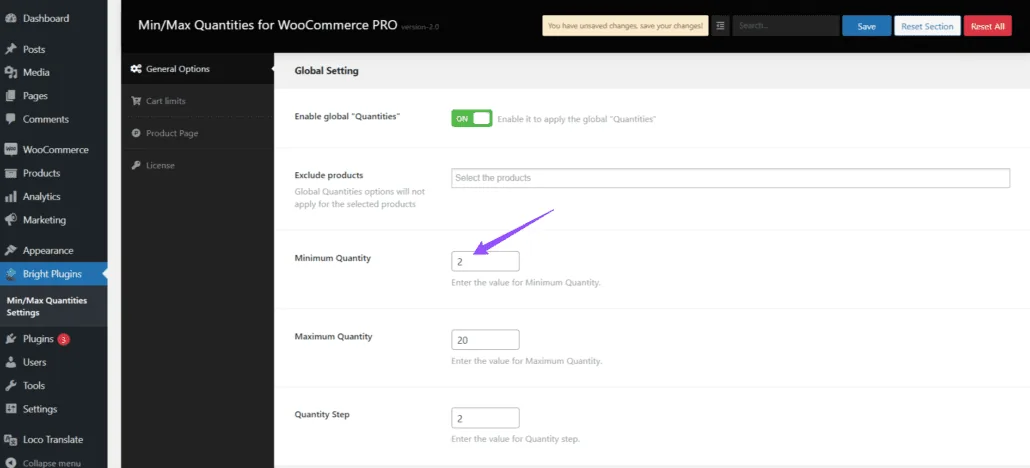
Step 3: Configure Minimum Quantity
- Minimum Quantity:
- Input Field: Enter the minimum quantity value that customers must purchase.
- Example:
2(this means that customers must purchase at least two units of the product).
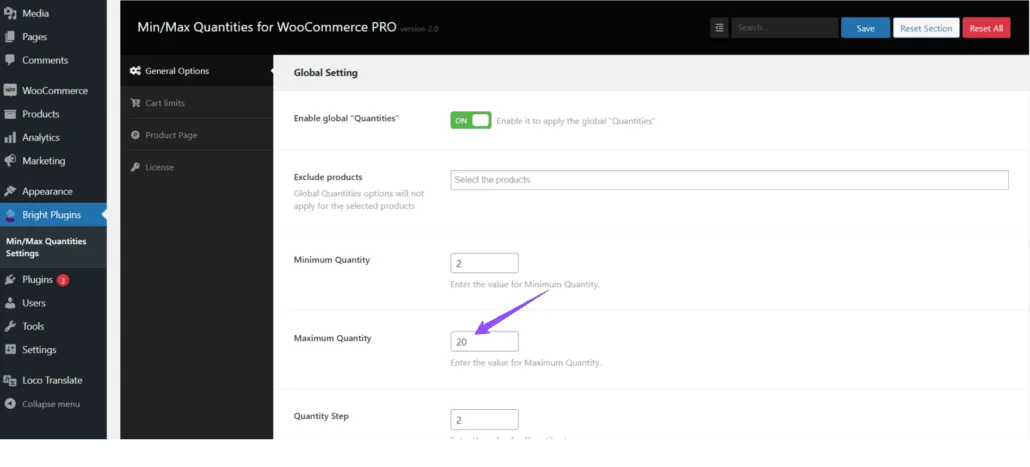
Step 4: Configure Maximum Quantity
- Maximum Quantity:
- Input Field: Enter the maximum quantity value that customers can purchase.
- Example:
20(this means that customers cannot purchase more than twenty units of the product).
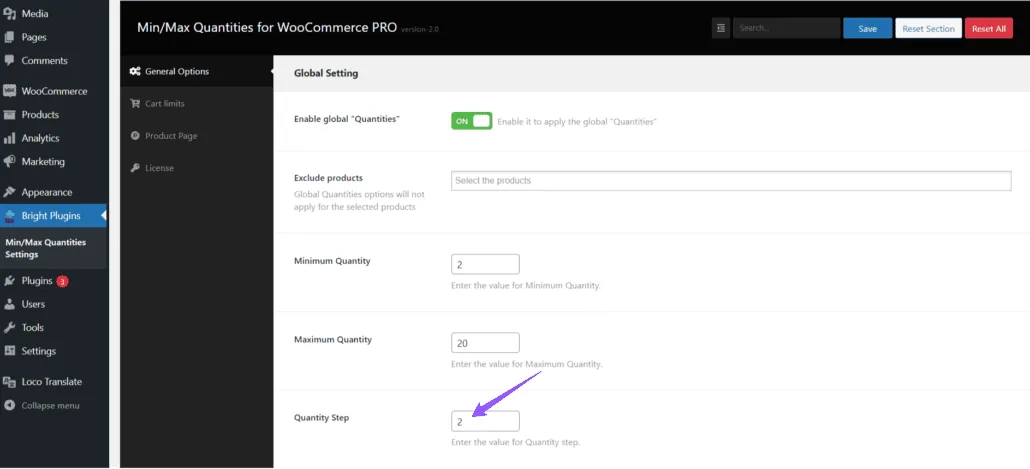
Step 5: Configure Quantity Step
- Quantity Step:
- Input Field: Enter the quantity step value to increment or decrement the quantity in the cart.
- Example:
2(this means that customers can increase or decrease the quantity in steps of two units).
Step 6: Notices and Messages
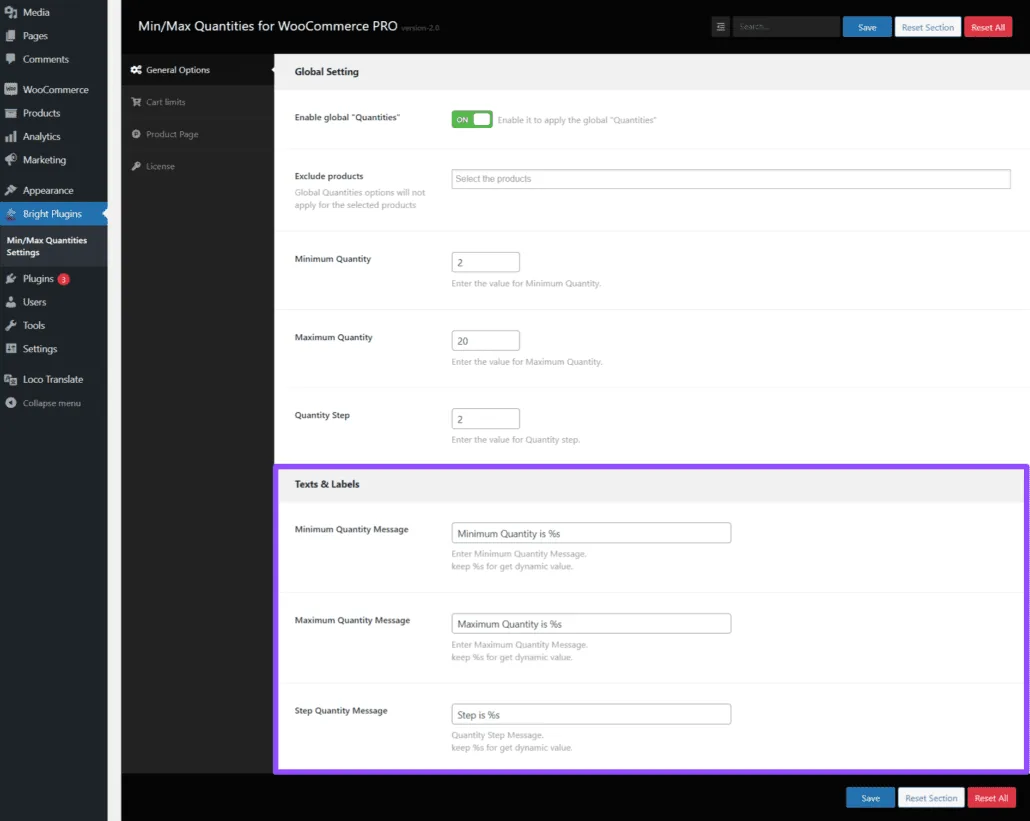
Finally, configure the notices and messages that customers will see if they do not comply with the minimum or maximum quantity rules. This step ensures that customers are informed about the quantity restrictions and can adjust their cart quantities accordingly.
For more information on how to manage plugins in WordPress, you can check out this guide.
Updated on April 16, 2026 · Need help? Open a support ticket