
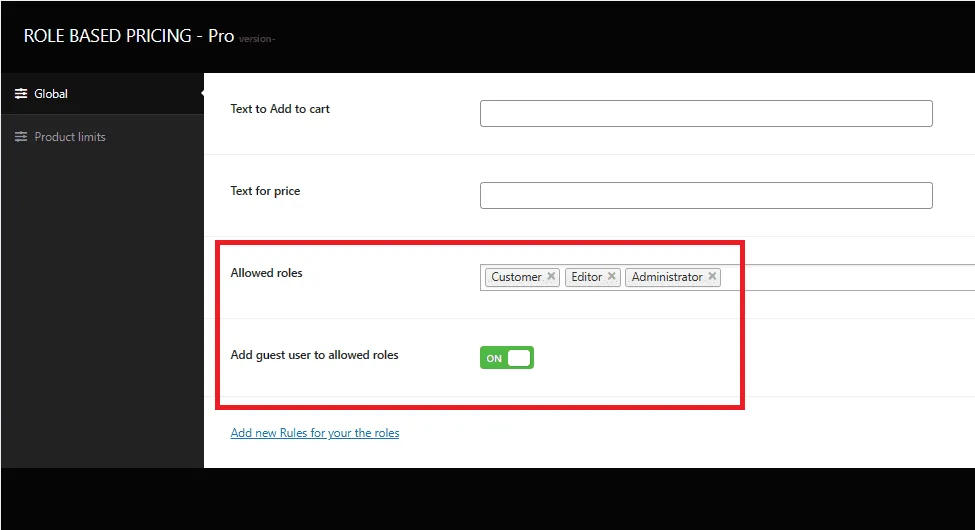
Go to plugin settings under the General Tab and choose the Roles that be allowed on price changes
If you’re dealing with a single product, visit the product’s editing page and find the “Bright Role Based Pricing” option. Click on it to access the product-specific settings.
If you’re working with variable products (those with multiple variations), you’ll find this setting under each specific variation.
The product-level settings allow you to do the following:
The product level settings allow you to
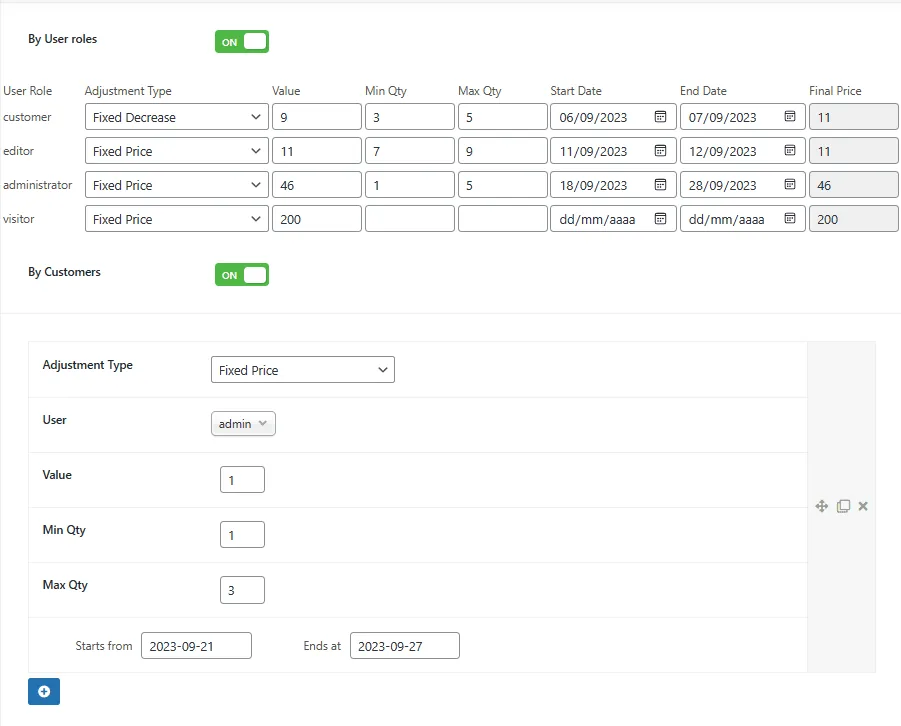
- Choose a user role and customer group for which you want to modify the prices.
- Specify a fixed price or adjust the price by a percentage or a specific amount.
- Set minimum and maximum quantities for the product to apply the chosen price.
- Choose a date range when the prices will be applied
Pricing Priority:
1 – Price Specific to a Customer
2 – Price Specific to a User Role
3 – Regular Product Price
Updated on April 20, 2026 · Need help? Open a support ticket