
General
On the General tab you can see the general options of the plugin and configure them according to your needs.
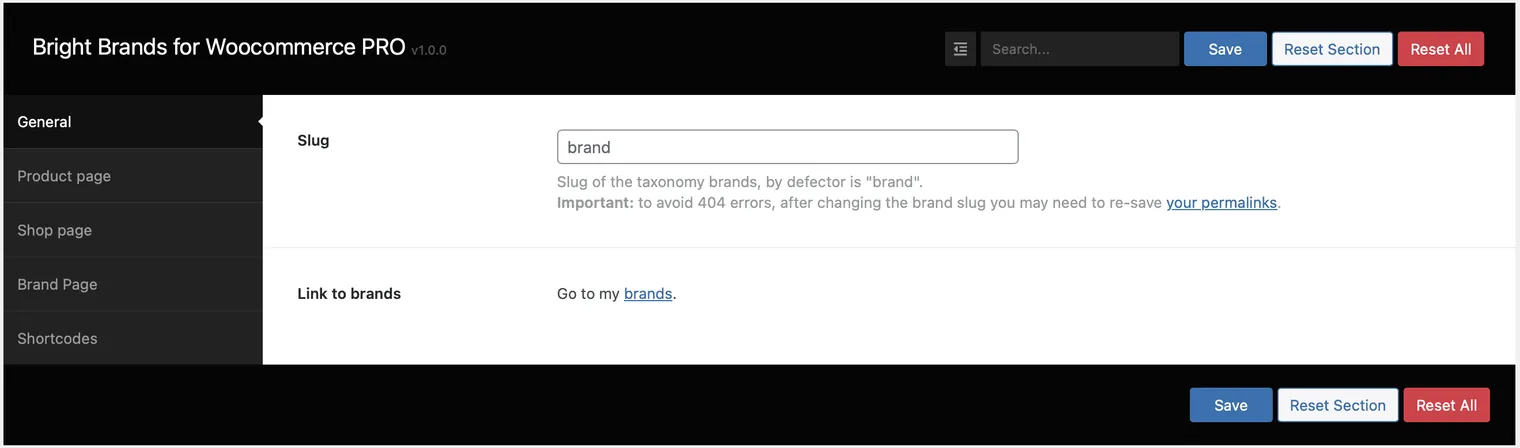
- Slug option:This feature allows you to add your own taxonomy slug for brands, by default is “brand”Important note: to avoid 404 errors, every time you change the slug, you need to re-save your permalinks.
- Link to brands:By clicking on this link: ‘brands’ you will be taken to the brand taxonomy page, so you can manage your brands.
Product page
On the Product page tab, you can configure how brands should look on the pages of your products that have already chosen their brand.
- Show brands:If you want to display the product brand on single product pages, all you need to do is activate this optionActivate it to display the brands in single products page

- Products tab:Enable this option to display the brand tab on individual product pages, within this tab customers will see information about the product brand

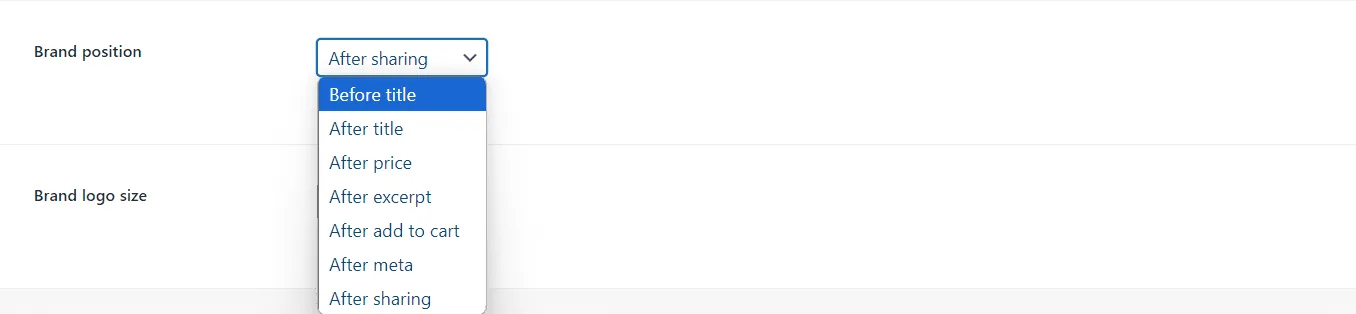
- Brand position:With the Brand position option, you can choose where to display the brand. The available options are
- Before titleAfter titleAfter priceAfter excerptAfter add to cartAfter metaAfter sharing
- Brand logo size:With the Brand logo size option, you can choose the logo size on single product pages. The available options are
- ThumbnailMediumMedium largeLargeFull

- Add Brand(s) to Page Title:Text to include to page title. Example “Product {product_name} by {brand_name}”

Shop page
On the Shop page tab, you can configure how brands should look on the shop page
- Show brands in the loop:Here you can choose whether to display brand icons or brand names, or none at all, on your shop page

- Enable integration with ajax search plugins:Turn it on if your search plugin does not work with taxonomies to include brands and products in the autocomplete search resultsCompatible plugins:
- AWS Free (Advanced Woo Search – Free)YITH WooCommerce Ajax Search

- Search form autocomplete:Choose what to display when integrating with third-party Ajax search plugins. The available options are:
- No integration (Disable the feature)Show brands and products from the searched brandShow only brands list that matches with the search

- Main element CSS Class:Include your custom CSS class to modify the style of the result wrapper element on the autocomplete

Brand Page
On the Brand page tab, you can configure how brand pages should display their information
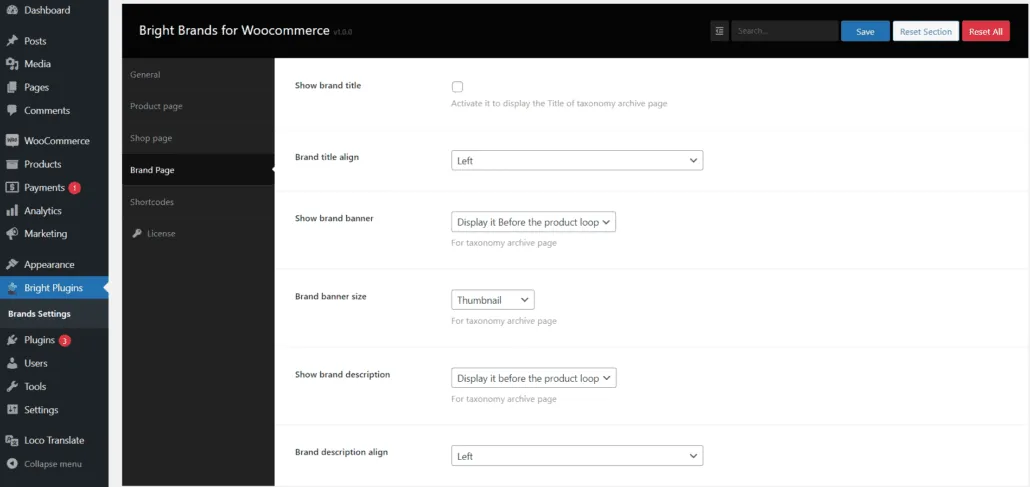
- Show brand title: Activate it to display the taxonomy title on brand pages!

- Show brand banner: With Show brand banner option, you can display the brand banner on brand pages. The available options are:
- Display it Before the product loopDisplay it After the product loopNo (do not display the branner)

- Brand banner size: Do you want to change the banner size? Use this feature for that. The available options are
- ThumbnailMediumMedium largeLargeFull

- Show brand description: To display the brand description on brand pages use this feature. The available options are:
- Display it Before the product loopDisplay it After the product loopNo (do not display the branner)

Shortcodes
On the Shortcodes tab, you will see the shortcodes availables for you store online !
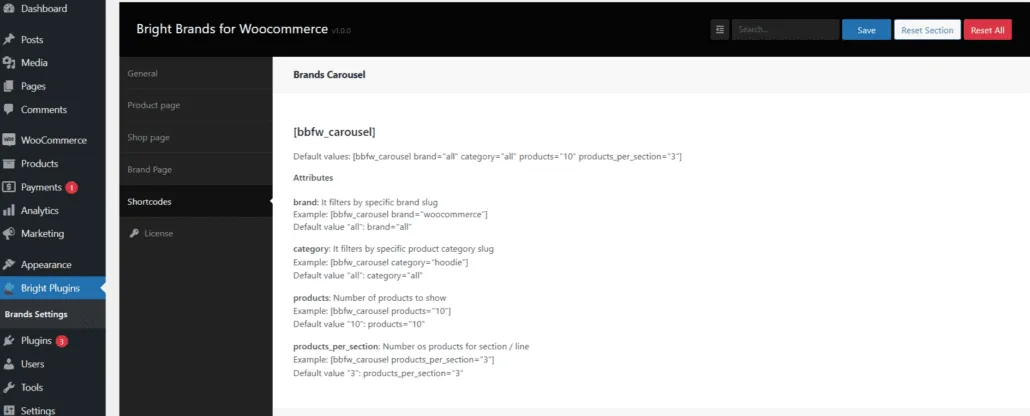
- Brands Carousel:Utilize the brand carousel shortcode to showcase an attractive and engaging carousel anywhere within your online store. Additionally, you can leverage its attributes to further customize it according to your requirements:
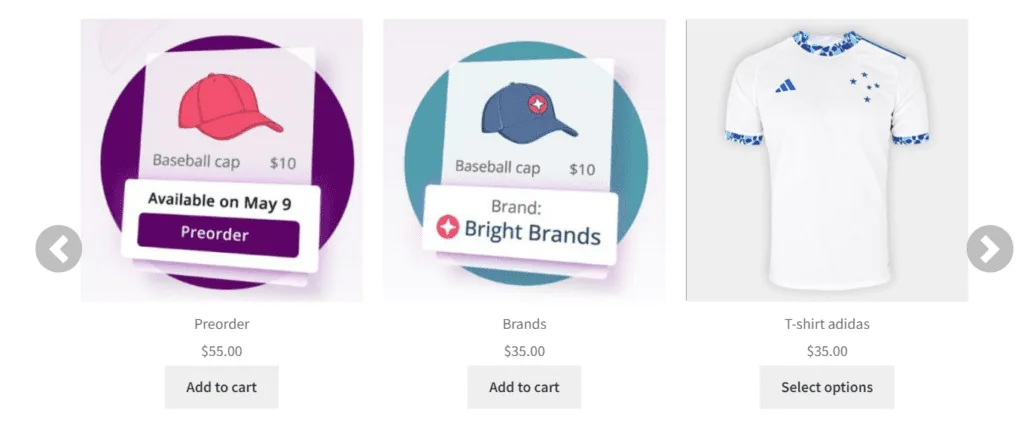
[bbfw_carousel]
Default values: [bbfw_carousel brand=”all” category=”all” products=”10″ products_per_section=”3″] Attributes
brand: It filters by specific brand slug
Example: [bbfw_carousel brand=”woocommerce”]
Default value “all”: brand=”all” category: It filters by specific product category slug
Example: [bbfw_carousel category=”hoodie”]
Default value “all”: category=”all” products: Number of products to show
Example: [bbfw_carousel products=”10″]
Default value “10”: products=”10″ products_per_section: Number os products for section / line
Example: [bbfw_carousel products_per_section=”3″]
Default value “3”: products_per_section=”3″- Favorite Brands:Employ the favorite brands shortcode to feature your preferred brands prominently on any page of your online store. Moreover, harness its attributes to tailor it to your specific
- preferences

[bbfw_favorite_brand] Default values: [bbfw_favorite_brand title=”Favorite Brands” title_size=” title_size_unit=”px” message_no_brand=”There
are no brands added to favorites”] Attributes
title: The title to the favorite brands
Example: [bbfw_favorite_brand title=”Popular Brands”]
Default value “Favorite Brands”: title=”Favorite Brands” title_size: The title font size, without the unit
Example: [bbfw_favorite_brand title_size=”14″]
Default value “: title_size=” title_size_unit: The unit to the title font size (ex px, em, pt)
Example: [bbfw_favorite_brand title_size_unit=”px”]
Default value “px”: title_size_unit=”px” message_no_brand: The text when no brand is favorited
Example: [bbfw_favorite_brand message_no_brand=”No brands added”]
Default value “There are no brand(s) added to favorites”: message_no_brand=”There are no brand(s) added to favorites”
- Alphabetical Brand Glossary:Utilize the Alphabetical Brand Glossary shortcode to create an alphabetical index of brands, offering convenient navigation for customers to explore your brand offerings. Furthermore, you can fine-tune its attributes to align with your specific brand presentation preferences
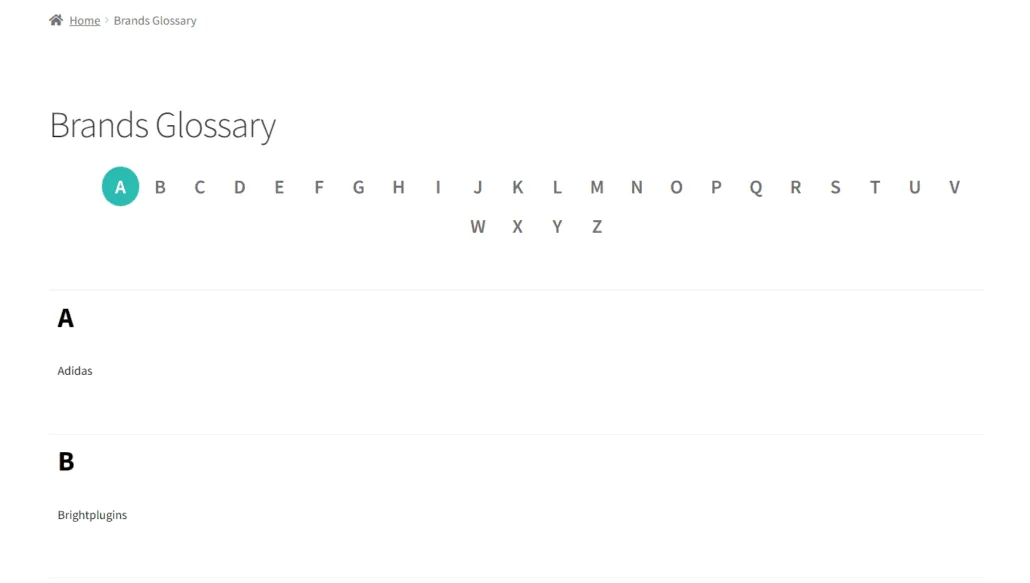
[bbfw_brand_glossary]
Default values: [bbfw_brand_glossary wrapper_css_class=” hide_empty=”false”] Attributes
wrapper_css_class: Add custom css class to the main wrapper element
Example: [bbfw_brand_glossary wrapper_css_class=”wrapper-theme-css”]
Default value “: wrapper_css_class=” hide_empty: Hide brands without products
Example: [bbfw_brand_glossary hide_empty=”true”]
Default value “false”: hide_empty=”false”
Brands Taxonomy
Navigate to the General tab and click on the Go to My Brands option. Here, you can perform the following actions:
- Create, update, delete, and view the brands you have added.
- Add the logo, banner, description, banner link, slug, and name for the brands you are adding
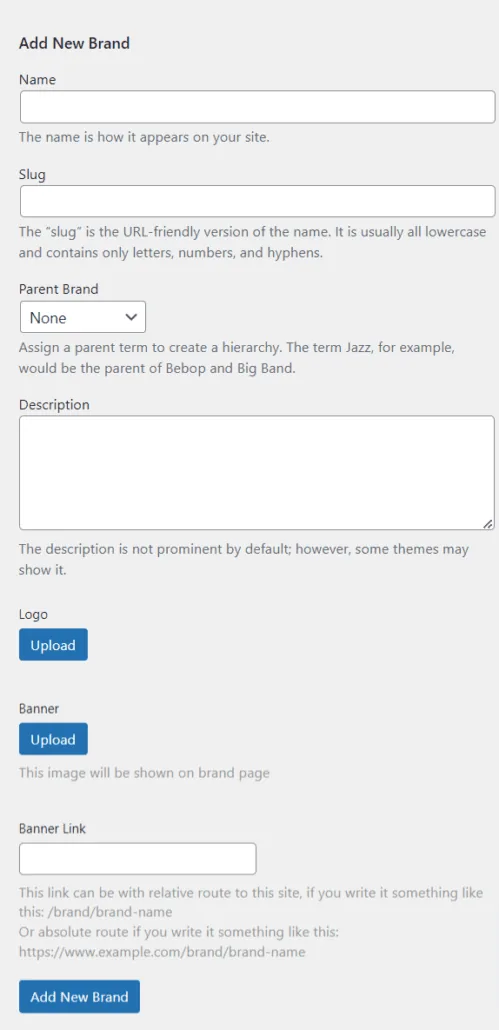
- Add a new brand:
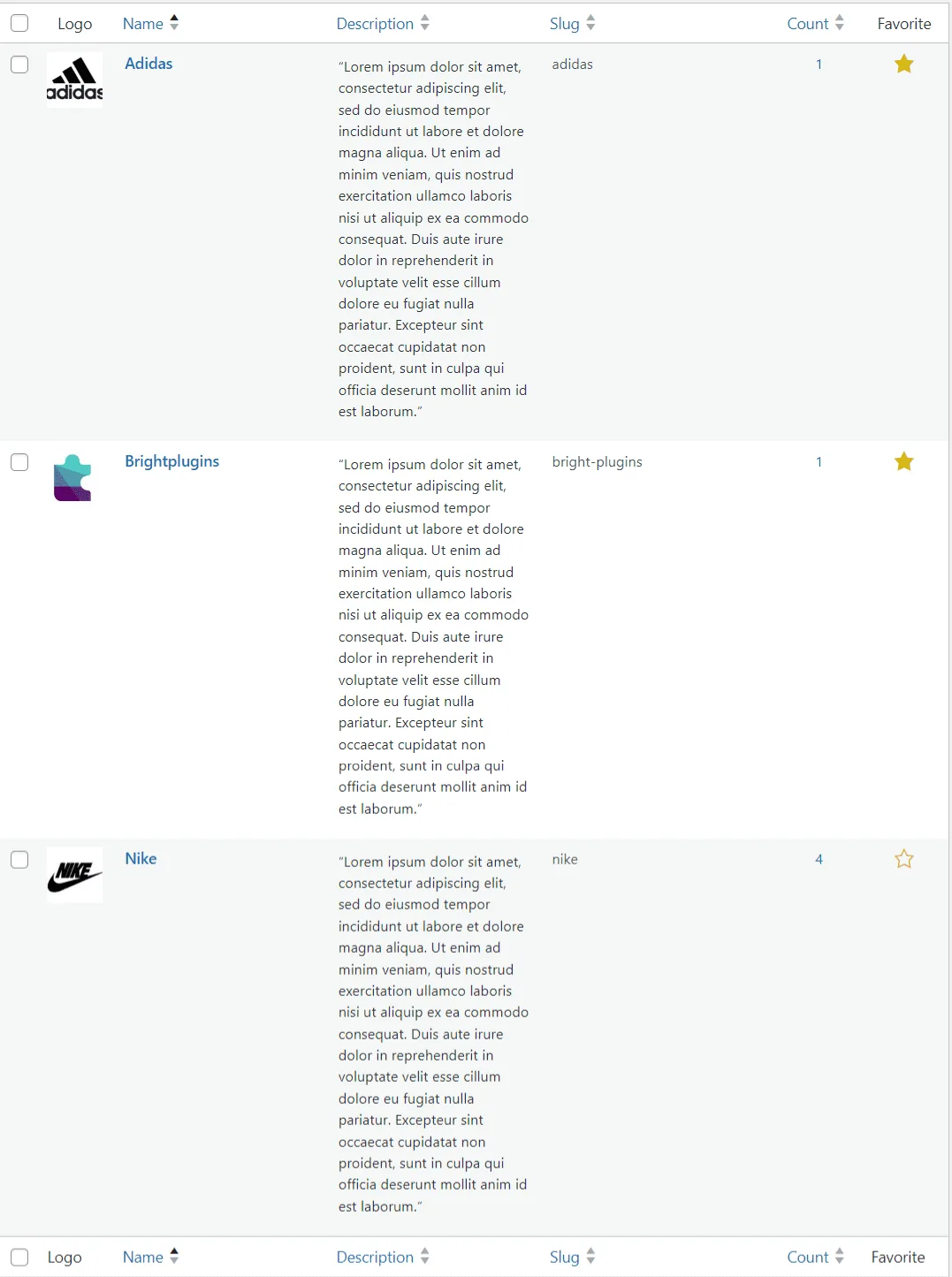
- Brands listing (Pro version):In the Pro version, you can add bookmarks to your favorites for use with the Shortcode Favorites
Updated on April 20, 2026 · Need help? Open a support ticket