
In this guide, you will learn how to add shortcodes using the Brands for WooCommerce plugin, developed by Bright Plugins. This functionality is especially useful for store administrators who wish to organize and display brands in a carousel format on their product pages. By following the steps outlined here, you can enhance the user experience and improve the overall aesthetics of your store.
Steps to Add Shortcodes#
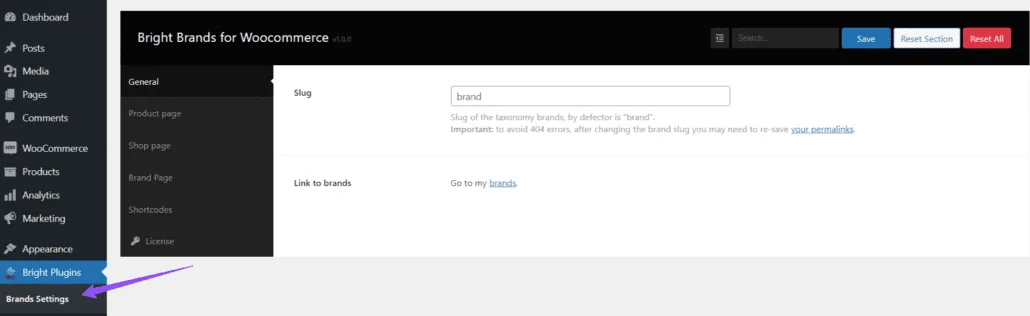
1. Access Brands Settings#
- Navigate to Bright Plugins > Brands Settings.
- Select the Shortcodes option.
2. Prepare the Shortcode#
Before you insert the shortcode, it’s important to decide where and how you want to display the brands. In our example, we will create a carousel on the Shop page. Using shortcodes can simplify the process of embedding complex functionalities without requiring deep technical knowledge.
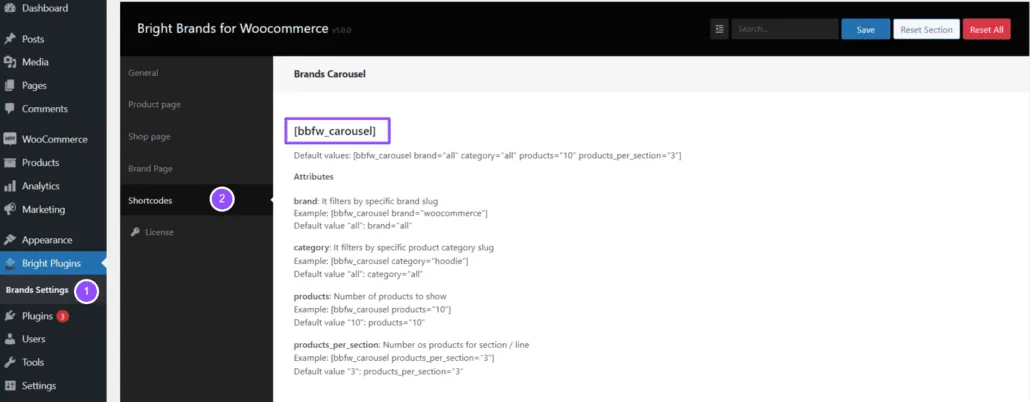
3. Insert the Shortcode on a Page#
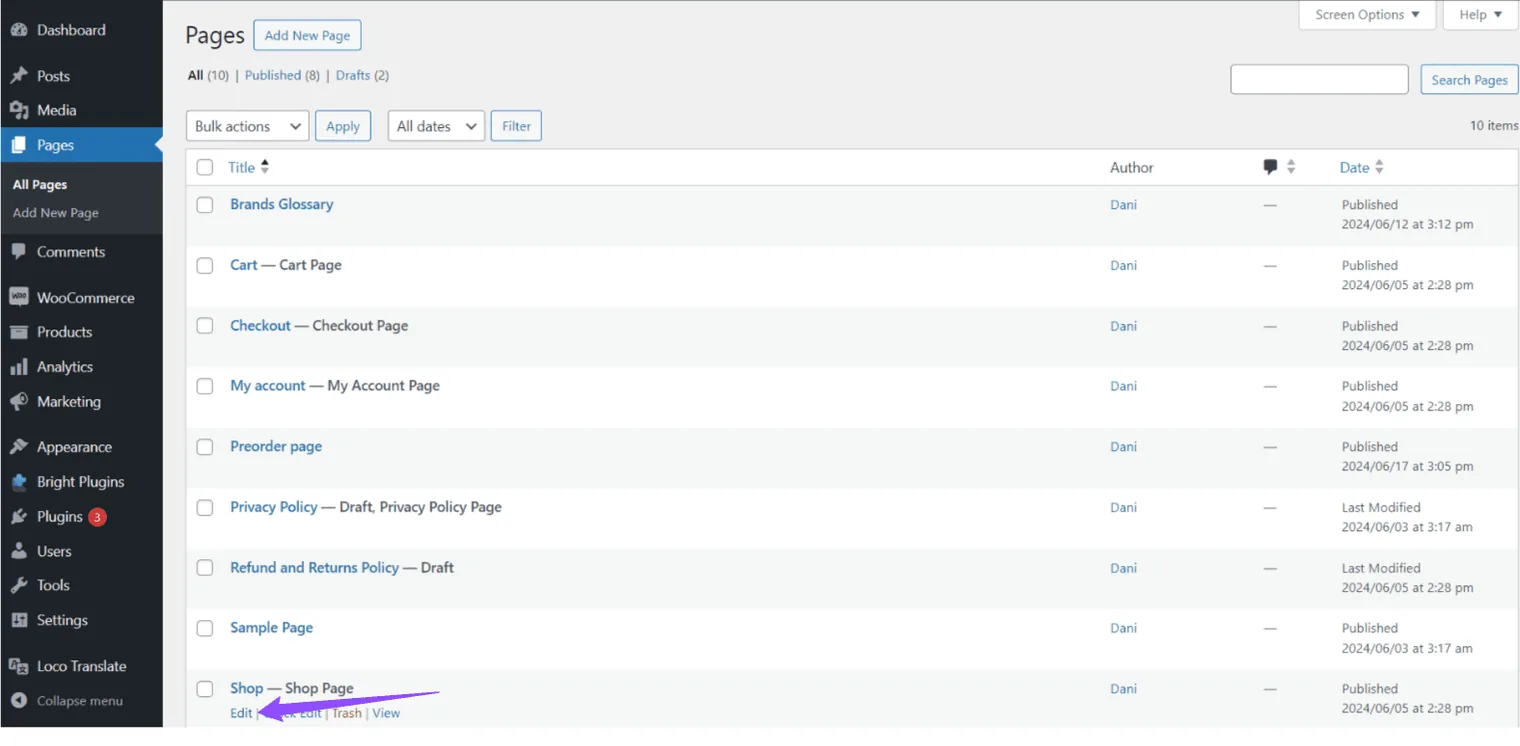
- Go to Pages > All Pages.
- Select the page where you want to insert the carousel. In this case, we select Shop.
- Click on Edit.
In the usual page editor, insert the desired shortcode. In this example, we will use the following shortcode:
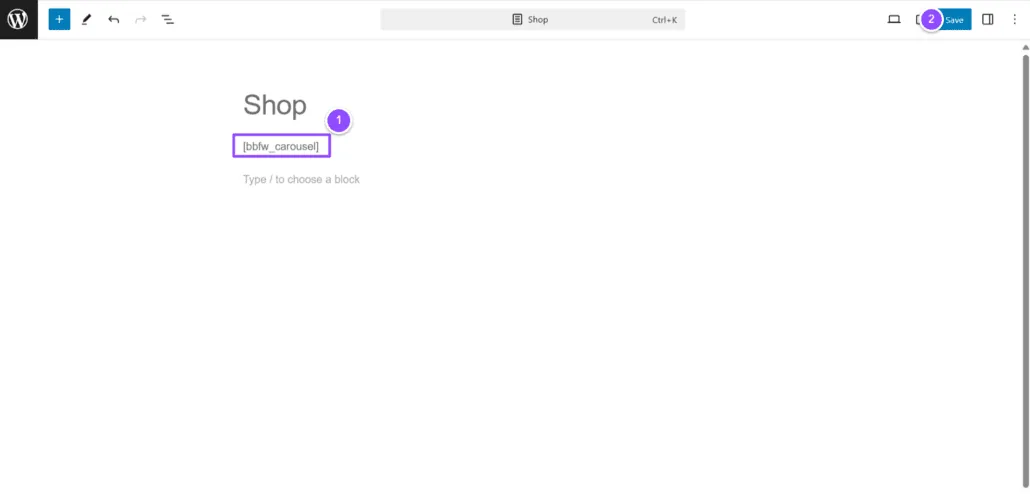
Click on Update to save the changes.
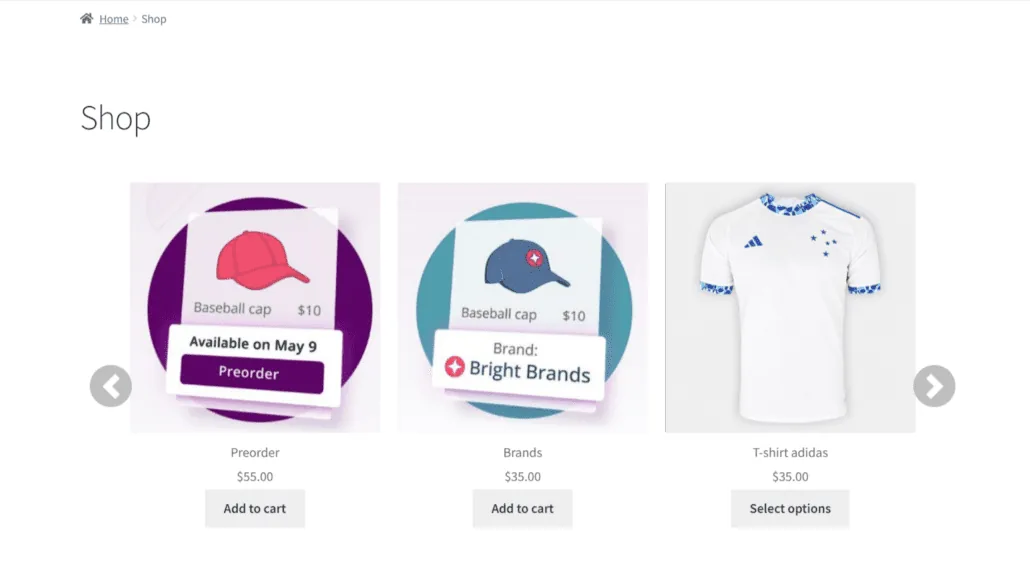
4. Verify the Result#
Finally, verify how the carousel is displayed on the Shop page. The result should reflect the brands in a carousel format according to the applied settings.
Troubleshooting Common Issues#
If the shortcode does not display correctly, consider the following troubleshooting steps:
- Check for Plugin Conflicts: Ensure no other plugins are conflicting with the Brands for WooCommerce plugin.
- Review Shortcode Syntax: Make sure the shortcode is entered correctly without any typos.
- Update Plugins: Ensure all your plugins, including WooCommerce and Brands for WooCommerce, are up to date.
Conclusion#
By following these steps, you can apply the different shortcode options available in the settings section of the Brands for WooCommerce plugin. This will not only facilitate brand management in your store but also enhance the user experience when browsing through your products.
Additional Resources#
For more help on using shortcodes and other advanced settings, feel free to consult the official WooCommerce and WordPress documentation.
Updated on April 17, 2026 · Need help? Open a support ticket