
When you activate WooCommerce Deposits for the first time, you will be guided by an Initial Setup Wizard.
This wizard helps you configure the most important options in just a few steps, so you can start using deposits immediately.
Steps in the Setup Wizard#
Choose Deposit Mode
Decide if your store will allow deposits alongside full payments, or if deposits will be mandatory for all products.

Set Deposit Type
Define whether the deposit will be a percentage (%) of the product price or a fixed amount ($).

Default Selection
Choose the default option shown to customers on the product page (e.g., Pay Full or Pay Deposit).

Reminder Settings
Configure the number of days before due date to send an automatic reminder email.
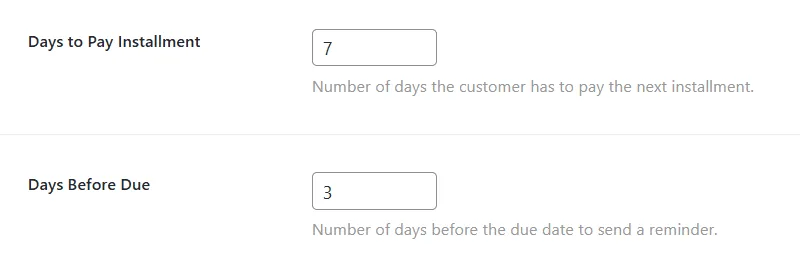
Save & Finish
Once you complete the wizard, the settings are stored and applied globally to your store.
Note#
You can adjust all these settings later from WooCommerce → Bright Plugins → Deposit Settings, under General Settings.
The wizard is simply a quick-start guide to help you launch faster.
Updated on April 17, 2026 · Need help? Open a support ticket