
Summary
This guide shows you how to open BOGO Deal and create a simple Buy 1 Get 1 Free rule for the same product, then test it on the frontend.
Before you start#
Make sure that:
- WooCommerce is active.
- Bright Plugins Pro is installed and activated.
- Your license is active in BOGO Deal → License.
Open the BOGO Deal module#
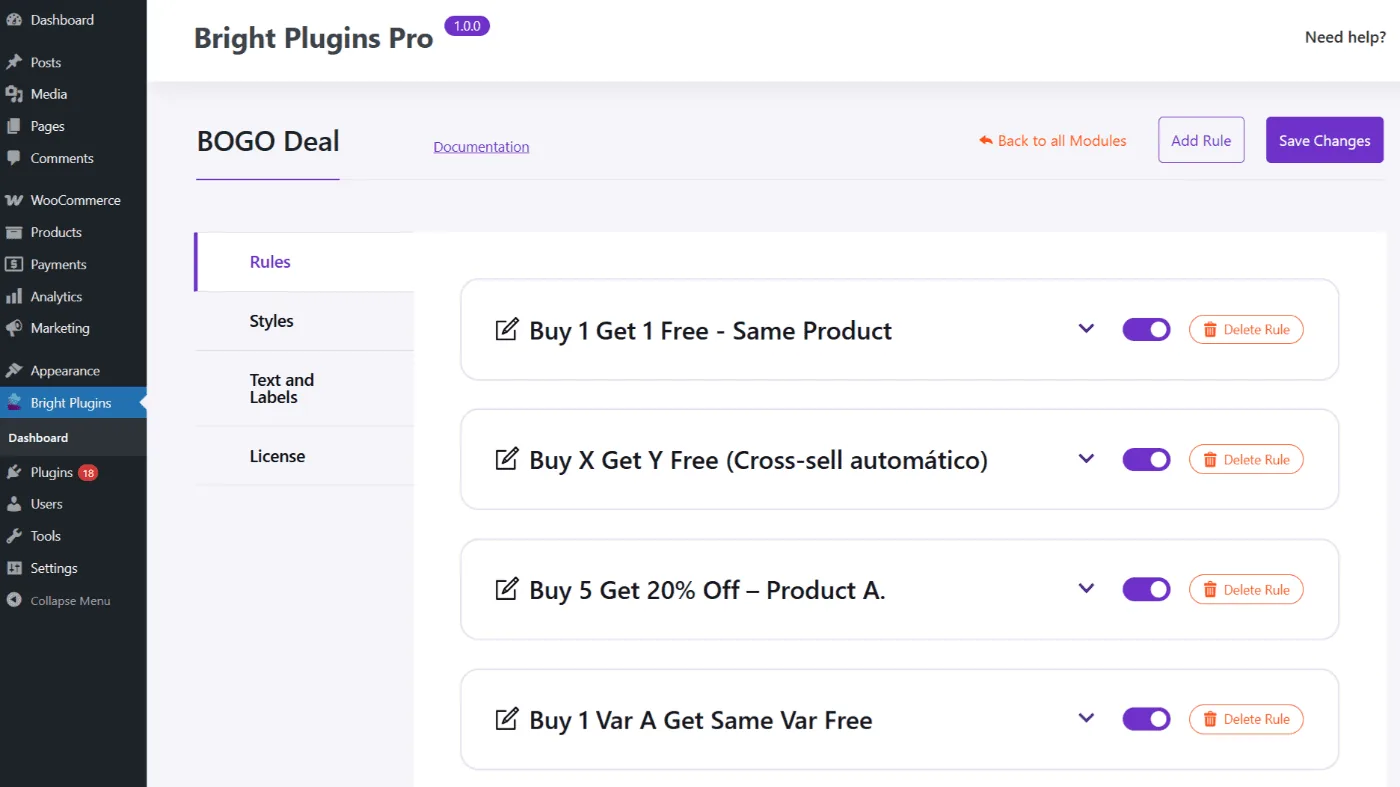
- In the WordPress dashboard, go to Bright Plugins Pro.
- Click BOGO Deal.
- Confirm you are on the Rules tab.
Create the rule#
- Click Add Rule.
- Enter a clear name like Buy 1 Get 1 Free – Same Product.
- Make sure the rule toggle is enabled.
Configure the trigger in Purchase These Products#
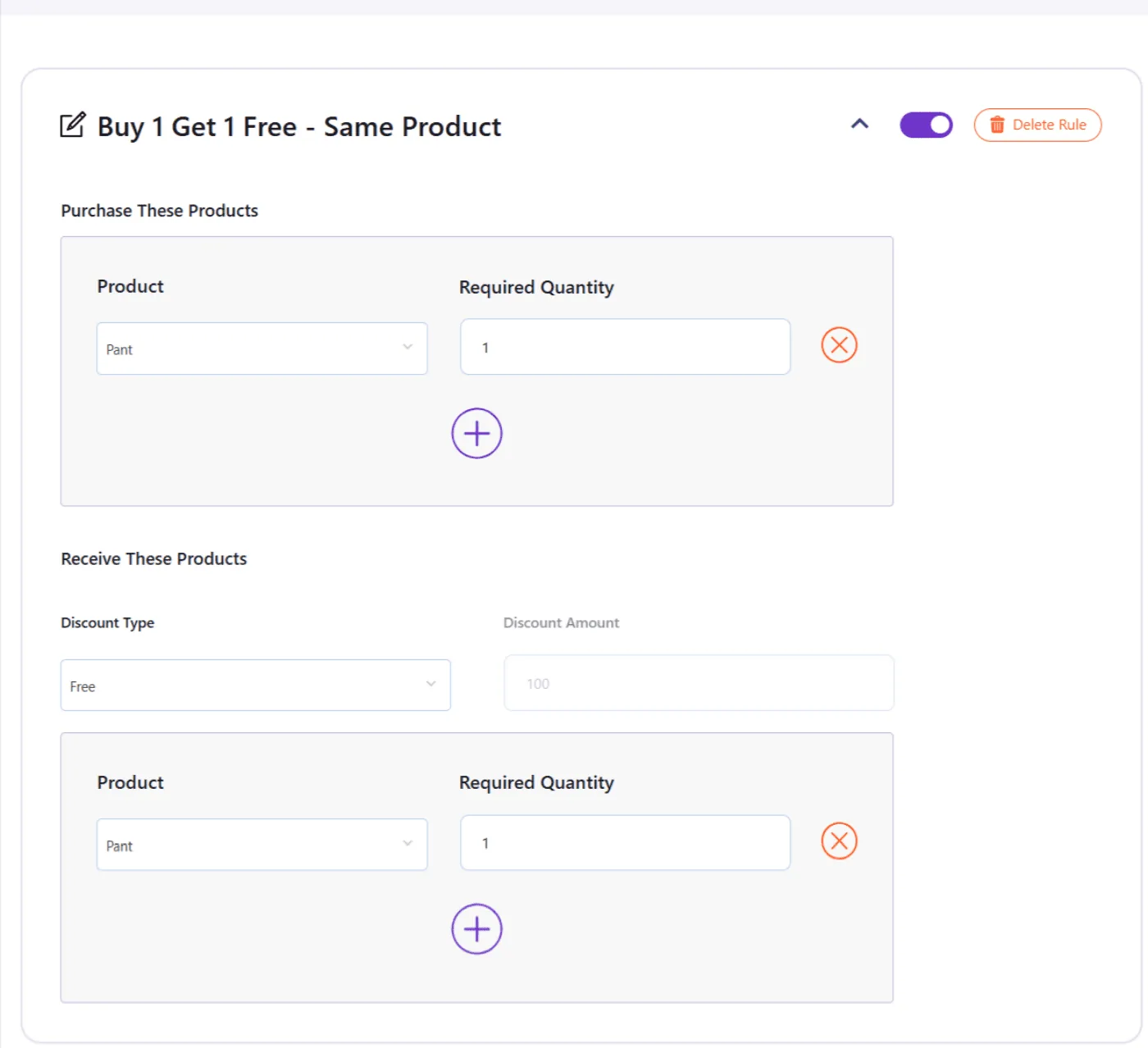
Select the trigger product#
Choose the product you want to promote.
Set the Required Quantity#
Set Required Quantity = 1.
This means the deal is triggered when the customer adds 1 unit of this product to the cart.
Configure the reward in Receive These Products#
Choose the discount type#
Set Discount Type = Free.
Select the reward product#
Select the same product used in the trigger.
Set the reward quantity#
Set Required Quantity = 1.
This means the customer receives 1 additional unit for free once the trigger is met.
Save and test your promotion#
- Click Save Changes.
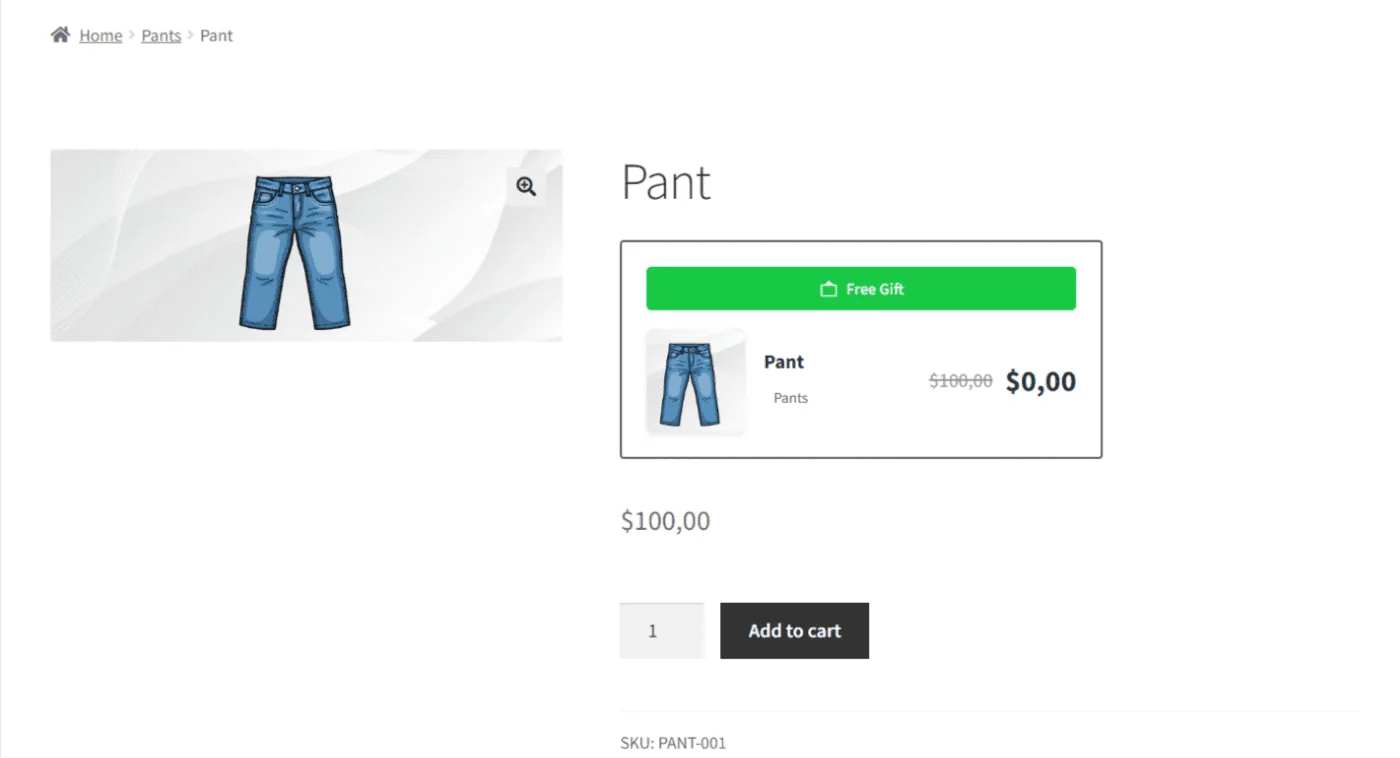
- Open the product page on the frontend.
- Confirm the BOGO card is visible.
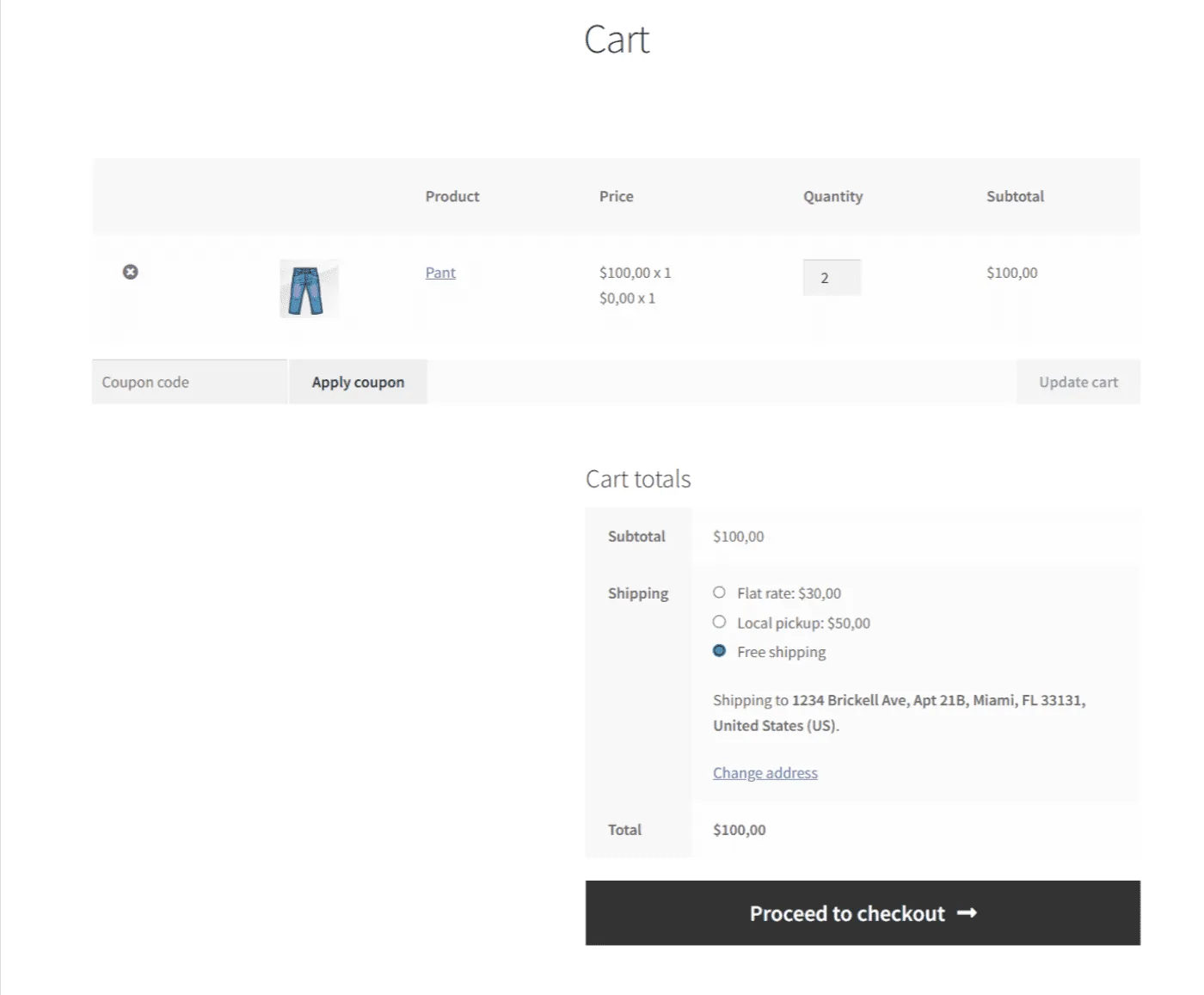
- Add 2 units of the product to the cart.
- Check that only 1 unit is charged and the free item is applied automatically.
Common mistakes#
- The rule toggle is off.
- The product in Receive These Products is not the same as the trigger product.
- Required Quantity values don’t match the intended offer.
- Cache or optimization plugins prevent the updated card from appearing.
Related docs#
- BOGO Deal Overview
- How BOGO Rules Work (Triggers + Rewards)
- Overview of the Rules Panel
- Configure Trigger Products: Purchase These Products
- Configure Rewards and Discounts: Receive These Products
- Customize the BOGO Card Styles
- Customize BOGO Texts and Labels
Updated on April 22, 2026 · Need help? Open a support ticket