
Summary
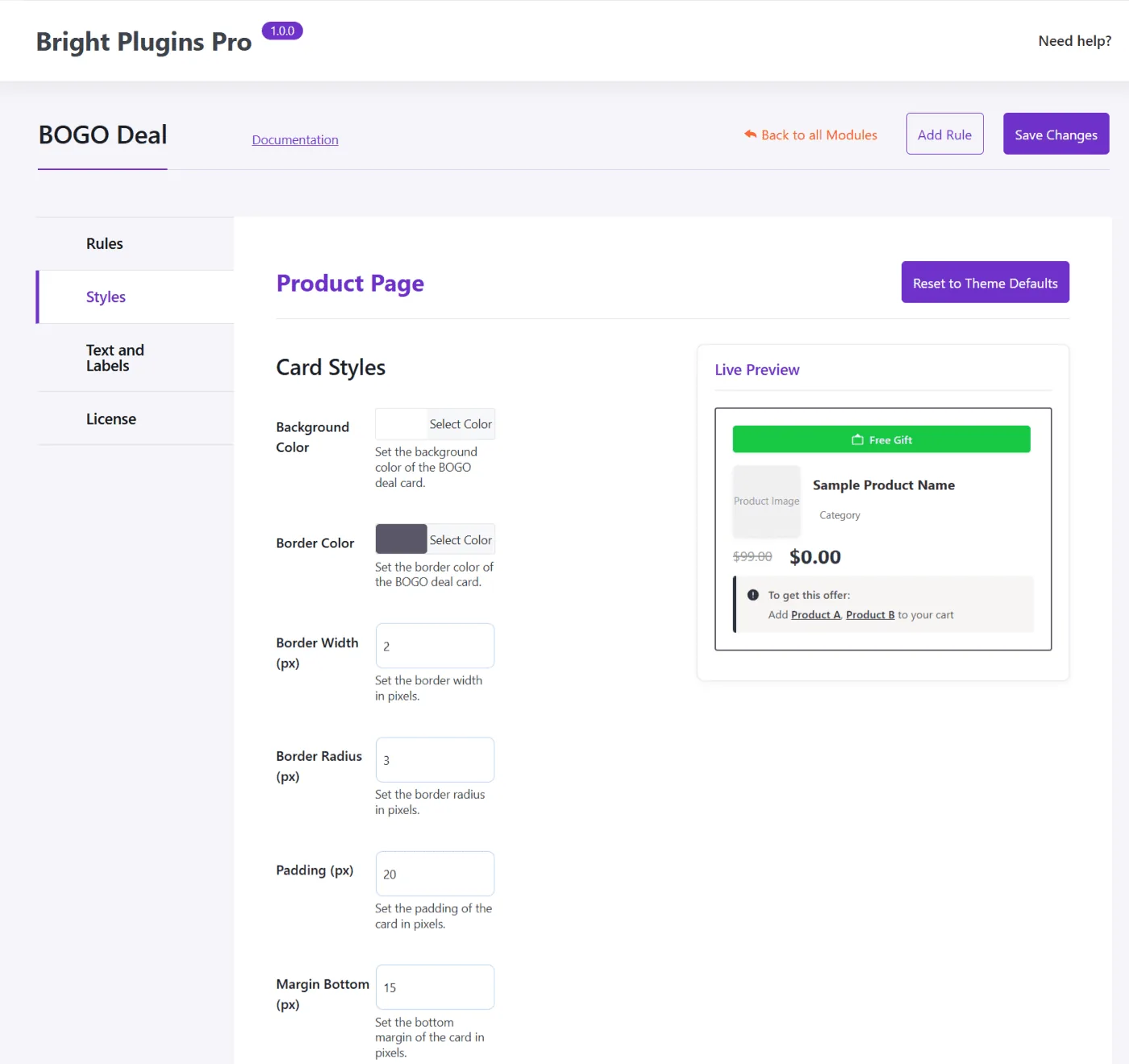
Use the Styles tab to make your BOGO card and notices match your store branding without touching theme files. Focus on the three areas that drive clarity and conversions.
Where to find the Styles tab#
- Go to Bright Plugins Pro → BOGO Deal.
- Open the Styles tab.
The 80/20 approach to styling BOGO#
To get the best visual result fast, prioritize these three areas:
- Card Styles for structure and readability.
- Label Styles for offer clarity.
- Price + Notice Message Styles for customer confidence at decision time.
Everything else is refinement.
Shot 1 – Card Styles (layout first)#
This section controls the overall container of the BOGO card.
What matters most#
- Background and border
- Border radius
- Padding and spacing
A clean card makes the offer easier to scan and trust.
Quick recommendations#
- Match your theme’s neutral tones.
- Use comfortable padding so the card doesn’t feel crowded.
- Keep the shape consistent with your theme buttons/cards.
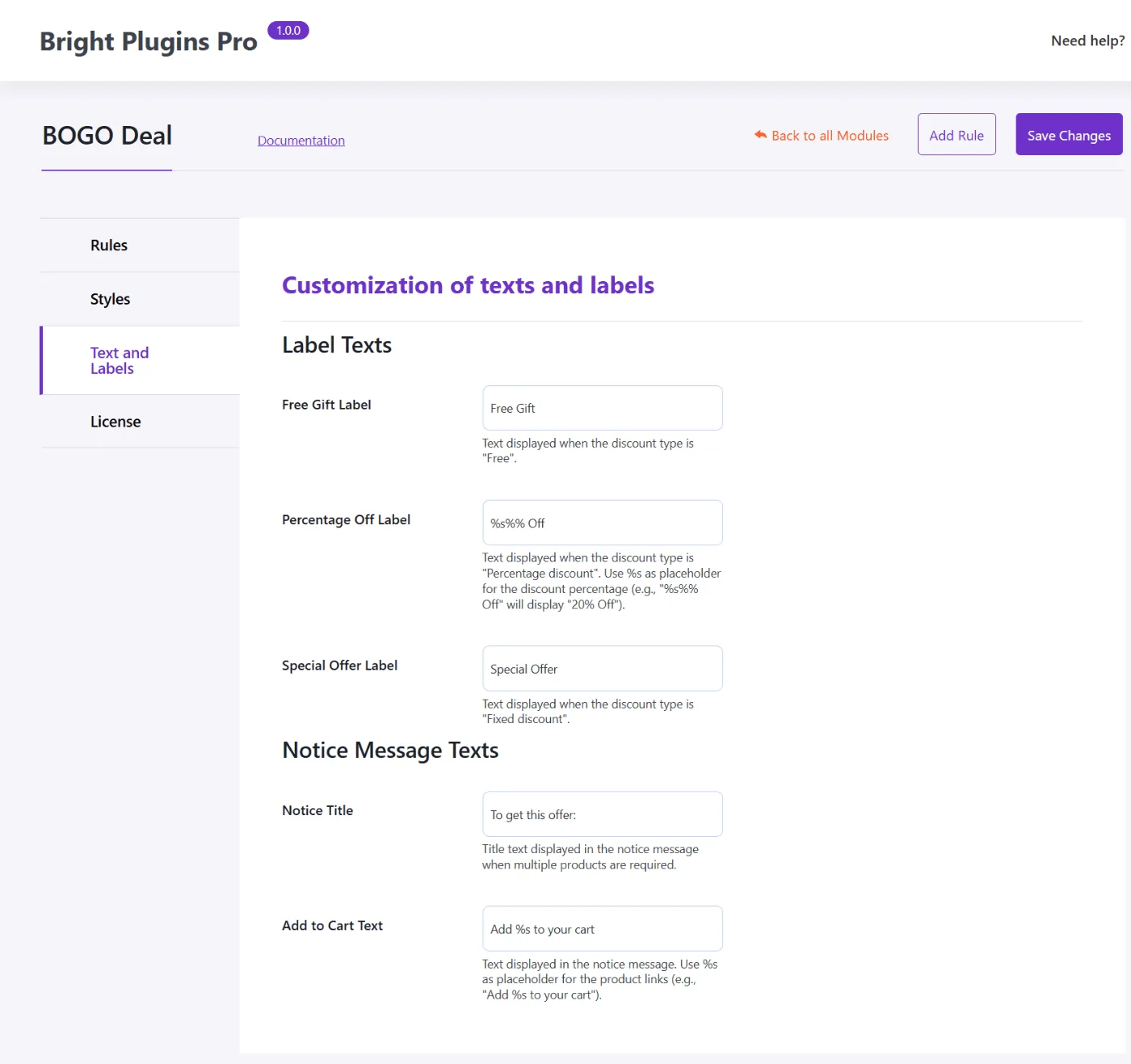
Shot 2 – Label Styles (make the offer obvious)#
Labels are often the first element customers read.
What matters most#
- High-contrast background and text
- Readable font size
- Clean padding and radius
Quick recommendations#
- Use strong contrast for “Free” offers.
- Keep labels short to avoid wrapping.
Shot 3 – Price and Notice Message (confirm the savings)#
These two areas reduce hesitation at the final step.
Price Styles#
Use this section to differentiate:
- Original price
- Discounted price
Best practice: make the discounted price more visually prominent than the original price.
Notice Message Styles#
This controls the cart and product notices when a deal is active or incomplete.
Best practice: keep notice backgrounds subtle but readable, so the message feels helpful, not intrusive.
Optional refinements (when you want polish)#
These help align the card with your catalog visual style:
- Product Name and Category Styles
- Product Image Styles
Preview and reset#
Use Live Preview#
Review readability and contrast before saving.
Reset to Theme Defaults#
Use it to remove custom styling and return to the default look.
Common issues#
- Changes don’t appear due to caching.
- Theme or optimization plugins delay updates.
- Styles were edited but not saved.
Updated on April 20, 2026 · Need help? Open a support ticket