WordPress Plugin Compatibility Issues and How to Avoid Them
One of the biggest strengths of WordPress is its plugin ecosystem. With tens of thousands of options available, there is almost always a plugin that can handle whatever feature a store needs. But that flexibility comes with a real trade-off: the more plugins a site stacks, the higher the chance that two of them will start interfering with each other.
Plugin compatibility issues are among the most common causes of broken layouts, missing functionality, or sluggish performance in WooCommerce stores. Most conflicts are predictable, diagnosable, and preventable with the right approach. This guide covers why conflicts happen, how to diagnose them efficiently, and what habits can help keep them from recurring.
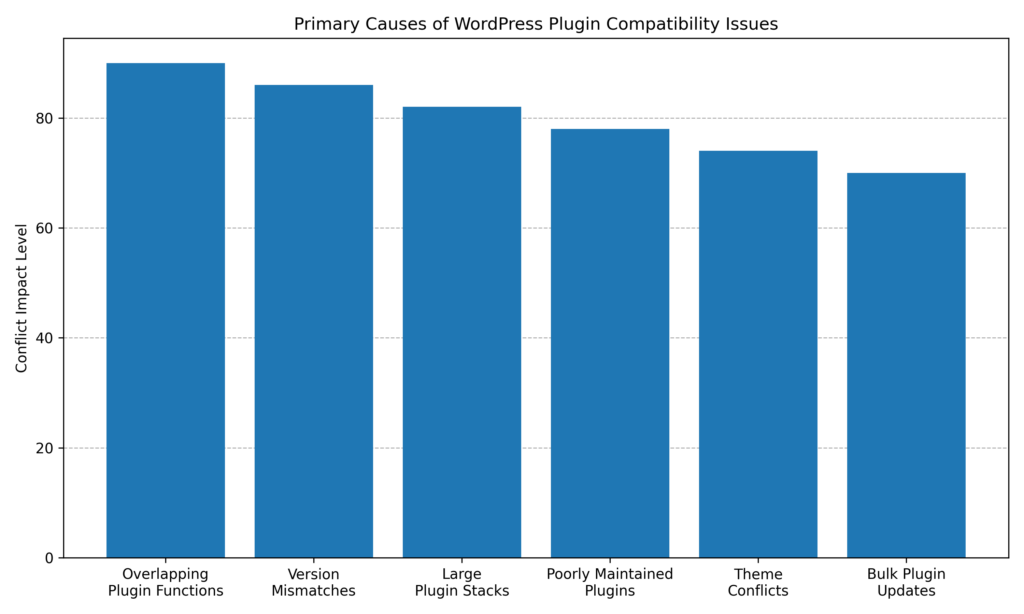
In practice, plugin compatibility issues tend to arise from overlapping functionality, version mismatches, and growing plugin stacks. As stores rely on more extensions to support marketing, checkout optimization, and design customization, the number of interaction points between plugins increases. Careful update management, staging environments, and selective plugin installation have become standard practices for maintaining a stable WordPress environment.
What Are WordPress Plugin Compatibility Issues?
A plugin compatibility issue occurs when one WordPress plugin interferes with the normal operation of another plugin, the active theme, or WordPress itself. The result can range from a minor visual glitch on product pages to a full site crash in which neither visitors nor administrators can access it.
It is easy to assume something is wrong with the server or hosting setup when these errors appear. In many cases, a plugin conflict is often the first place worth investigating. Unusual site behavior often stems from a plugin conflict rather than a server-level problem, which is why plugin isolation is a standard early step in any WordPress troubleshooting workflow.
Why Conflicts Are So Common
WordPress is open source, which means any developer can publish a plugin to the repository without a centralized compatibility review process. Two plugins written by completely different teams for completely different purposes can still collide because they share underlying code libraries, attempt to modify the same part of the page, or compete to control the same WordPress function.
The three most frequent root causes are:
- Overlapping functionality: Two plugins that both handle checkout optimization, caching, or image compression may attempt to execute conflicting instructions at the same time.
- Poorly written code: A single plugin using non-standard coding practices can interfere with other plugins on a site, even ones that are functionally unrelated.
- Version mismatches: A plugin update that works correctly on its own may affect compatibility with a theme or another plugin that has not yet been updated to match.
None of this typically reflects a problem with the store’s setup. It is the nature of running a flexible, extensible platform where thousands of independent developers contribute code.
Common Signs of a WordPress Plugin Conflict
Plugin conflicts do not always announce themselves with a clear error message. Some signs are subtle. Watch for these on a WooCommerce store:
- Buttons or menus that disappear or stop working after an update
- Broken product page layouts or gallery images that fail to load
- Check out errors that appear only for certain customers
- A completely blank white screen with no content
- Slower page load times appear shortly after installing a new plugin
- Admin panel features that stop responding or display PHP errors
- JavaScript errors are visible in the browser console
The most useful pattern to notice is timing. If something breaks shortly after installing or updating a plugin, that is generally the most productive place to start the investigation.
How to Diagnose a Plugin Compatibility Issue
Diagnosing a conflict follows a process of systematic elimination. The goal is to isolate which plugin is causing the problem as efficiently as possible. Before making any changes, it is advisable to set up a staging environment. Modifying a live WooCommerce store while customers are browsing and checking out carries real business risk.
Step 1: Check Your Browser Console
Open the browser’s developer tools (press F12 in Chrome) and navigate to the Console tab. Look for red or yellow error messages, particularly any that reference a specific plugin file path. JavaScript errors pointing to a plugin folder are a strong indicator of where the conflict originates and can save considerable guesswork.
Step 2: Enable WordPress Debug Logging
If the browser console does not point toward a cause, enable WordPress debug mode by editing the wp-config.php file. Set WP_DEBUG and WP_DEBUG_LOG totrue, and WP_DEBUG_DISPLAY to false So errors log quietly rather than appearing on the frontend. Check the debug.log file inside the wp-content folder. Any line that references a specific plugin filename is a useful lead.
Step 3: Deactivate All Plugins
From the WordPress admin panel, go to the Plugins page, select all plugins, and choose Deactivate from the bulk actions menu. Reload the page where the problem was occurring. If the issue disappears, a plugin is confirmed as the source.
Step 4: Reactivate One at a Time
Reactivate plugins one by one, starting with those most likely related to the problem area. Check the site after each activation. When the issue returns, the first suspect has been identified. Keep that plugin active, then continue reactivating the remaining plugins one at a time. When the problem reappears, the second plugin involved in the conflict has been identified.
Step 5: Check for Theme Conflicts
If deactivating all plugins does not resolve the issue, the theme may be involved. Switch temporarily to a default WordPress theme, such as Twenty Twenty-Four, and test again. If the problem disappears after changing the theme, the conflict is between a plugin and the theme. Reactivate the original theme and repeat the plugin isolation process to identify which specific plugin is causing the conflict.
What to Do When Your Site Has Crashed
If a plugin conflict has locked out the admin panel entirely, recovery is still possible. The most accessible method for non-developers is to access site files via SFTP using a tool like FileZilla. Connect to the server using the credentials provided by the hosting company and navigate to the wp-content folder. Rename the plugins folder to something like plugins-disabled. WordPress will deactivate all plugins automatically when it can no longer locate that folder.
Once the site reloads, log in to the admin panel and follow the manual isolation process above to identify the specific conflict before renaming the folder back to its original name.
If renaming the plugins folder does not restore the site, the issue may be due to a server memory limit rather than a plugin conflict. In that case, contacting the hosting provider is a reasonable next step.
How to Prevent Plugin Compatibility Issues
Resolving a conflict after the fact is time-consuming and disruptive. Building habits that reduce the frequency of conflicts is often a more sustainable investment for WooCommerce store owners.
Keep Plugins to a Minimum
Every plugin added introduces another potential interaction point. Auditing the plugin list periodically and removing anything not actively in use is a simple but effective step. Many features that store owners reach for plugins to handle, such as minor layout tweaks or small code additions, can often be addressed with a short snippet instead. In general, reducing the number of active plugins can contribute to a leaner and more stable store, though plugin quality matters as much as quantity.
Update Plugins Individually, Not All at Once
Batch updates are convenient but also a common trigger for plugin conflicts. When multiple plugins update simultaneously and something breaks, it can be difficult to identify which update caused the problem. Updating one plugin at a time and testing after each one takes a few extra minutes, but can save hours of troubleshooting.
Always Test on a Staging Site First
A staging environment is a private copy of the live store where plugin updates, new installations, and theme changes can be tested safely before going live. Many managed WordPress hosts offer one-click staging. Installing or updating plugins directly on a store that is actively selling introduces unnecessary risk.
Choose Well-Maintained Plugins
Before installing a WordPress plugin, check its update history in the WordPress repository. A plugin that has not been updated in six months or more may no longer be compatible with the current version of WordPress or WooCommerce. Look for plugins with recent updates, a substantial active install base, and responsive developer support. An active support thread history is a reasonable indicator that the developer maintains compatibility over time.
Take Regular Backups
Backups will not prevent conflicts, but they can reduce the impact when one occurs. With a recent backup, restoring a store to a working state typically takes minutes rather than hours. Automatic daily backups through a hosting provider or a dedicated backup plugin are worth setting up, and it is worth verifying periodically that restores actually work.
Best Practices for a Conflict-Resistant WooCommerce Store
Building a stable WooCommerce store is largely about a consistent process. The technical side of plugin conflicts is manageable when a thoughtful setup is paired with good ongoing habits.
- Keep the design lightweight. Heavy page builders and theme frameworks that rely on many supporting plugins can multiply the risk of conflicts. Themes with fewer dependencies tend to behave more predictably.
- Test for performance after every change. Running a quick page speed check after installing or updating any plugin can reveal early signs of conflict with a caching or optimization stack.
- Monitor checkout conversions. A plugin conflict affecting the checkout page may not be visually obvious but can quietly suppress sales. Monitoring cart abandonment rates and conversion data can help catch checkout-related issues before they go unnoticed for extended periods.
- Document what gets installed and when. A simple log of plugin installations and updates makes it easier to trace a conflict back to its source when something breaks days or weeks later.
- Check plugin compatibility before major WordPress updates. Before updating WordPress core, review whether key plugins have been tested against the new version. Plugin developers typically release compatibility updates around major WordPress releases.
Recommended Plugins That Support Stability and Troubleshooting
Maintaining a stable WordPress environment is easier when the tools used adhere to modern development standards and integrate cleanly with WooCommerce. The following plugins are widely used across WordPress and WooCommerce stores and support conflict prevention, debugging, and recovery workflows. Non-developers may find WP Staging and WP Rollback the most immediately practical, while developers and agencies managing multiple sites will get additional value from Query Monitor and ManageWP Worker.
WP Staging
Best for: Non-developers and store owners who want a safe testing environment
WP Staging allows store owners to create a working clone of their live site for testing plugin updates, theme changes, and new features before deploying them. This staging workflow enables early conflict identification without risking downtime on a live store.
- One-click staging environment creation
- Safe testing for plugin and theme updates
- Selective push from staging to production
- Database and file duplication tools
Health Check & Troubleshooting
Best for: Diagnosing conflicts without affecting live visitors
Health Check & Troubleshooting helps diagnose plugin conflicts without affecting visitors. It allows administrators to temporarily disable plugins for their own browsing session, enabling them to isolate compatibility issues without affecting the live site.
- Troubleshooting mode that hides changes from visitors
- System health diagnostics
- Plugin conflict isolation tools
- Server and PHP environment checks
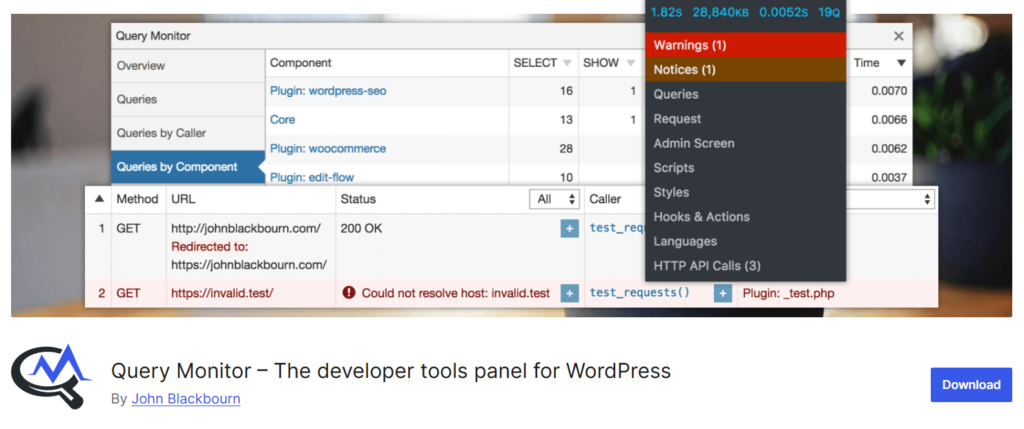
Query Monitor
Best for: Developers and agencies needing deeper debugging visibility
Query Monitor is a debugging plugin that helps developers and store owners identify database errors, slow queries, and PHP warnings that may result from plugin conflicts.
- Database query monitoring
- PHP error and warning detection
- Plugin and theme performance insights
- Detailed debugging panels
WP Rollback
Best for: Quickly recovering from a bad plugin update
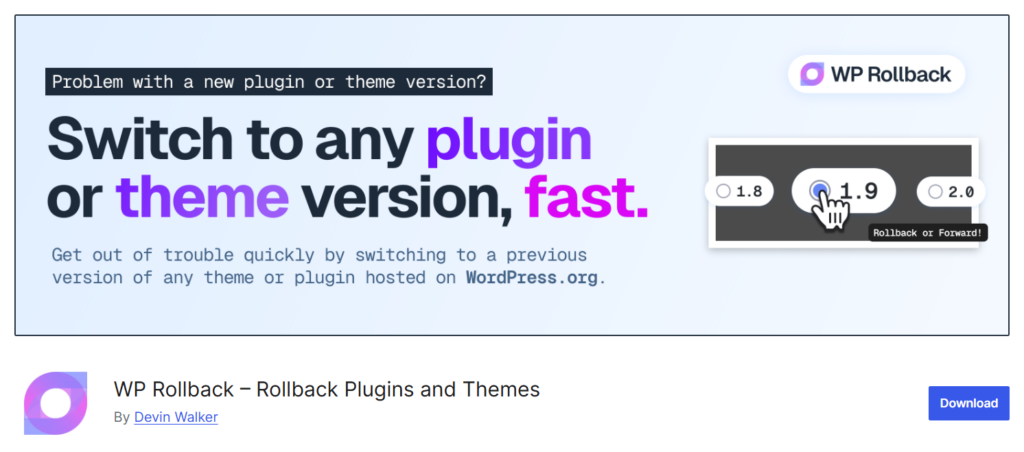
WP Rollback allows administrators to revert a plugin or theme to a previous version if a new update introduces compatibility issues, enabling them to quickly restore stability while waiting for a developer fix.
- Roll back plugin or theme updates to a prior version
- Version selection interface
- Straightforward restoration process
- Useful during plugin conflict troubleshooting
ManageWP Worker
Best for: Agencies and developers managing multiple WordPress installations
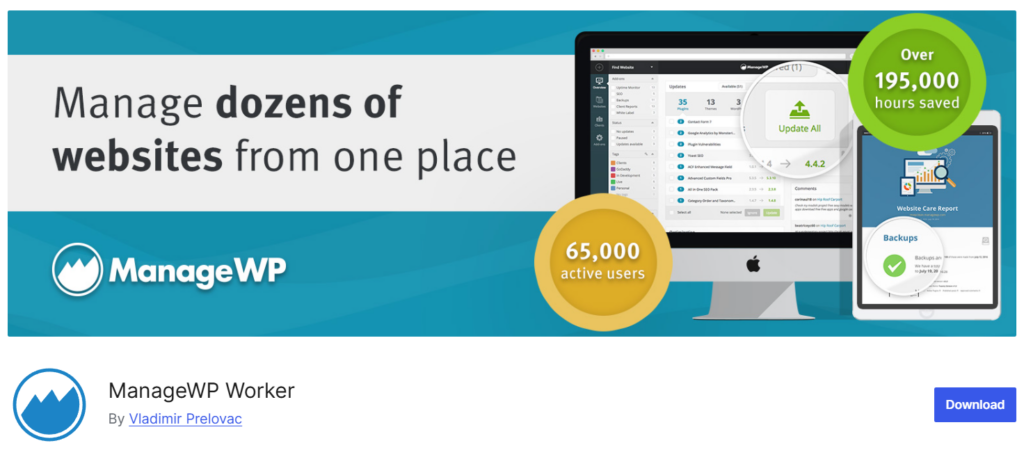
ManageWP Worker connects a site to the ManageWP dashboard, allowing centralized management of updates, backups, and performance checks across multiple WordPress installations.
- Centralized plugin update management
- Scheduled backups
- Performance and security monitoring
- Safe update testing workflows
Building a More Stable Store
WordPress plugin compatibility issues are a normal part of running a site on an open, extensible platform. They are not necessarily a sign that something is fundamentally wrong with a store. With a structured troubleshooting process and consistent preventive habits, most conflicts can be caught early and resolved without significant disruption.
Store owners who invest time in staging environments, update plugins thoughtfully, and keep their plugin count lean tend to spend less time troubleshooting and more time focused on growth. Starting with the basics and staying consistent will generally make any store more resilient over time.