
WooCommerce Plugin Bloat: How to Cut the Fat and Boost Performance
A WooCommerce store that loads slower than it should is losing customers. Shoppers abandon carts, Google PageSpeed Insights flags issues, and the instinct is often to upgrade to a faster hosting plan. Before spending money on additional server resources, the smarter first step is a close look at the plugins folder.
The average WooCommerce store runs 20 to 30 plugins, and many of them degrade performance in ways store owners never notice. The problem is rarely due to a single bad plugin. It is the cumulative weight of too many plugins doing too much, too often, on every page load.
This guide covers the true cost of plugin bloat, how to identify which plugins are dragging down performance, and practical steps to clean up a store without breaking anything.
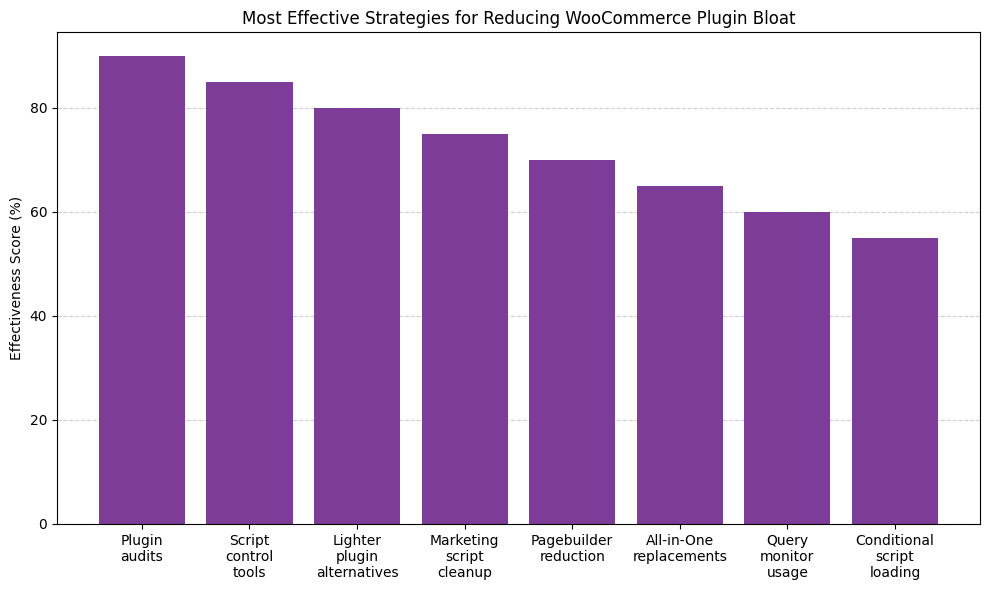
This chart highlights the most effective strategies for reducing WooCommerce plugin bloat. Conducting full plugin audits ranks as the top approach, followed closely by using script control tools such as Perfmatters and Asset CleanUp. Switching to lighter plugin alternatives and cleaning up marketing scripts also show strong impact. Other helpful practices include reducing reliance on page builders, replacing overlapping plugins with streamlined alternatives, and leveraging tools like Query Monitor and conditional script loading to isolate inefficiencies. These techniques collectively support faster stores, fewer bugs, and a better customer experience.
What Plugin Bloat Really Means
Plugin bloat is not simply a matter of having too many plugins installed. It is about unnecessary code executing on every page load, regardless of whether it serves any purpose on that page.
Every activated plugin adds processing layers to a WordPress site. Poorly optimized plugins can introduce hundreds of additional HTTP requests and significant page weight. Each plugin loads PHP scripts, CSS stylesheets, and JavaScript files, and many run database queries even on pages where their functionality is never used.
Here is what happens behind the scenes:
- Additional PHP scripts execute on every page request
- Extra CSS and JavaScript files load site-wide, even when only needed on specific pages
- More database queries are run, slowing down server response times
- Server resources get consumed by features that are not actively being used
The cumulative effect can be significant. A site that loads in under 2 seconds with 10 carefully chosen plugins may balloon to 6 to 8 seconds or more with 25 or more plugins, many of which overlap in functionality or load unnecessary assets.
Why WooCommerce Sites Are Particularly Vulnerable
WooCommerce stores are inherently more complex than standard WordPress websites because they function as full transactional systems, not just content platforms. Every product page, cart session, checkout process, and customer account interaction requires dynamic processing, database queries, and real-time calculations. As stores scale by adding more SKUs, integrations, and marketing tools, the technical load compounds. This makes WooCommerce environments especially susceptible to plugin bloat, since even small inefficiencies multiply across thousands of customer interactions.
This creates several common vulnerabilities:
- Feature Temptation: Store owners frequently add conversion tools, such as upsells, pop-ups, reviews, and search enhancements, to stay competitive.
- Legacy Accumulation: Old test plugins remain installed, leaving behind unused code and database tables.
- Overlap and Redundancy: Multiple plugins handle similar tasks, like email notifications or product filtering.
- Page Builder Bloat: Builders load large CSS and JavaScript libraries site-wide, including on pages where they are not used.
- Marketing Stack Expansion: Tracking pixels, analytics tools, and ad integrations continuously increase script load.
Because WooCommerce operates in a revenue-sensitive environment, performance issues tend to directly affect sales. That makes careful plugin management far more consequential than it would be on a basic informational site.
The Real Cost of Plugin Bloat
Slow page load times are more than an inconvenience. They can directly affect revenue and customer behavior.
Industry studies suggest that page load delays can reduce conversion rates. For stores generating significant revenue, even modest performance improvements may translate to measurable financial impact. Mobile users are particularly sensitive to slow loading times, often abandoning sites that take more than 3 to 4 seconds to load.
Beyond the immediate sales impact:
- Search Rankings Suffer: Google considers page speed a ranking factor. Slower sites typically receive less organic traffic over time.
- Advertising Costs Increase: When paid traffic lands on slow pages, bounce rates can climb, and Quality Scores may drop, driving up cost-per-click.
- Customer Trust Erodes: Slow, clunky experiences tend to make stores appear less professional and less trustworthy.
- Server Costs Rise: Bloated sites often require more server resources, which can lead to expensive hosting upgrades that a leaner install might have avoided.
Identifying the Worst Offenders
Not all plugins affect performance equally. Some are lightweight, well-coded, and built with efficiency in mind, adding useful features without measurable slowdown. Others load excessive scripts, run constant background processes, or conflict with existing tools. A single poorly optimized plugin can noticeably increase load times, strain server resources, and negatively affect both user experience and search rankings.
Use Query Monitor
Query Monitor is a free WordPress plugin that provides detailed insights into what happens on each page load. It shows:
- Which plugins are loading scripts and styles
- How many database queries does each plugin generates
- PHP execution time for different components
- HTTP requests are being made
Installing Query Monitor temporarily, then visiting different pages of the store, such as the homepage, product pages, cart, and checkout, reveals which plugins are most resource-intensive on each template.
What to watch for: Some plugins add 200 or more database queries to a single product page. Query Monitor shows the exact function call and which plugin triggered it. Patterns matter here. If the same plugin consistently appears among the top queries across multiple page types, that is a reasonable first target for replacement or optimization.
Check Script Loading Patterns
Many plugins load their assets on every page, even when only needed in specific locations. Common examples include:
- Contact form plugins are loading scripts on product pages
- Social sharing plugins are loading on checkout pages
- Page builder assets are loading on pages where the builder is not used
- Pop-up plugins are executing on every single page
The developer tools panel in Chrome or Firefox can reveal which scripts and stylesheets are loading on a given page. Plugin files that are not relevant to a particular template are worth investigating.
A common culprit: WooCommerce stores frequently load Elementor’s 400KB or more CSS file on every page, even when only the homepage uses Elementor. This happens because the page builder’s settings default to site-wide loading. Restricting it to specific pages can cut initial page weight by 30 to 40 percent.
Review Database Queries
Excessive database queries are among the more common performance problems in WooCommerce. A well-optimized product page might make 50 to 100 queries, but poorly coded plugins can push that number into the hundreds.
Query Monitor shows exactly which plugins are making database calls and how long each query takes to execute.
The hidden problem: Plugins that query the database on every page load, even when their output rarely changes, are particularly costly. Product recommendation engines, review plugins, and some analytics tools are prone to this behavior. The fix often involves implementing object caching or switching to plugins that handle their own query caching internally.
Practical Steps to Reduce Plugin Bloat
Random deletions are one of the fastest ways to break a WooCommerce store. Every plugin may be connected to checkout flows, forms, redirects, custom fields, analytics tracking, or security configurations. Removing one without proper review can break functionality, create layout issues, trigger fatal errors, or expose security gaps. A structured audit helps clarify what each plugin does, surface overlapping features, check compatibility with the theme and other tools, and allow deactivation one at a time with thorough testing at each step.
1. Audit Current Plugins
Building a spreadsheet that lists all installed plugins and their purposes is a practical starting point. For each one, it helps to ask:
- What specific problem does this solve?
- Is this functionality actively being used?
- Could WooCommerce or WordPress core handle this natively?
- Does another installed plugin already provide the same feature?
Plugins that seemed useful during setup but were never fully implemented are typically the easiest to remove first.
Recommended approach: Add a “Last Used” column to the spreadsheet and note when each feature was last accessed to provide useful context. Contact forms, calculators, and comparison tools are often installed during site builds but never configured or linked anywhere on the site. If no one can explain why something was installed, it probably does not need to be there.
2. Look for All-in-One Alternatives
In some cases, a single well-coded plugin can replace three or four specialized plugins. A comprehensive WooCommerce extension might handle product variations, bulk editing, and inventory management together, eliminating the need for separate plugins for each function.
That said, bloated all-in-one plugins that bundle dozens of rarely used features carry their own risks. Focused, well-maintained solutions that handle one task well tend to outperform tools that try to cover everything.
3. Replace Heavy Plugins with Lighter Alternatives
Some widely used plugins are more resource-intensive than necessary. Researching lightweight alternatives with comparable functionality and less overhead can pay off noticeably.
If a slider plugin loads 500KB of assets, a CSS-only solution or a lighter alternative may serve the same purpose. If a complex form builder is handling a simple contact form, switching to a minimal solution can eliminate unnecessary weight from every page load.
Common optimization: Replacing general-purpose SEO plugins with Rank Math or SEO Framework works well for stores that only need basic meta tags and XML sitemaps. Lighter alternatives handle core SEO without the social media integrations, schema builders, and redirect managers that most stores never configure anyway.
4. Disable Scripts Where Not Needed
Several plugins support conditional script loading, ensuring that assets load only on pages where they are actually needed. Popular options include:
- Asset CleanUp
- Perfmatters
- WP Rocket, which includes built-in script management
These tools allow administrators to disable specific scripts and styles on a per-page or per-post basis, preventing unnecessary loading across the entire site.
The learning curve: Script management requires some trial and error. Disabling the wrong file can break layouts or functionality, so working on a staging site first is strongly recommended. Starting with obvious candidates, such as contact form scripts on product pages or checkout-specific styles on the blog, then testing thoroughly, is a safer path before moving to more aggressive optimizations.
5. Evaluate Page Builder Usage
Page builders typically load substantial resources. When a builder is only used on a few pages, such as a custom homepage, there are alternatives worth considering:
- Hand-coding those pages with custom templates
- Using Gutenberg blocks instead of a full-page builder
- Restricting page builder assets to load only on pages where they are used
Some stores have reduced page weight meaningfully by eliminating unnecessary page builder overhead.
When page builders make sense: Removing a page builder does not make sense if it is actively used across many pages and the team relies on it for ongoing updates. The performance cost may be worth the operational efficiency. But if it is powering two or three pages that rarely change, rebuilding those as custom templates often delivers a better long-term result.
6. Consolidate Marketing and Analytics
Marketing tags, pixels, and analytics scripts add up quickly. Reviewing all tracking and marketing plugins often surfaces more than expected:
- Remove duplicate tracking implementations
- Use Google Tag Manager to consolidate tags
- Eliminate abandoned or unused marketing integrations
- Consider server-side tracking for better performance
Many stores run multiple versions of the same tracking pixel or carry abandoned marketing tool integrations from past campaigns that were never cleaned up.
The cleanup challenge: Marketing teams often install tracking pixels for one-off campaigns and forget to remove them. Store audits regularly uncover Facebook pixels from multiple ad accounts, Google Analytics code injected via both a plugin and the theme customizer, and LinkedIn Insight tags from campaigns that ended months earlier. A thorough marketing script audit typically reveals 5 to 10 scripts that can be removed.
7. Test Before and After
Before removing or replacing any plugins, documenting current performance provides a reliable baseline. Useful tools include:
- GTmetrix
- Google PageSpeed Insights
- Pingdom
- WebPageTest
Taking baseline measurements, making changes, and then running tests again confirms whether improvements are real. This data-driven approach helps verify that changes are helping rather than introducing new problems.
When to Keep a “Heavy” Plugin
Not every resource-intensive plugin is automatically a problem. Some add weight because they deliver complex, revenue-driving functionality that lightweight alternatives simply cannot replicate. The key is evaluating business impact against performance cost. If a plugin directly increases conversions, improves average order value, or automates critical operations, removing it solely for speed could reduce profitability more than it would help.
Plugins worth keeping generally:
- Provide mission-critical functionality such as payment gateways, fraud protection, or real-time shipping rates
- Directly support revenue, such as advanced product configurators or dynamic pricing tools
- Are actively maintained by reputable developers with clean coding practices
- Have no viable lightweight alternatives that meet the store’s operational needs
- Deliver measurable value that reasonably outweighs the performance overhead
A subscription management system, for example, may add database queries and scripts to every page load. If subscriptions represent a meaningful portion of revenue, that tradeoff deserves careful evaluation before anything is removed. Performance optimization should focus on trimming unnecessary overhead rather than eliminating tools that drive growth.
Performance-Focused Plugins That Help Reduce WooCommerce Bloat
Even a well-managed WooCommerce store requires plugins to function properly. The goal is not to eliminate plugins entirely, but to choose tools that actively reduce unnecessary load, optimize performance, and prevent bloat from returning. The following plugins are commonly used to streamline scripts, clean databases, and manage assets more efficiently. Used correctly, they can support a leaner, faster WooCommerce environment without sacrificing functionality.
Perfmatters
Perfmatters is built specifically to reduce unnecessary WordPress and WooCommerce load by disabling scripts, styles, and site-wide features that are not needed. It suits developers and technically comfortable store owners who prefer manual, granular control over what loads and when.
Key Features:
- Script and style manager
- Disable emojis, embeds, and XML-RPC
- Database cleanup tools
- Lightweight, performance-first design
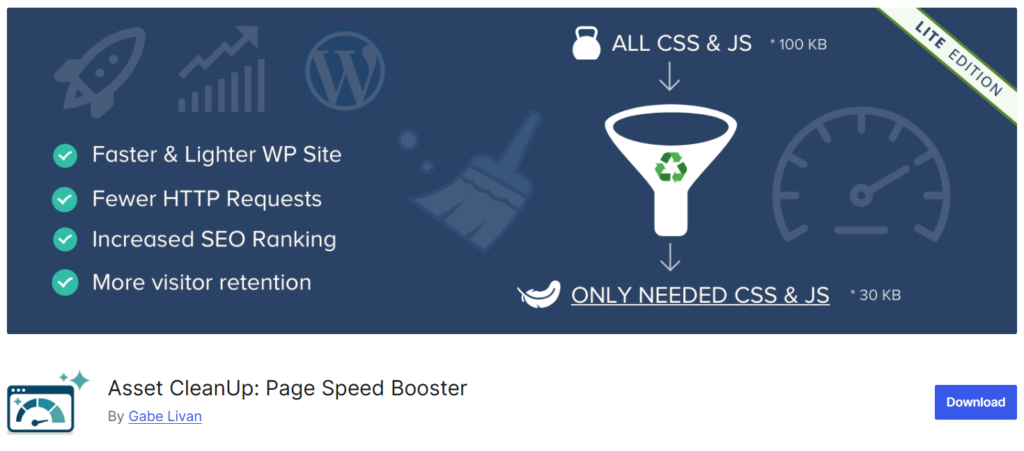
Asset CleanUp
Asset CleanUp helps prevent plugin bloat by unloading CSS and JavaScript files on pages where they are not required. It is a strong option for stores that need page-level asset control without committing to a full caching suite.
Key Features:
- Page-level asset control
- CSS and JavaScript optimization
- Script unloading for WooCommerce pages
- Performance testing mode
WP Rocket
WP Rocket improves performance through page caching and file optimization, often offsetting the load added by necessary WooCommerce plugins. Its guided setup makes it a practical choice for non-technical store owners who want meaningful performance gains without manual configuration.
Key Features:
- Page and browser caching
- File minification and combination
- Lazy loading for images
- Database optimization

WP Fastest Cache
WP Fastest Cache reduces page generation time through static caching. It is a lighter alternative to WP Rocket for stores that need basic caching without the extra features.
Key Features:
- Page caching
- CSS and JS minification
- GZIP compression
- Cache preload options
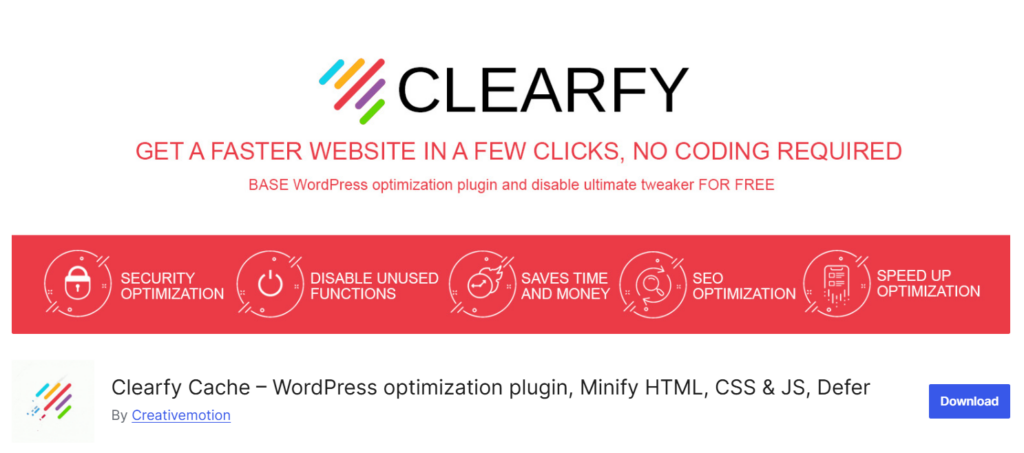
Clearfy
Clearfy removes unnecessary WordPress core features that often contribute to background load without serving any active purpose. It works well alongside a caching plugin for stores looking to reduce default WordPress overhead.
Key Features:
- Disable WordPress core bloat
- Remove unused scripts
- Database cleanup
- SEO-safe optimizations
Maintenance Going Forward
Stores that skip routine maintenance tend to drift back toward the same performance problems within months of a cleanup. Plugin bloat builds gradually as new features get added, marketing tools get tested, and short-term fixes become permanent installations. Treating performance management as a recurring operational task, rather than a one-time project, is what keeps a store fast and stable as it scales.
Long-term maintenance habits that help:
- Conduct a full plugin audit at least once per quarter
- Permanently delete unused plugins rather than simply deactivating them
- Test all new plugins on a staging site before pushing to production
- Track page speed and performance metrics monthly
- Remove leftover database tables after uninstalling plugins
- Review overlapping functionality before adding new features
- Keep plugins, themes, and WordPress core updated promptly
Before installing any new plugin, it is worth pausing to evaluate whether the functionality truly requires additional software. Existing tools can often be configured to meet new needs. A disciplined approach prevents unnecessary buildup and keeps performance aligned with store growth.
The deactivation trap: Many store owners deactivate plugins rather than delete them, assuming they might be needed later. Deactivated plugins still leave behind database tables, options, and sometimes cron jobs. When a plugin is no longer needed, deleting it completely is the cleaner choice. A staging environment handles any future testing without cluttering the production site.
When Professional Help Makes Sense
Many plugin bloat issues can be resolved through the methods outlined above, but some performance problems require deeper technical investigation. Slow database queries caused by poor indexing, inefficient theme code, server configuration issues, or WooCommerce-specific optimization gaps may not be detected by a basic plugin audit.
If obvious bloat has been addressed but performance issues persist, or if the store’s revenue makes manual optimization time-prohibitive, working with developers experienced in WooCommerce performance can reveal issues that are not visible in the WordPress dashboard. Solutions such as custom database optimization, advanced caching strategies, and code-level improvements sometimes resolve issues that plugin-level changes alone cannot address.
The investment can pay off through improved conversion rates and reduced hosting costs, particularly for stores operating at significant volume.
From Plugin Bloat to Performance Discipline
Plugin bloat develops gradually, but its performance impact can be substantial. Most WooCommerce stores can improve page load times by systematically auditing and cleaning up their plugin stack.
The easiest wins tend to come first: removing obviously unused plugins, identifying the heaviest resource consumers with Query Monitor, and researching lightweight alternatives to problem plugins. Even modest improvements in page speed can translate to better conversion rates and a more stable customer experience.
The goal is not to run as few plugins as possible. It is to make sure every installed plugin serves a genuine business purpose and is implemented efficiently. Quality over quantity tends to hold up well as a guiding principle.