
Introduction #
The Auto Apply Coupon module streamlines the discount process by automatically applying coupons, enhancing the shopping experience for your customers.
Enabling the Module #
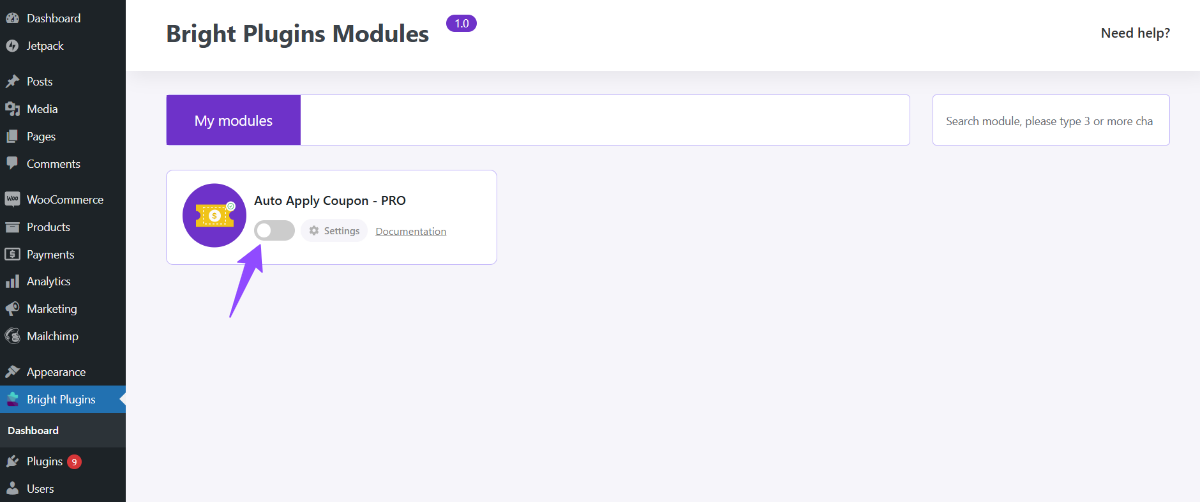
Enable the Module:
Navigate to BrightPlugins in your WordPress dashboard. Locate Auto Apply Coupon and toggle it to On.
Accessing the Settings #
Access the Settings:
Go to BrightPlugins >> Auto Apply Coupon >> Settings to configure module options.
Customizing Features #
Customize Features:
Adjust settings to fit your store’s needs, ensuring a seamless coupon application process for customers.
Configuring Per Page View #
Navigate to Settings:
Go to BrightPlugins >> Auto Apply Coupon >> Settings.
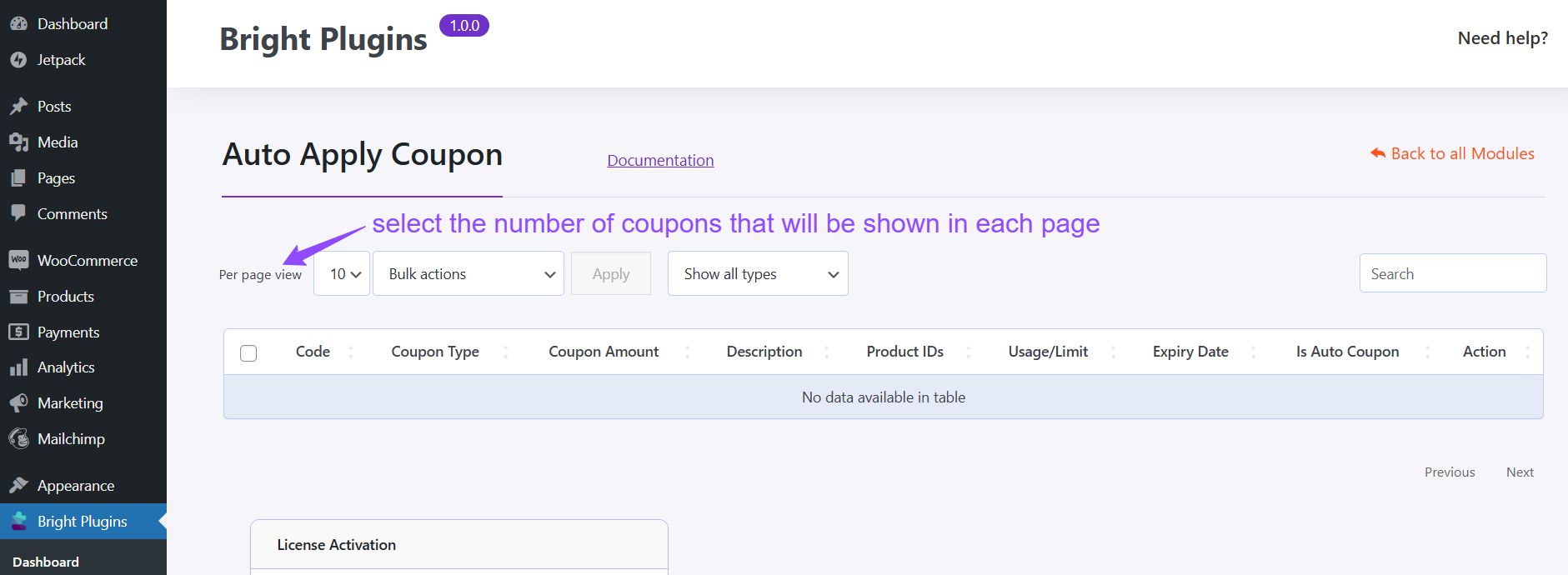
Select the Per Page View Option:
Choose how many coupons to display per page and save changes to apply them.
Managing Coupons #
Select Coupons:
Use the Bulk Action feature to select and manage coupons.
Set Coupons Per Page View:
Choose the number of coupons to display on each page.
Creating an Auto Apply Coupon #
Convert a Coupon:
In the Action section, switch the coupon to auto apply and confirm the change.
By following these steps, you can effectively manage and enhance the coupon application process in your WooCommerce store.