Your privacy choices

We use cookies to see how the site is used and, with Google and Meta, to measure our ads. Nothing is set until you choose. You can change your choice at any time under Cookie settings.

Privacy Policy

We use cookies to see how the site is used and, with Google and Meta, to measure our ads. You can change your choice at any time under Your Privacy Choices.

Your privacy choices

Choose which cookies we may use. Your choice applies on every page and lasts 12 months.

Your opt-out preference signal has been honored. Advertising stays off while your browser sends it.

NecessaryKeeps the site working: your privacy choice here, the language you are reading in, the documentation search, and Cloudflare's protection of the site.
Always on
Google Analytics and Cloudflare Web Analytics, and WooCommerce's own record of the page your visit started on: which pages are read, how the site is used, and which of them lead to an order.
Google Ads and the Meta pixel: measuring and improving our ads, including on other sites.
ThriveDesk, which runs the live chat on our support page. It is run by another company and stores an identifier in your browser.
Privacy Policy

Enable Delivery Functionality | Bright Plugins Docs

1 min read Updated April 17, 2026 By the Bright Plugins team

Get Delivery Date Pro

Delivery functionality has 2 features: Delivery Date and Delivery Time, which are turned off by default. Let’s see how to enable them

Delivery Date#

Once enabled, it can be used for any of your products. Customers can choose their delivery date from this optional field located on the checkout page, as you can see below:
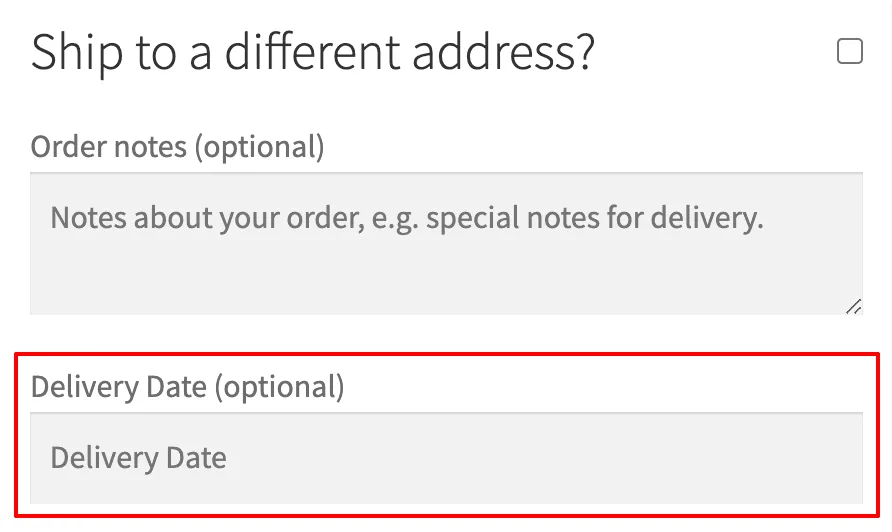
Order Delivery and Pickup: Delivery Date field is optional
NOTE: If you want to apply/exclude this feature for specific products/categories that you want to select, it is only available in the PRO version

To enable it, just follow these steps

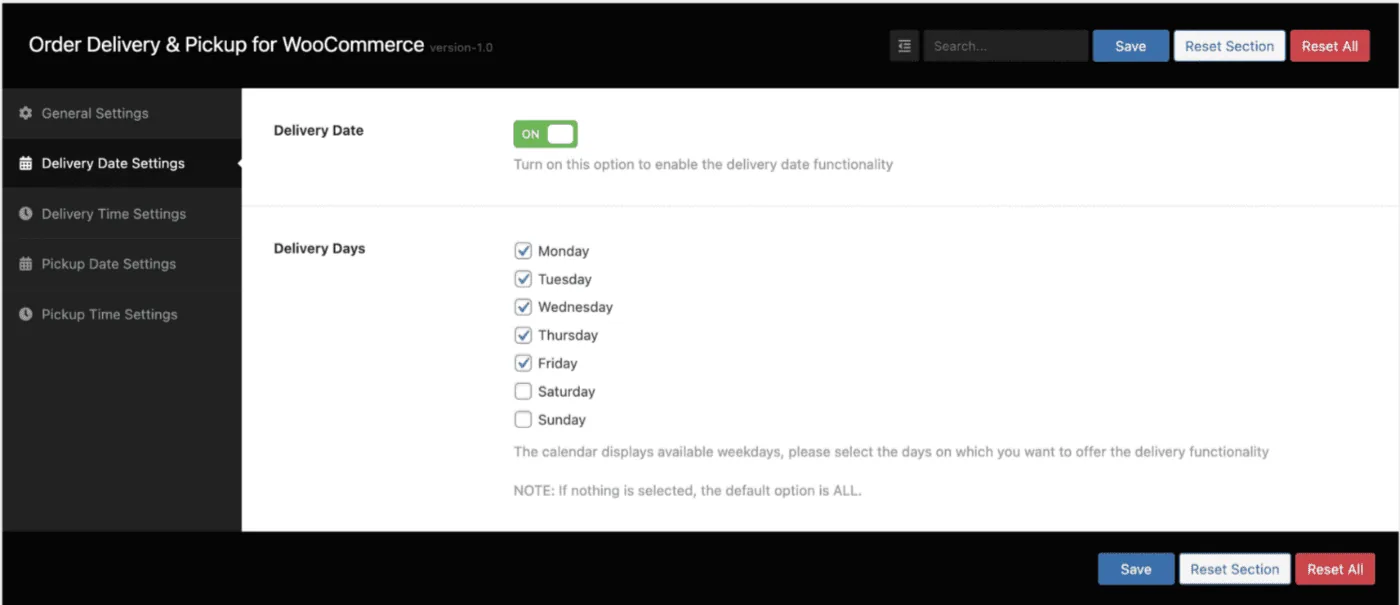
  1. Go to the plugin settings > Delivery Date Settings
  2. Enable the Delivery Date option
  3. Configure the remaining options on this tab according to your needs
  4. That’s it
Order Delivery and Pickup: Settings delivery date order delivery

Delivery Time#

Once enabled, it can be used for any of your products. Customers can choose their delivery time from this optional field located on the checkout page, as you can see below.
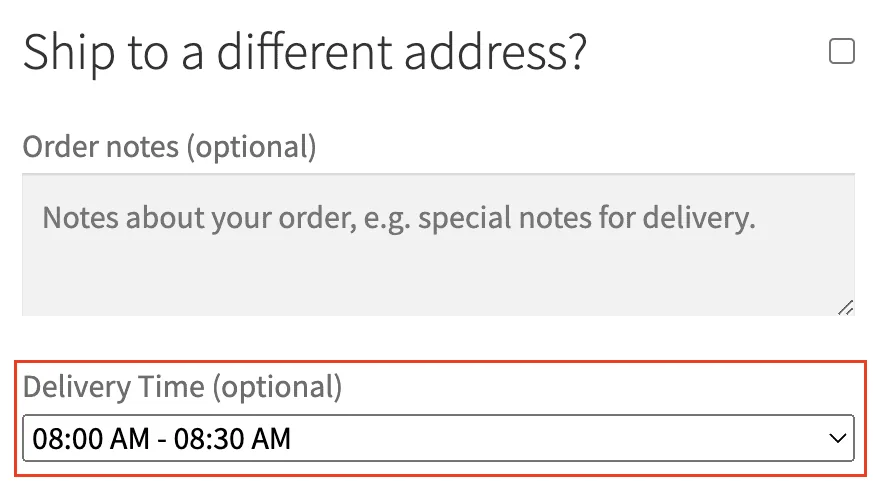
Order Delivery and Pickup: Screenshot 2024 02 13 at 14904%20PM
NOTE: If you want to apply/exclude this feature for specific products/categories that you want to select, it is only available in the PRO version

To enable it, just follow these steps

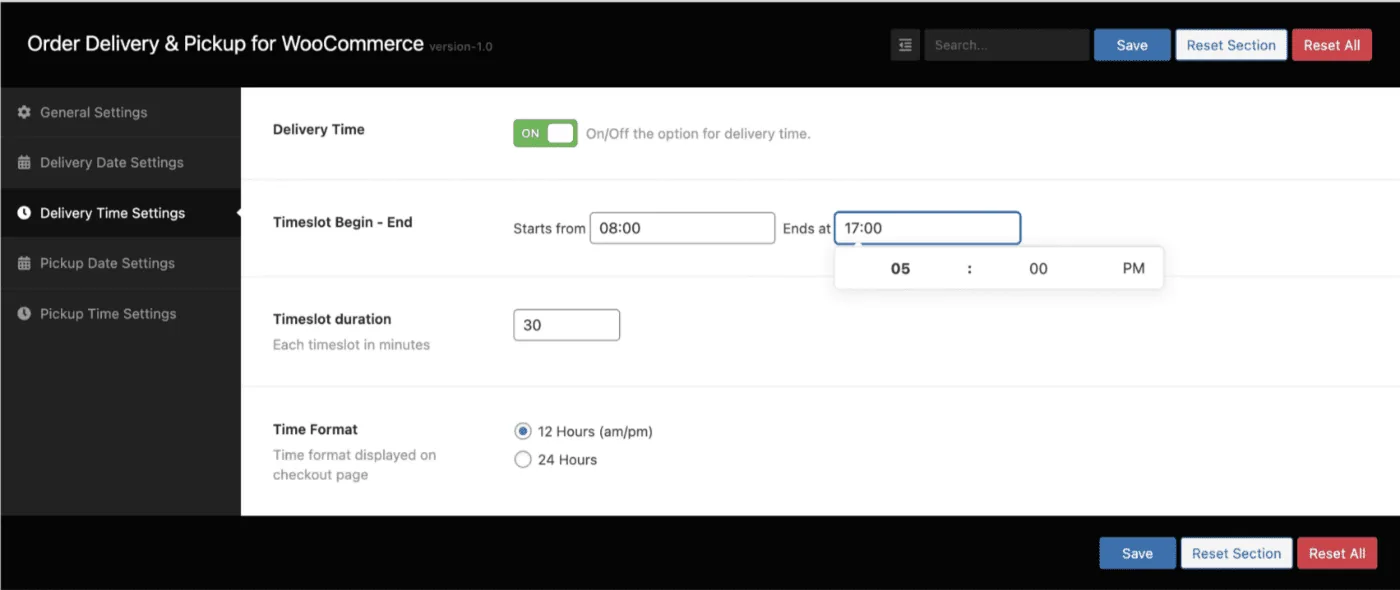
  1. Go to the plugin settings > Delivery Time Settings tab
  2. Enable the Delivery Time option
  3. Set your Timeslot Begind – End according to business schedule
  4. Configure the remaining options on this tab according to your needs
  5. That’s it
Order Delivery and Pickup: Delivery time settings

Updated on April 17, 2026 · Need help? Open a support ticket