How to Easily Manage Events in WooCommerce with Quick Event Manager
Managing events in your WooCommerce store can be straightforward with the right approach. Whether you plan to sell tickets, host webinars, or organize local workshops, having appropriate event management tools helps streamline operations. Quick Event Manager offers one approach to this challenge, a lightweight WordPress plugin that allows you to create, display, and manage events without extensive technical requirements. Unlike some complex event platforms, it provides a way to list events and register attendees without requiring expensive add-ons or custom development.
With Quick Event Manager, you can handle event registrations, sell tickets, and process payments through your existing WooCommerce checkout system. This approach may work well for business owners who want to offer events alongside their products or services. In this guide, you’ll learn how to set up this plugin, integrate it with WooCommerce, and use it to help manage your event processes.
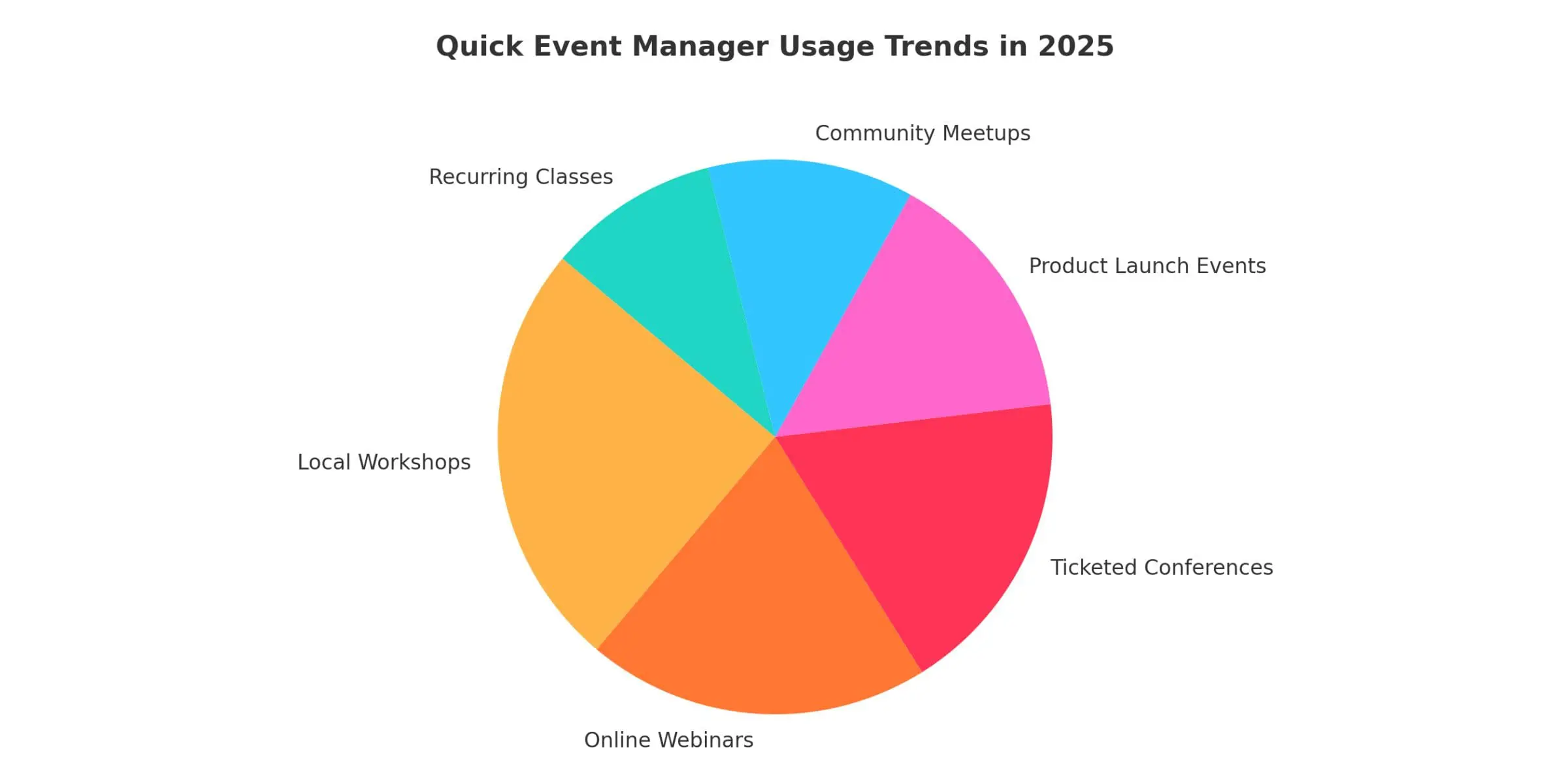
The pie chart shows how businesses typically use Quick Event Manager in 2025, reflecting a potential shift toward combining product sales, services, and event management in WooCommerce. Local workshops and online webinars appear to be among the more commonly utilized features, which may suggest growing interest in in-person and virtual experiences. Ticketed conferences and product launch events show notable usage patterns, indicating that some businesses are exploring ways to blend marketing approaches with customer engagement strategies. Community meetups and recurring classes represent smaller segments, demonstrating the plugin’s flexibility for hosting regular events that can potentially help build customer relationships and encourage return visits.
Why Add Events to Your WooCommerce Store?
Adding events to your WooCommerce store can create additional ways to engage customers and potentially grow your business. It allows you to offer more than just products; you might sell tickets, host webinars, run workshops, or manage local meetups. This approach can create new revenue streams while building connections with your audience. Using the same platform for products and events may help streamline operations without managing multiple tools.
Events can also potentially improve customer loyalty and increase brand awareness. Hosting community events or exclusive experiences may encourage repeat visits to your site and help strengthen customer relationships. Managing events through WooCommerce typically keeps all your transactions in one dashboard, which can make accounting and customer service more manageable.
Potential benefits include:
- Expanding your service offerings with event tickets, classes, or services
- Creating opportunities for customer engagement through webinars or workshops
- Simplifying management by tracking event registrations alongside product orders
- Promoting special events like product demos or customer appreciation gatherings
- Providing customers with reasons to return regularly
What Is Quick Event Manager?
Quick Event Manager is a WordPress plugin designed to help you create and manage events with minimal complexity. Unlike larger event management platforms that often require expensive add-ons or technical knowledge, this plugin focuses on ease of use. It allows you to create event listings, manage attendee information, and handle event registrations directly from your WordPress dashboard. Its straightforward approach may appeal to small business owners who need an efficient tool without a steep learning curve.
The plugin is designed to be lightweight, which typically means it won’t impact your website’s loading speed or interfere with other WooCommerce operations. You can create event calendars, add detailed event descriptions, and customize registration forms to meet your needs. Whether managing a single event or multiple recurring workshops, Quick Event Manager can control the process while maintaining simplicity.
Features that may benefit WooCommerce store owners:
- A clean event calendar or list interface for easy browsing
- Optional event registration and ticket sales that can integrate with WooCommerce
- Customizable event details, including time, date, venue, and organizer information
- Support for event categories and tags to help with organization
- An interface designed for non-technical users
- Lightweight code that typically maintains website performance
How to Set Up Quick Event Manager with WooCommerce
Setting up Quick Event Manager with WooCommerce doesn’t require advanced technical skills. You can add events to your website, connect them to WooCommerce products for ticket sales, and manage registrations or attendee information from one dashboard. This setup lets you handle event promotion and payments through your existing WooCommerce system, potentially streamlining the process from event creation to checkout.
Step 1: Installing Quick Event Manager
Start by installing the Quick Event Manager plugin from the WordPress plugin repository. This method typically provides the most straightforward way to add the event management tool to your website. Once installed, Quick Event Manager should automatically integrate with your WordPress dashboard, allowing you to begin adding events.
Installation steps:
- Log in to your WordPress admin dashboard
- Navigate to Plugins > Add New in the left-hand menu
- Use the search bar to find “Quick Event Manager”
- When you locate the plugin, click Install Now
- After installation, click Activate to enable the plugin
- Look for the new Events section in your dashboard menu to start creating events
Step 2: Creating Your First Event
After activating the plugin, click Events > Add New in your WordPress dashboard to create your first Event. This section lets you enter event details, including the title, description, and images. You can set the Event’s date, time, and location, helping visitors understand your offering. Organizing events by categories can also help customers filter and find events that interest them.
Additional setup options may include:
- Uploading a featured image or banner to attract attention
- Adding custom fields for special event instructions or notes
- Enabling recurring event settings if needed for regular meetups
- Using tags to improve event searchability on your website
- Setting RSVP limits to manage attendance capacity effectively
Step 3: Connecting Registration and WooCommerce Integration
You’ll need to link each Event to a WooCommerce product to collect registrations or sell event tickets. This allows customers to purchase event access using the WooCommerce checkout process, which can provide a familiar and secure experience. By treating event tickets as products, you can track sales, manage stock levels, and handle refunds using the same methods you use for regular products in your store. This approach typically keeps everything organized in one system, from orders to customer information.
Steps to link your Event to WooCommerce:
- Create a new product in WooCommerce, clearly labeling it as an event ticket, entry fee, or registration
- Set the product price, which becomes the ticket or registration cost. You can add product variations for ticket types, such as standard or VIP access.
- Adjust stock management settings to limit available tickets, helping prevent overbooking.
- Copy the product link or use the WooCommerce shortcode from the product edit page.
- Add the link or shortcode to your event description or registration button in Quick Event Manager, directing users to the ticket purchase page.
- Publish your Event and test the process to ensure the registration or ticket purchase flows properly through your WooCommerce checkout.
Step 4: Customizing Event Display
Quick Event Manager offers several display options, allowing you to present events that fit your website’s design and customer preferences. Whether you prefer a simple event list or a calendar view, the plugin provides flexibility in how events appear on your site. These options can help improve user experience by allowing visitors to browse events based on their preferences. You can showcase multiple events on one page or highlight individual events with detailed information.
Main display options include:
- Calendar View: Show upcoming events in a monthly or weekly calendar format, allowing visitors to see event dates quickly and click on specific days for details
- List of Upcoming Events: Display a chronological list of events with basic information like titles, dates, and locations, useful for users who prefer straightforward scrolling lists
- Single Event Pages: Create dedicated pages for each Event with full descriptions, images, schedules, maps, and registration links, providing comprehensive details for interested attendees
- Shortcodes for Placement: Use Quick Event Manager shortcodes to place event calendars or lists on specific pages, blog posts, or widget areas
- Layout and Style Customization: Adjust event display styles using your theme’s customization tools or CSS to match your branding and website design
- Featured Event Highlighting: Promote special events by prominently listing them in lists or adding them to specific pages for increased visibility.
Benefits of Using Quick Event Manager with WooCommerce
Using Quick Event Manager with WooCommerce can allow you to handle product sales and event management from one dashboard, potentially saving time and reducing operational complexity. This integration lets you create events, manage ticket sales, and track customer data without switching platforms. Since it uses WooCommerce’s checkout process, you can accept payments securely while providing customers with a familiar shopping experience. It may be a practical solution for small business owners looking for a lightweight system that won’t overwhelm their workflow.
Additional potential benefits:
- Use WooCommerce order tracking to monitor event ticket sales in real time
- Offer multiple payment options through WooCommerce’s gateways, including credit cards, PayPal, and Stripe
- Set up tax calculations and invoices automatically for ticket sales
- Leverage WooCommerce coupons to run promotions or offer early bird discounts
- Manage attendee lists through your WooCommerce customer database
- Combine event marketing with product promotions in the same store
- Simplify customer service by having one system for both products and event sales
- Use WooCommerce analytics to measure event sales performance and conversion rates
Best Practices for WooCommerce Event Management
To help maximize the success of your events, consider following these practices that can enhance both the customer experience and your store’s performance. Focus on creating clear, informative event pages that are easy to navigate. Ensure all event details, such as dates, times, locations, and pricing, are simple to find and understand. Keep your website optimized using only necessary features, and regularly test your event registration process to ensure it works properly across all devices. Monitoring your WooCommerce reports can help you identify trends and optimize future events.
Additional practices to consider:
- Use high-quality images or banners to make your event listings more engaging
- Provide detailed FAQs to address common attendee questions
- Set clear refund and cancellation policies to avoid confusion
- Test your checkout process on both desktop and mobile devices
- Send reminder emails to attendees as the event date approaches
- Use customer feedback after events to help improve future experiences
- Keep registration forms simple to help reduce abandonment rates
- Track how event promotions affect overall website traffic and sales
Additional Features to Consider
While Quick Event Manager covers basic event management needs, you might enhance your event operations by adding complementary features. These tools can help improve marketing, attendee communication, and overall event success. From SEO optimization to automated follow-ups, integrating additional plugins may allow you to create more professional and engaging event experiences while simplifying administrative tasks.
Features that might be valuable:
- Use SEO plugins like Yoast or Rank Math to help optimize event pages for better search visibility
- Add automated email reminders and follow-ups with tools like MailPoet or Mailchimp
- Offer downloadable PDF tickets or QR codes for easier check-in at physical events
- Integrate Google Calendar or iCal export buttons so attendees can save events to their calendars
- Use CRM tools to track attendee interactions and help build long-term customer relationships
- Install survey plugins to collect attendee feedback after events
- Connect Google Analytics or Facebook Pixel to track event marketing performance
- Enable waitlists for sold-out events to capture additional leads
- Offer group ticket purchasing with bulk pricing options in WooCommerce
- Use live chat support to assist customers during registration or ticket-buying processes
Alternative Event Management Plugins for WooCommerce
If you want to explore options beyond Quick Event Manager, several event management plugins exist for WooCommerce and WordPress. These tools offer features such as ticketing, RSVP management, calendars, and attendee tracking. Here are some popular plugins to consider for your event-driven business:
Quick Event Manager by Bright Plugins
Quick Event Manager is designed for WooCommerce store owners who want to manage events without added complexity. It allows you to create event listings, register attendees, and integrate ticket sales directly into your WooCommerce checkout, making managing products and events in one system possible.
Key Features:
- Simple event creation and management
- WooCommerce integration for ticket sales
- Customizable event details (date, time, venue)
- Event categories and tags for organization
- Shortcodes for calendar or event list display
- Lightweight design for performance
The Events Calendar
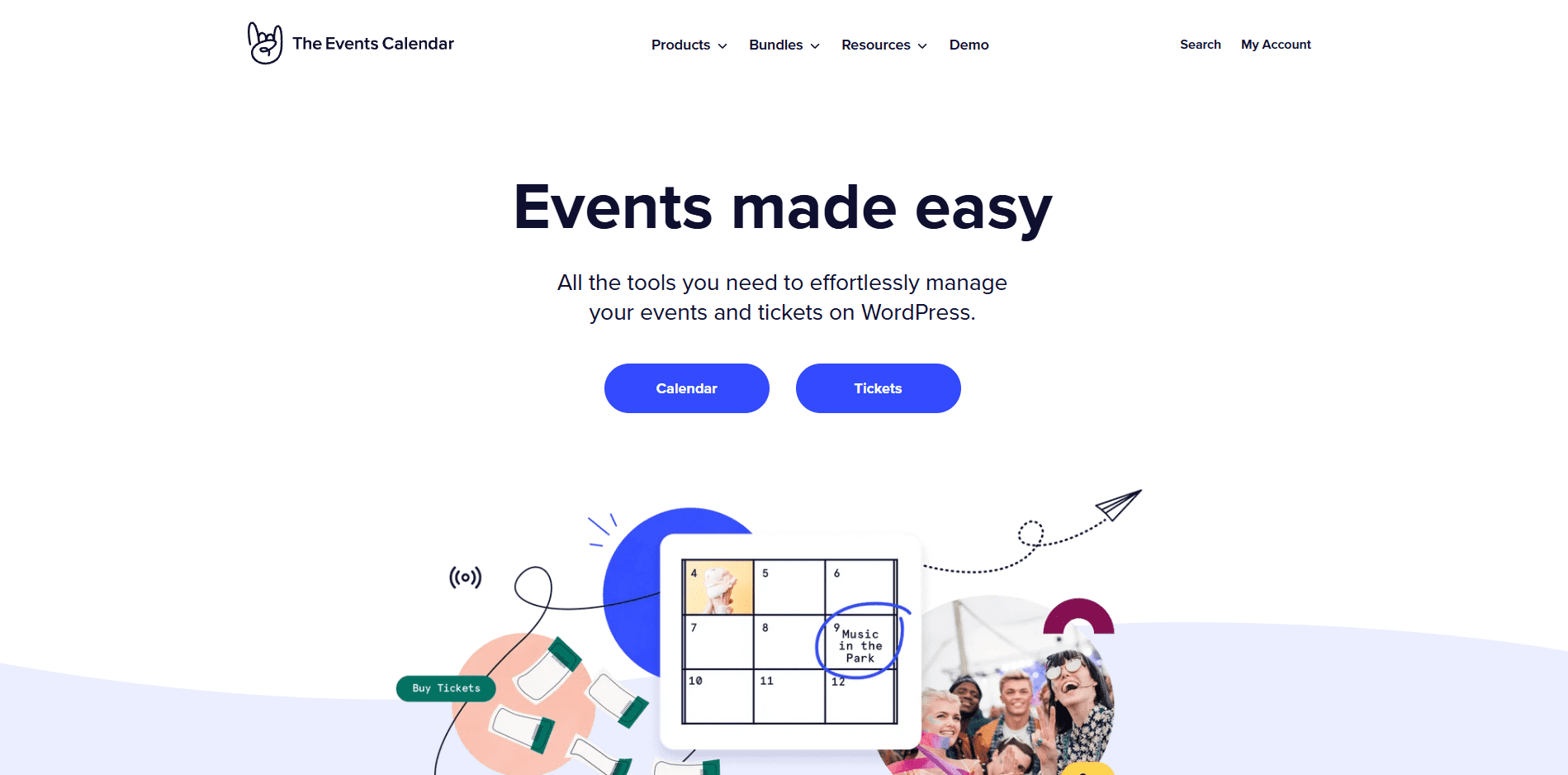
The Events Calendar is among WordPress’s popular event management plugins. It provides a system for managing recurring events, venues, organizers, and more, suitable for small businesses and larger organizations needing detailed event management.
Key Features:
- Recurring and multi-day event support
- Venue and organizer management
- Google Maps integration
- Multiple calendar display options
- SEO-optimized event pages
- Customizable widgets and shortcodes
Tickera
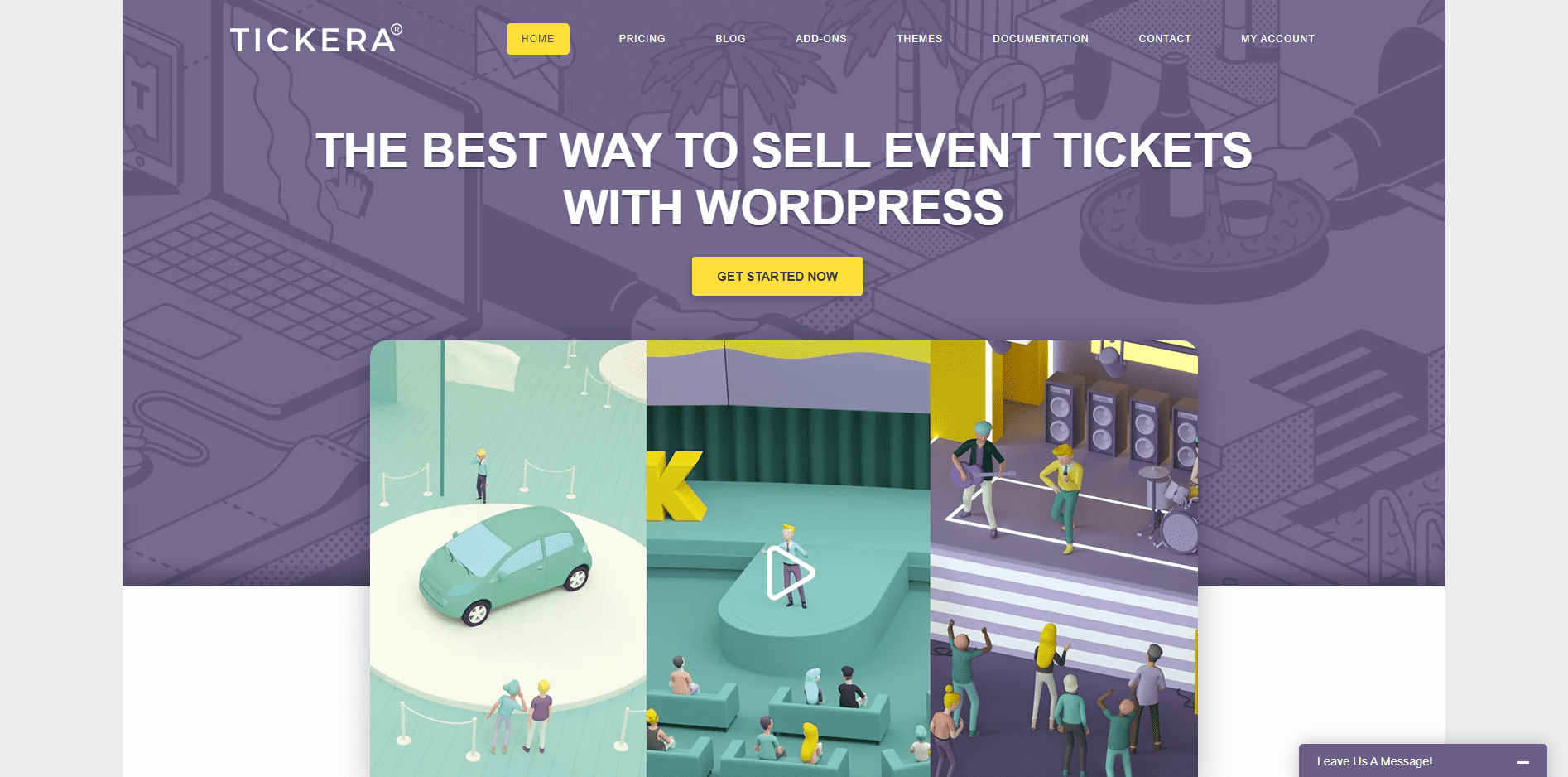
Tickera specializes in event ticket sales and attendee management. It allows you to generate PDF tickets with QR codes, which can be helpful for in-person events that require ticket scanning.
Key Features:
- Sell tickets directly from your website
- Generate PDF tickets with barcodes or QR codes
- Mobile check-in apps for ticket scanning
- WooCommerce Bridge add-on available
- Supports multiple ticket types
- Custom ticket templates
WP Event Manager
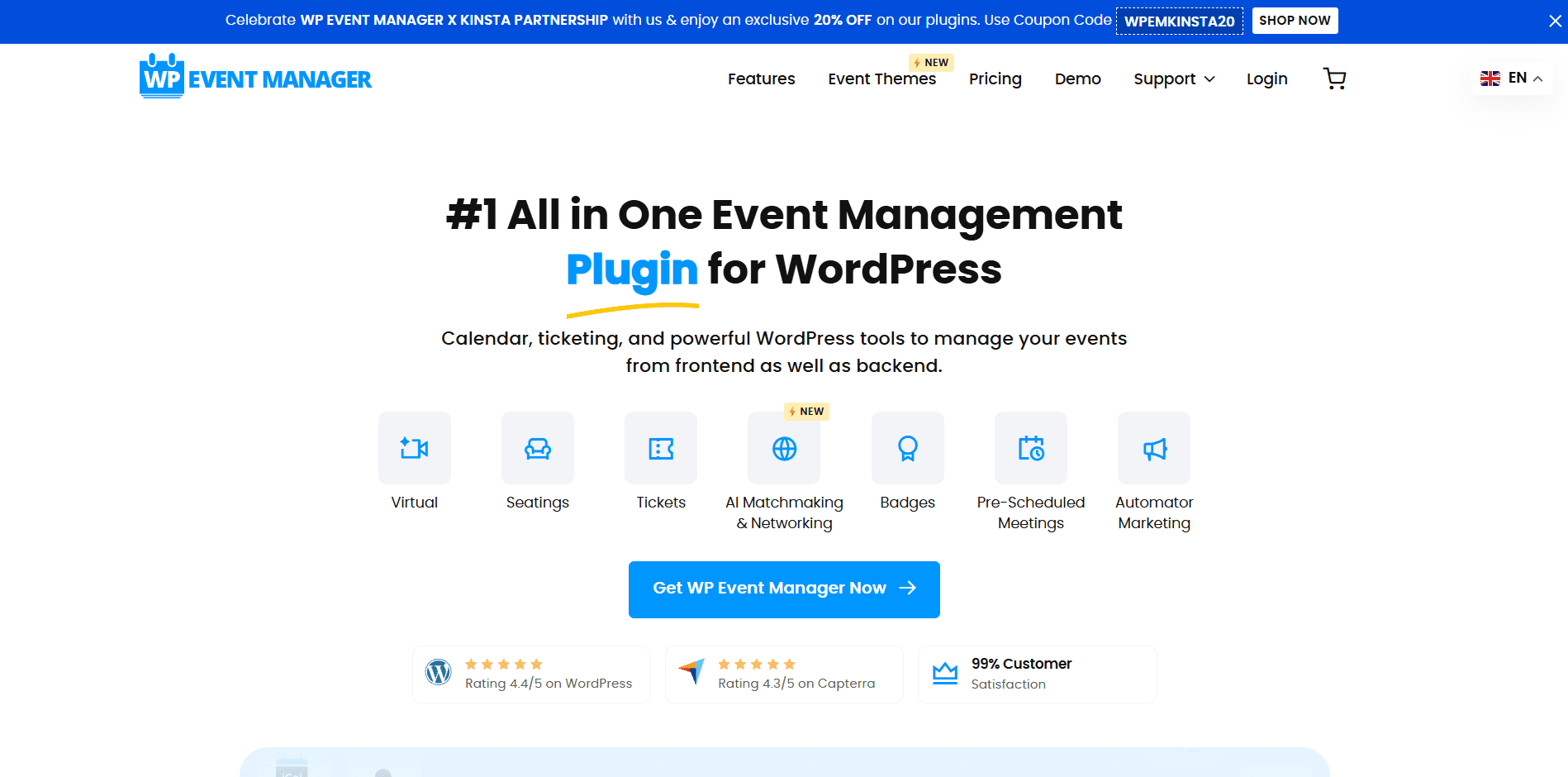
WP Event Manager is a lightweight and scalable event management plugin that can work well for stores needing flexibility. It includes basic event listings for free, with premium add-ons for advanced features like ticket sales, SEO, and attendee management.
Key Features:
- Simple event listing management
- Frontend event submission forms
- Calendar and list views are available
- Add-ons for WooCommerce ticketing
- SEO optimization for events
- Multilingual support
Amelia
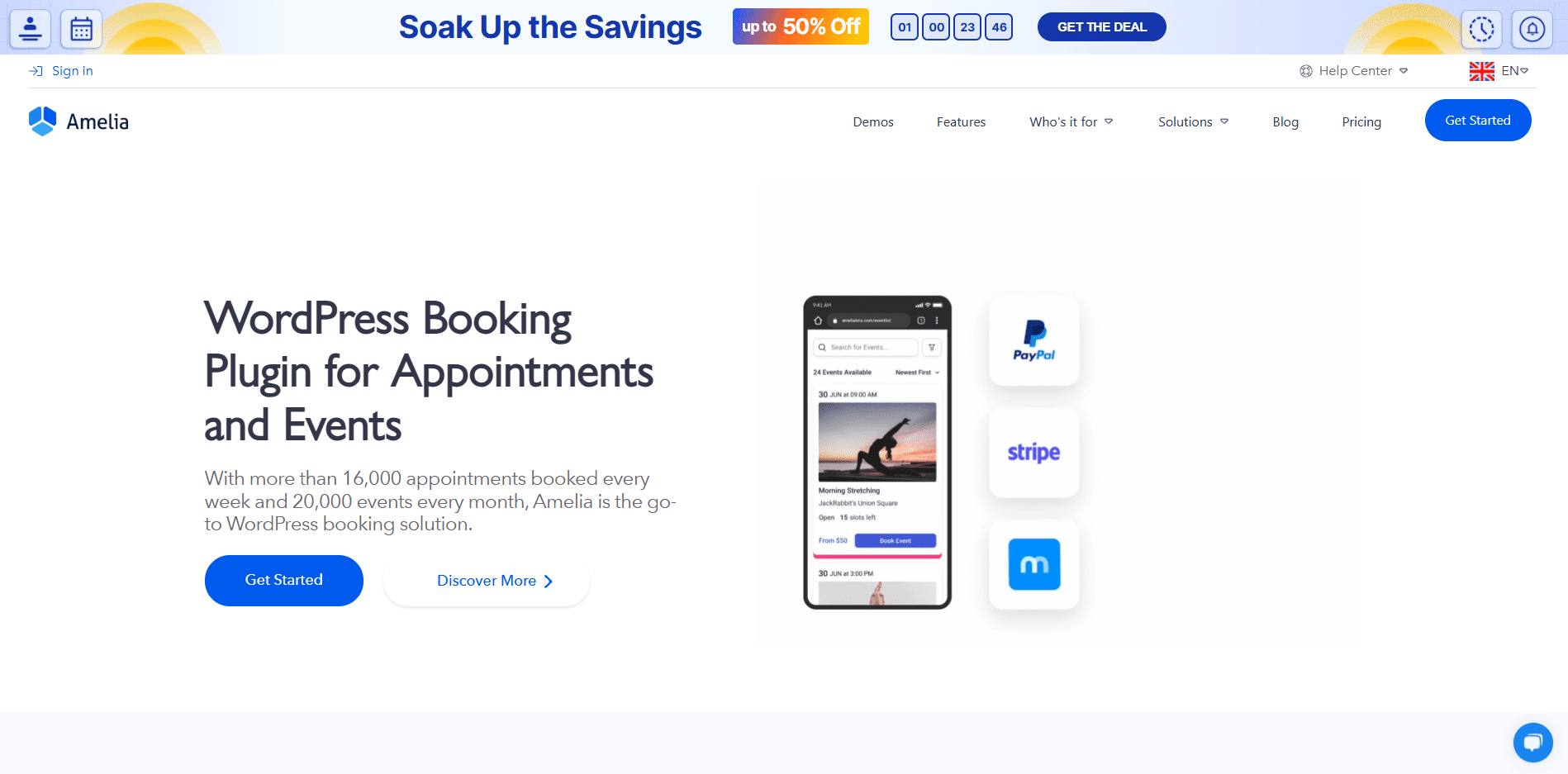
Amelia is an appointment and Event booking plugin with a modern interface. It’s designed for businesses that handle one-on-one bookings and event registrations, potentially working well for webinars, workshops, or conferences.
Key Features:
- Automated booking system
- Event and appointment scheduling
- WooCommerce payment integration
- SMS and email notifications
- Calendar sync (Google, Outlook)
- Customizable booking forms
Simplify Your WooCommerce Event Management
Managing events in your WooCommerce store doesn’t have to be overwhelming or expensive. With tools like Quick Event Manager, you can create and display events, register attendees, and handle ticket sales within the system you use to manage products. This straightforward, user-friendly approach may help business owners expand their services without requiring complex plugins or additional software.
Whether you’re planning online webinars, selling tickets for local workshops, or running exclusive product launches, the right event management approach can help make the process more manageable. When choosing an event management solution, consider your needs, technical comfort level, and budget. Successful event management often involves testing different approaches and continuously improving based on customer feedback and operational experience.
When implementing any event management system, thoroughly test the registration and checkout processes, ensure mobile compatibility, and communicate clearly with attendees. These foundational elements can help contribute to successful events that serve both your business goals and customer needs.