
Context #
In categories like fashion, footwear, furniture, cosmetics, and toys, each variation (color, material, print, tone) changes how a product looks.
WooCommerce allows only one image per variation by default, which often isn’t enough for customers to evaluate details such as fabric texture, stitching, sole design, or shade on skin. This gap creates uncertainty and can slow down purchasing decisions.
With Additional Variation Images for WooCommerce, you can assign several images to every variation so shoppers see exactly what they will receive.
What you can achieve with this use case #
Improve clarity on the Product Page #
Show front, back, side, and detail close-ups for each variation to set correct expectations and reduce returns.
Speed up decisions on mobile and desktop #
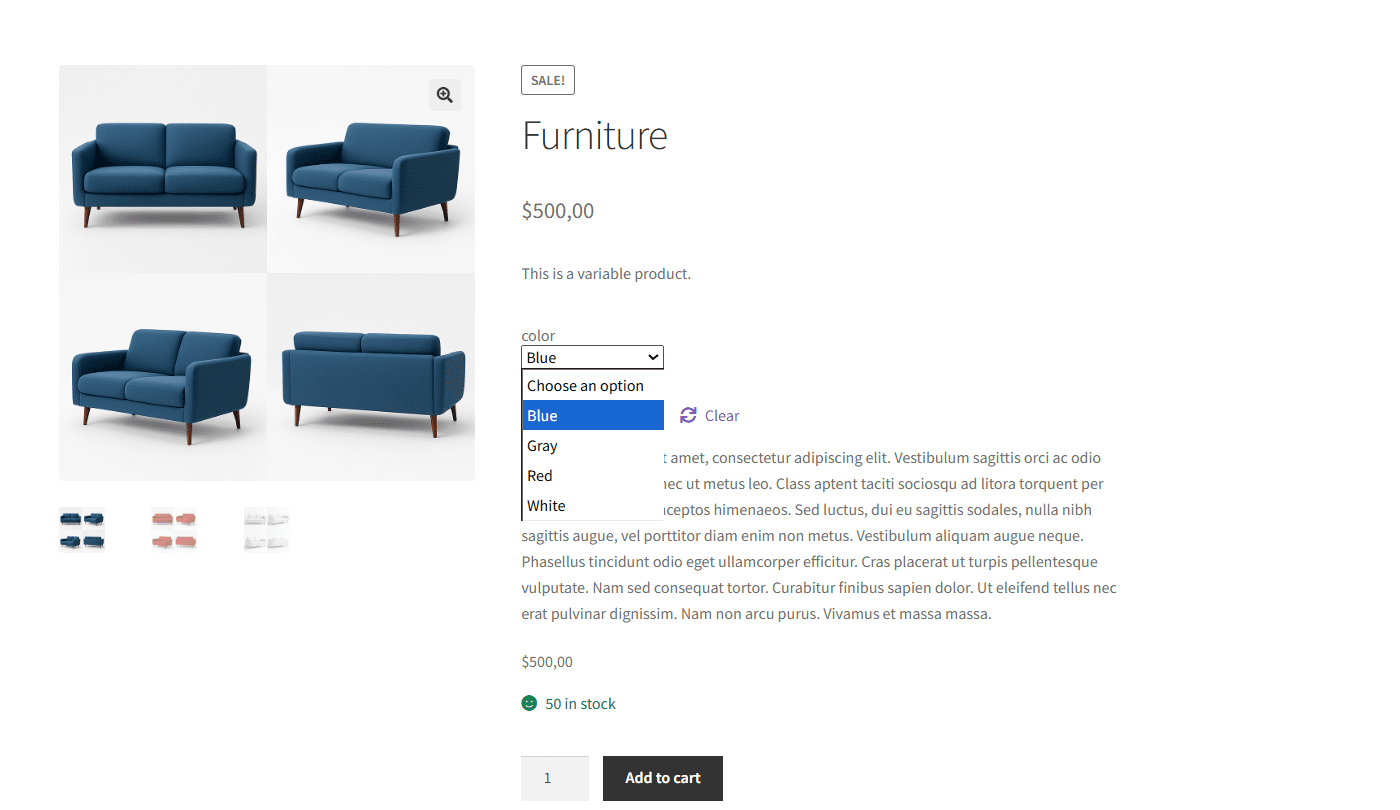
When customers switch variations, the gallery updates instantly with the right image set, eliminating guesswork.
Highlight key selling points per variation #
Surface material differences (e.g., leather vs. suede), packaging changes, or tone swatches on skin to guide selection.
Real examples (globally common) #
- Apparel: T-shirts in multiple colors and prints; each color shows front/back/side and fabric close-up.
- Footwear: Sneakers by color/material; show sole tread, stitching, and an on-foot photo for each variation.
- Furniture: Sofas with different fabrics/finishes; show texture close-ups and in-room photos per variation.
- Cosmetics: Lipstick or foundation tones; show swatches on skin plus matching package for each tone.
- Toys/Gadgets: Character or theme variations; each variation has its own gallery to avoid confusion.
How it looks in the interface #
Admin view #
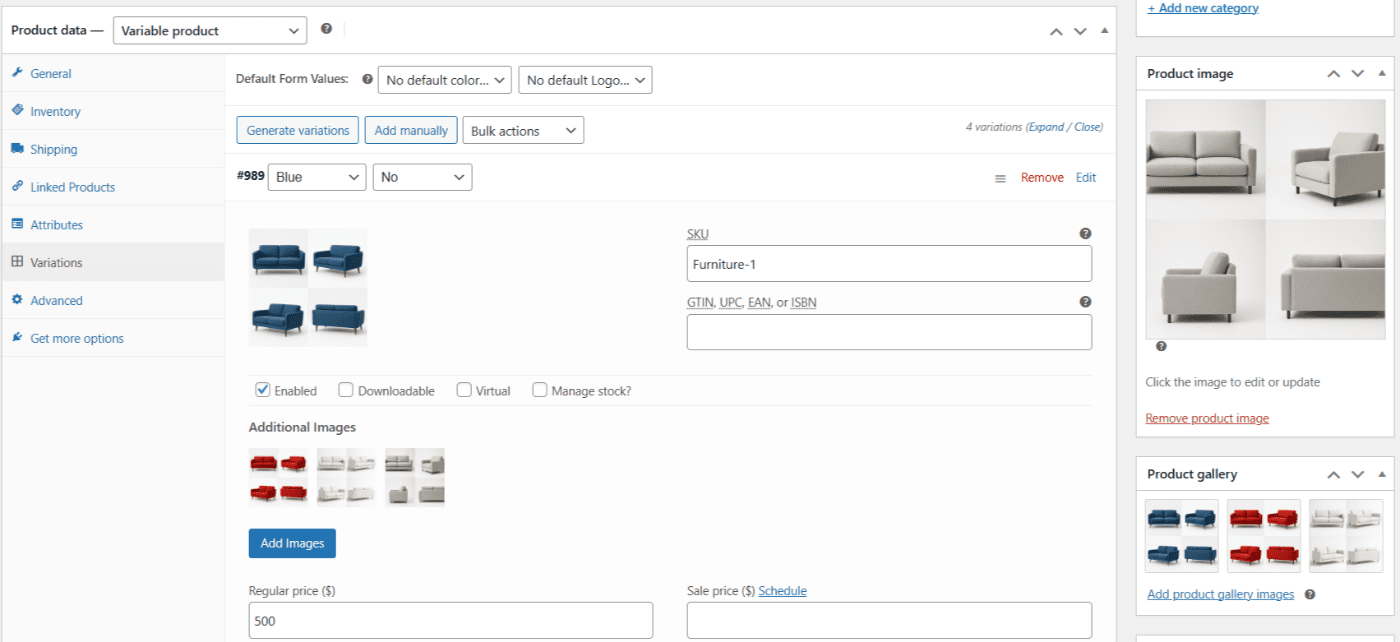
Each variation in Product data → Variations lets you add multiple additional images. You can reorder or remove them as needed.
Storefront view #
When a shopper selects a variation, the product gallery switches to that variation’s images (angles, close-ups, context).
Quick setup (summary) #
- Edit a Variable product.
- Open Product data → Variations and expand a variation.
- Use Add images to attach multiple photos for that variation.
- Update the product and verify the gallery change on the product page.
Why this drives results #
Multiple images per variation remove visual uncertainty, a key barrier in online shopping. Clear visuals raise confidence, increase add-to-cart rates, and help prevent returns due to mismatched expectations.