
A practical, step-by-step guide to subscribe, download, install, and activate the 19 plugins included in your Bright Plugins Club Membership plus license management, FAQs, and troubleshooting.
What the Club Includes#
- Instant access to all current premium plugins
- Future releases included while your membership is active
- Priority email support
- Regular updates and improvements
- 14-day money-back guarantee
- Plans: Store Owner (1 site) or Unlimited Sites
Requirements#
- WordPress up to date (and WooCommerce if required by the plugin)
- Admin access to your site(s)
- Your Bright Plugins account (purchase email)
Quick Start (5 Steps)#
1) Subscribe#
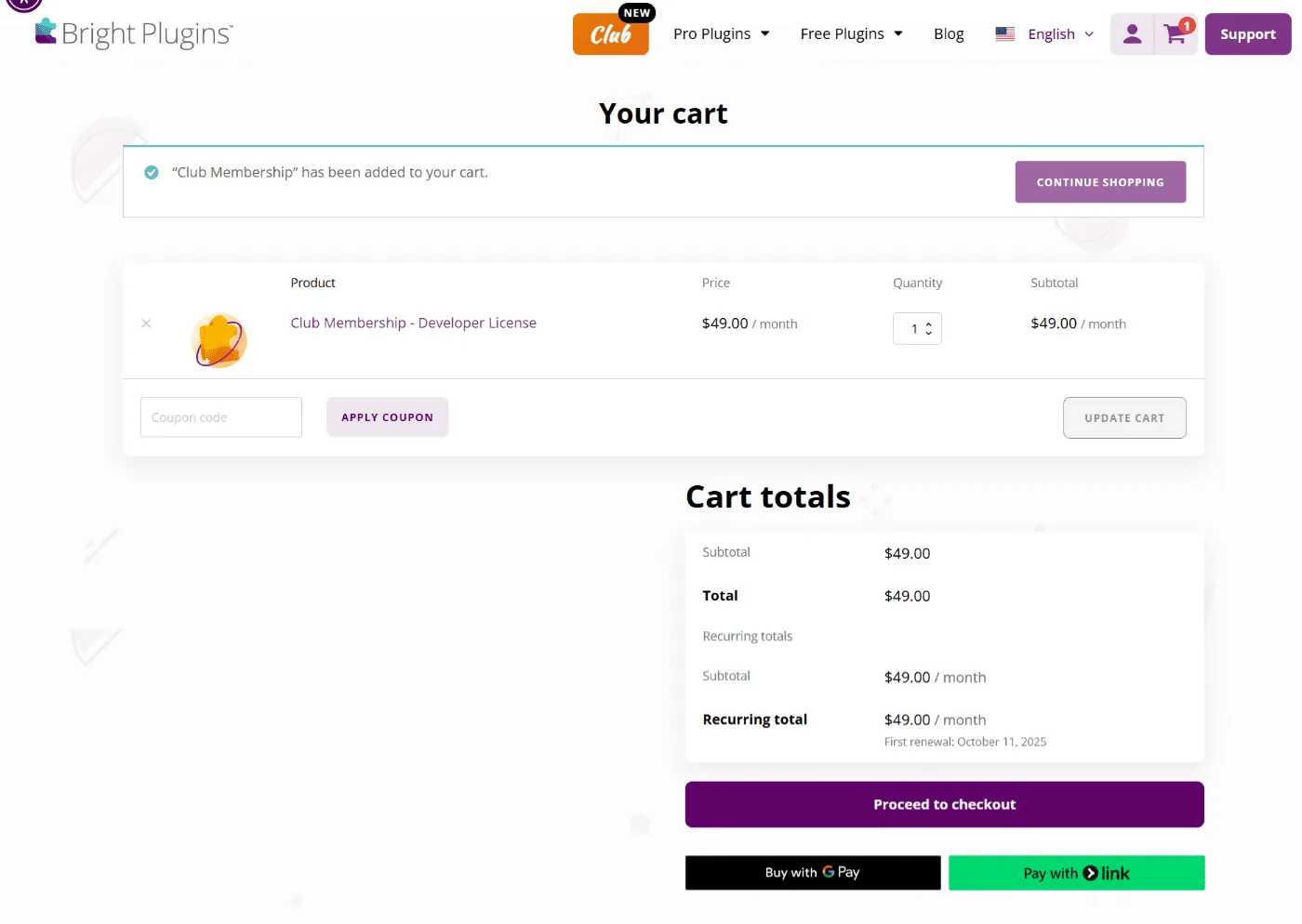
On the Club Membership product page, select your plan (Store Owner or Unlimited Sites) and click Add to cart. Go to the Cart, confirm the product is selected, then proceed to Checkout to complete your subscription.
2) Access Your Account#
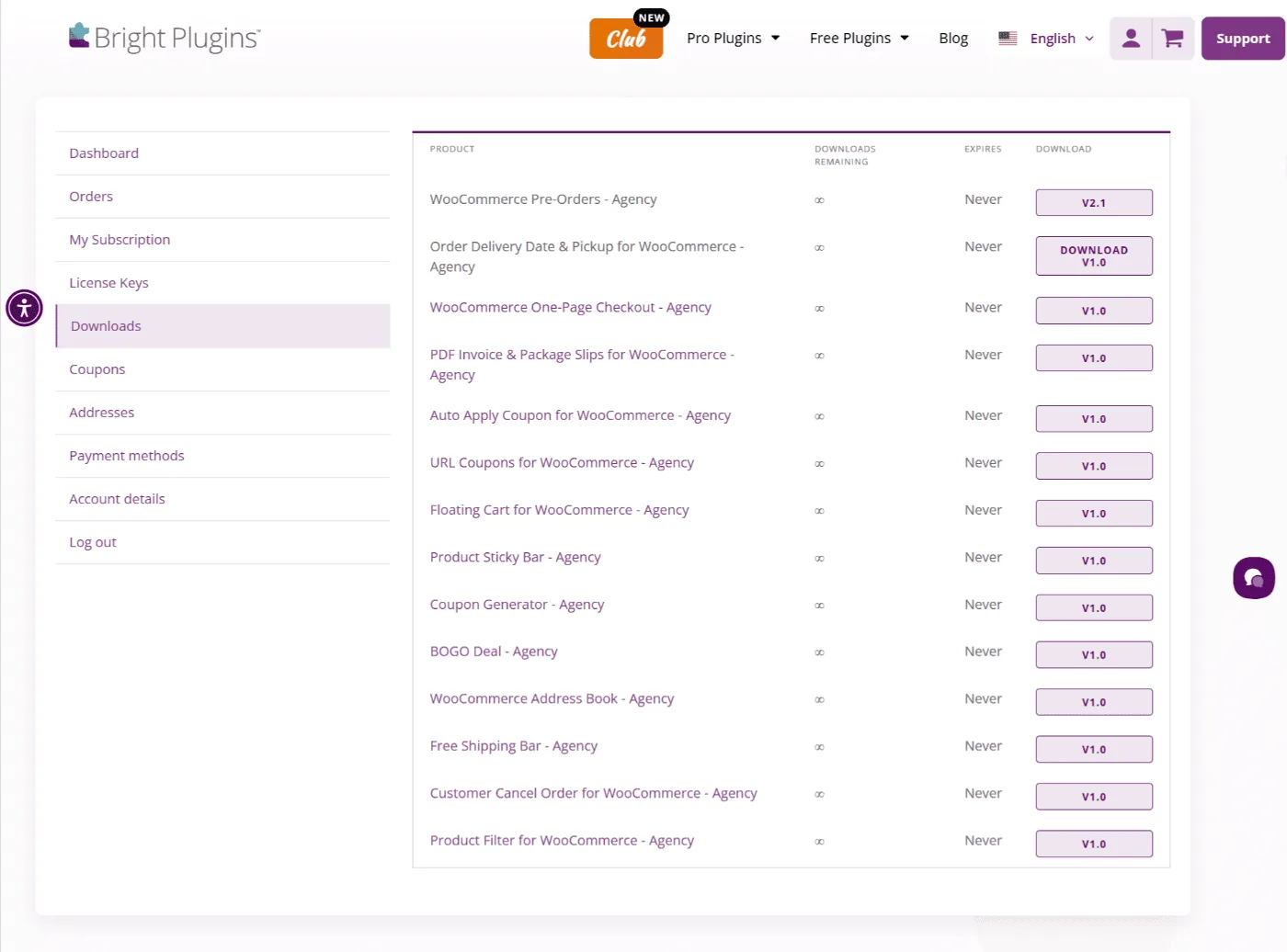
Go to My Account → Club / Downloads to see all available plugins
3) Download Plugins#
Click Download on the plugins you want to use (each file is .zip)
4) Install in WordPress#
WP Admin → Plugins → Add New → Upload Plugin → Choose file (.zip) → Install → Activate
5) Activate the License#
Open Bright Plugins → Licenses (or the plugin’s own settings), paste your license key, and click Activate
Once the license is active, updates appear in Dashboard → Updates or Plugins like any other premium plugin.
License Management#
Where to find your license keys#
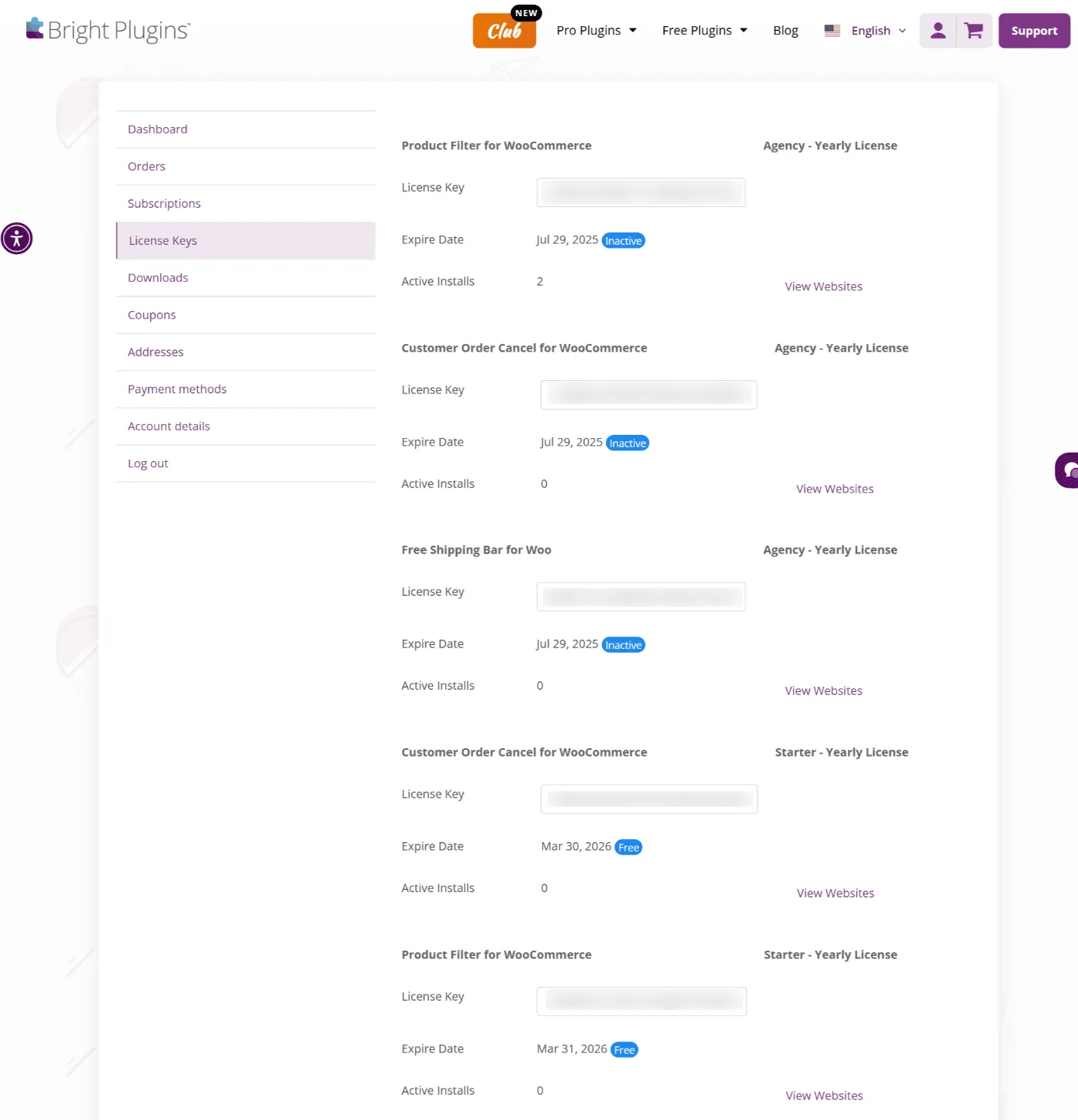
My Account → Licenses shows keys and active sites
Move a license to another site#
In My Account → Licenses, click Deactivate on the old site, then activate on the new site
Plan note: Store Owner allows 1 active site at a time. Unlimited Sites removes that limit.
Configure Popular Plugins (quick paths)#
Pre-Orders for WooCommerce#
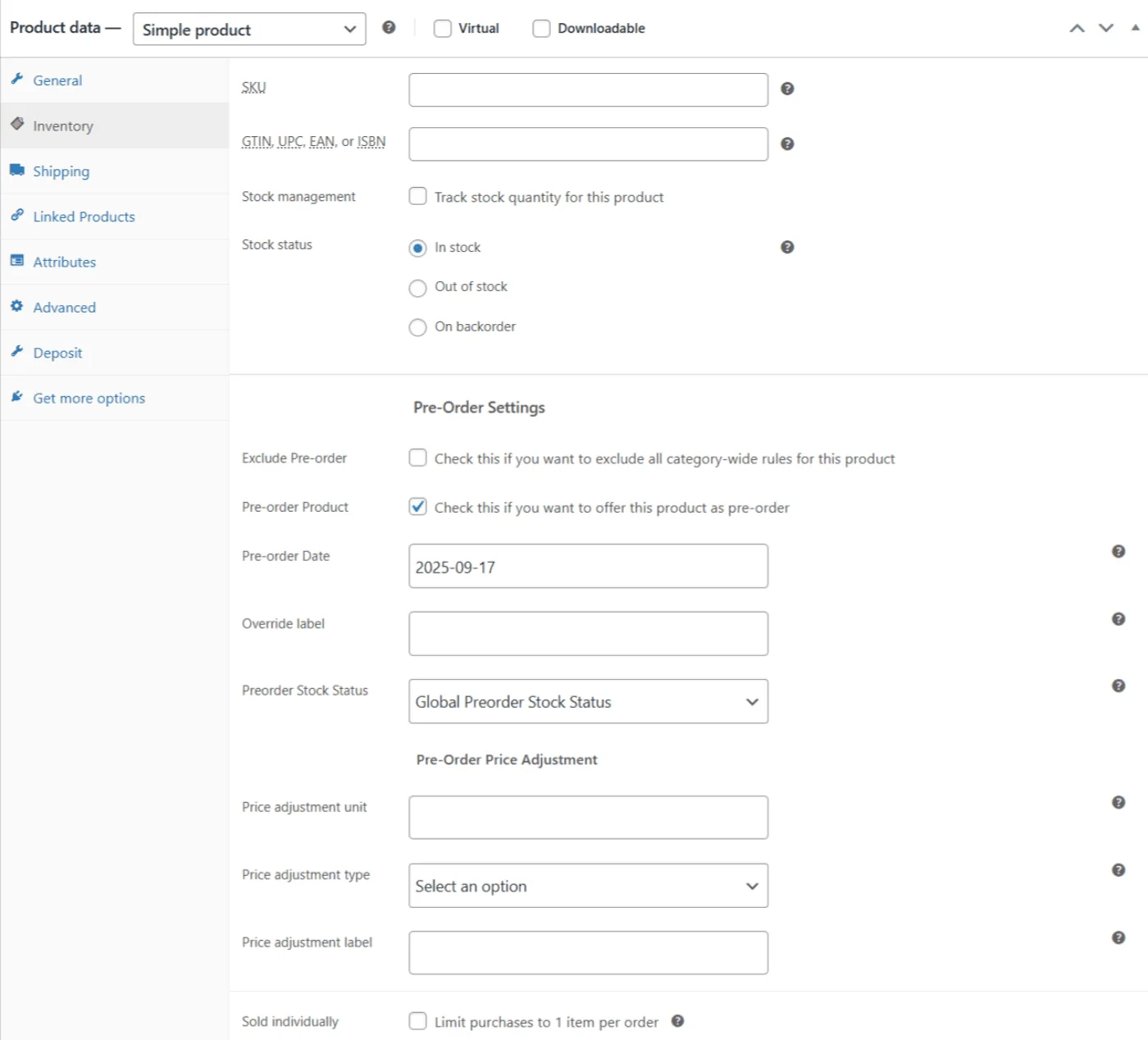
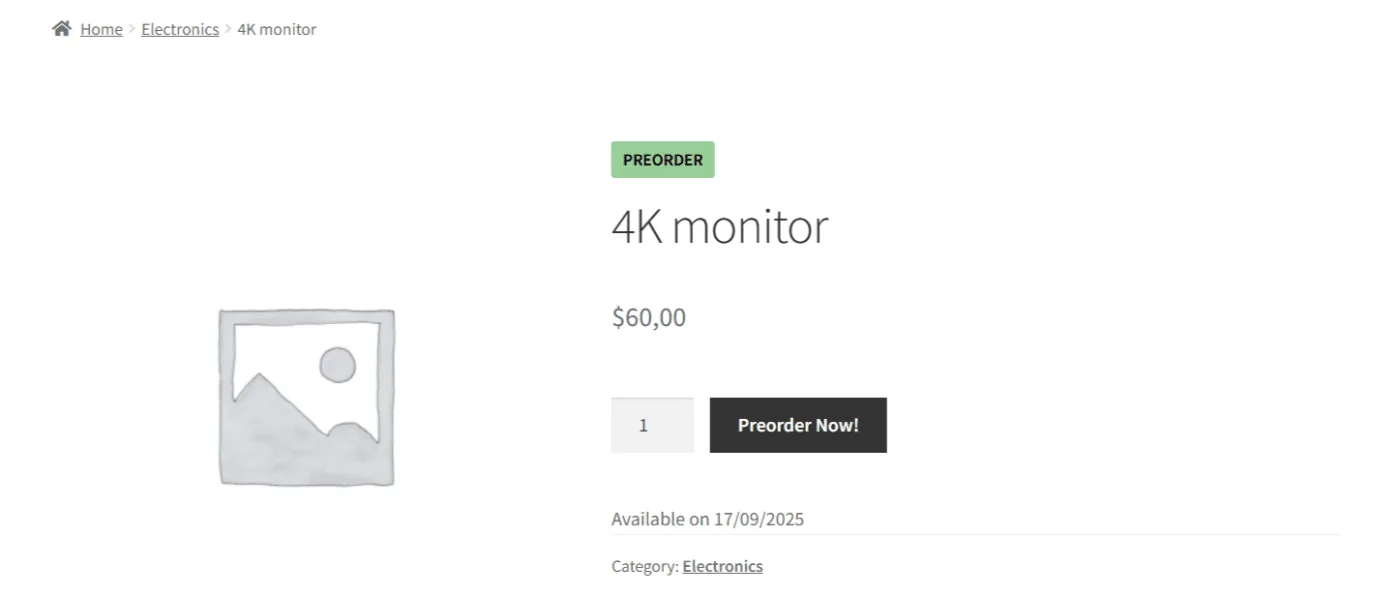
- In the product edit screen, enable Pre-Order and set the Available date; keep stock > 0
- Optional: enable Pay Later to charge on/after the release date
WooCommerce Deposits#
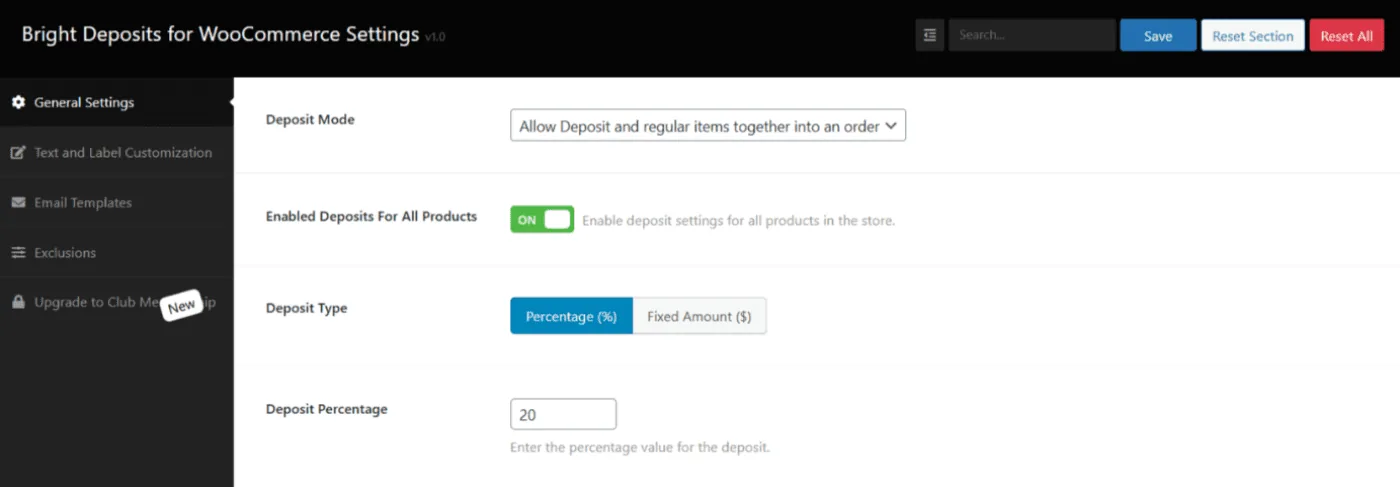
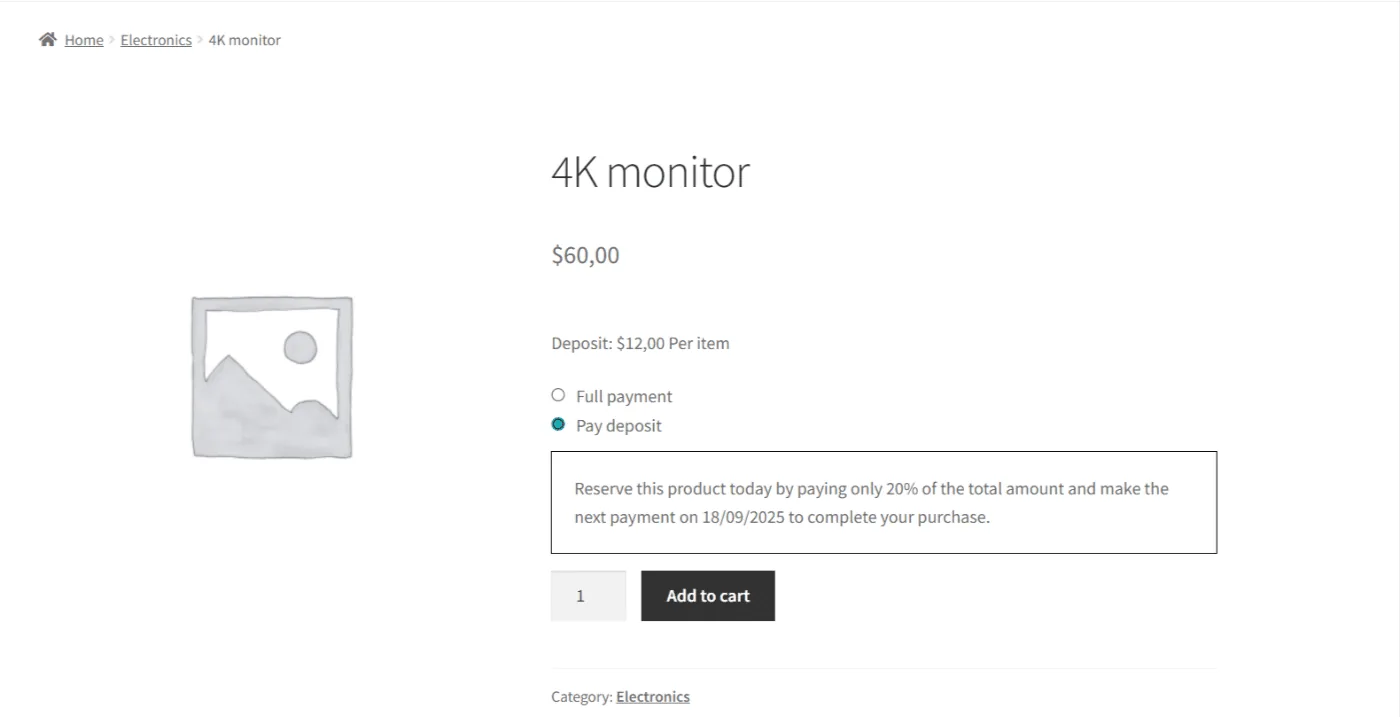
- Enable deposits globally or per product; choose percentage or fixed amount and the checkout behavior
PDF Invoice & Package Slips#
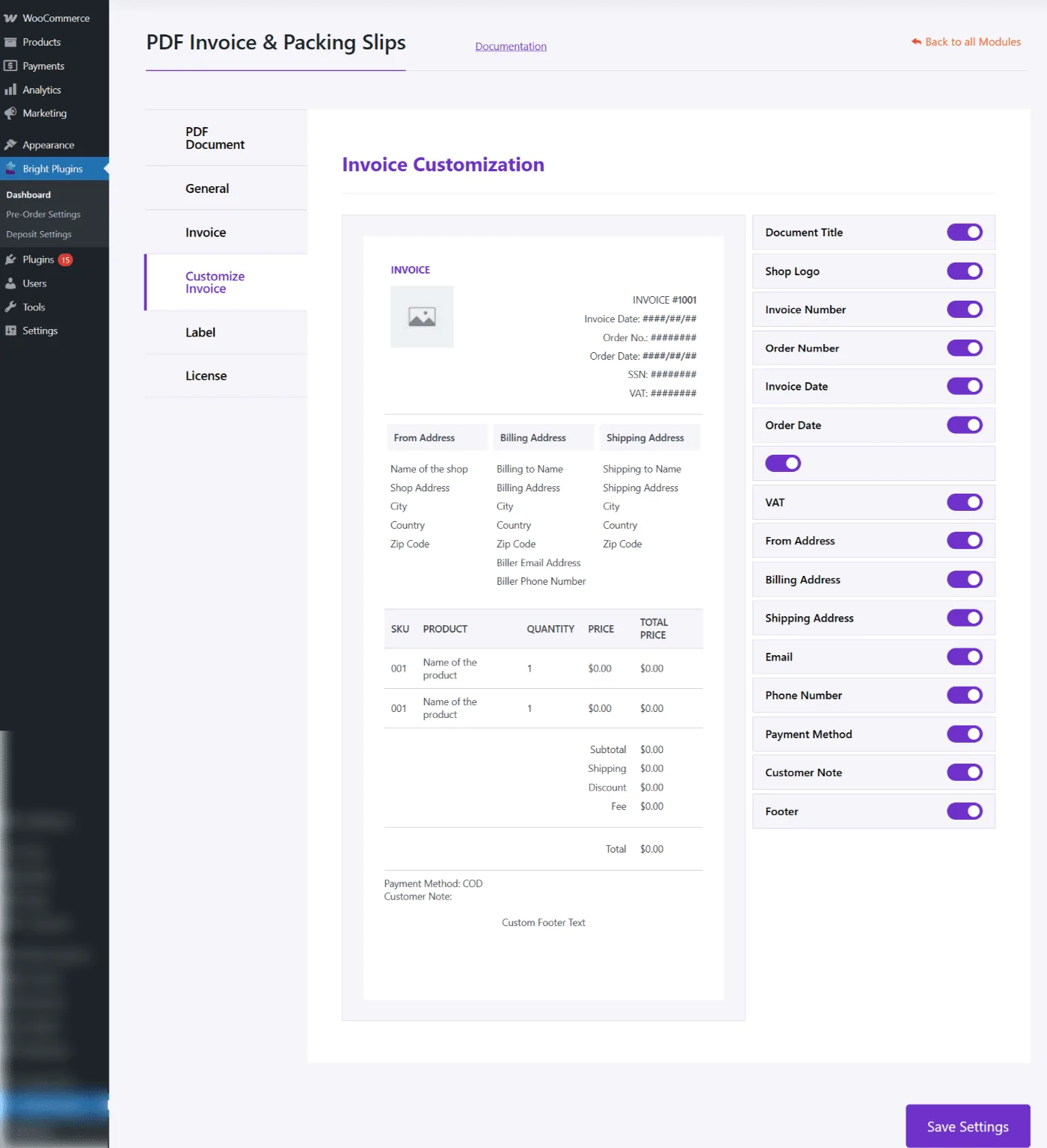
Bright Plugins → Dashboard →Settings → set template, numbering, and logo
Order Delivery Date & Pickup#
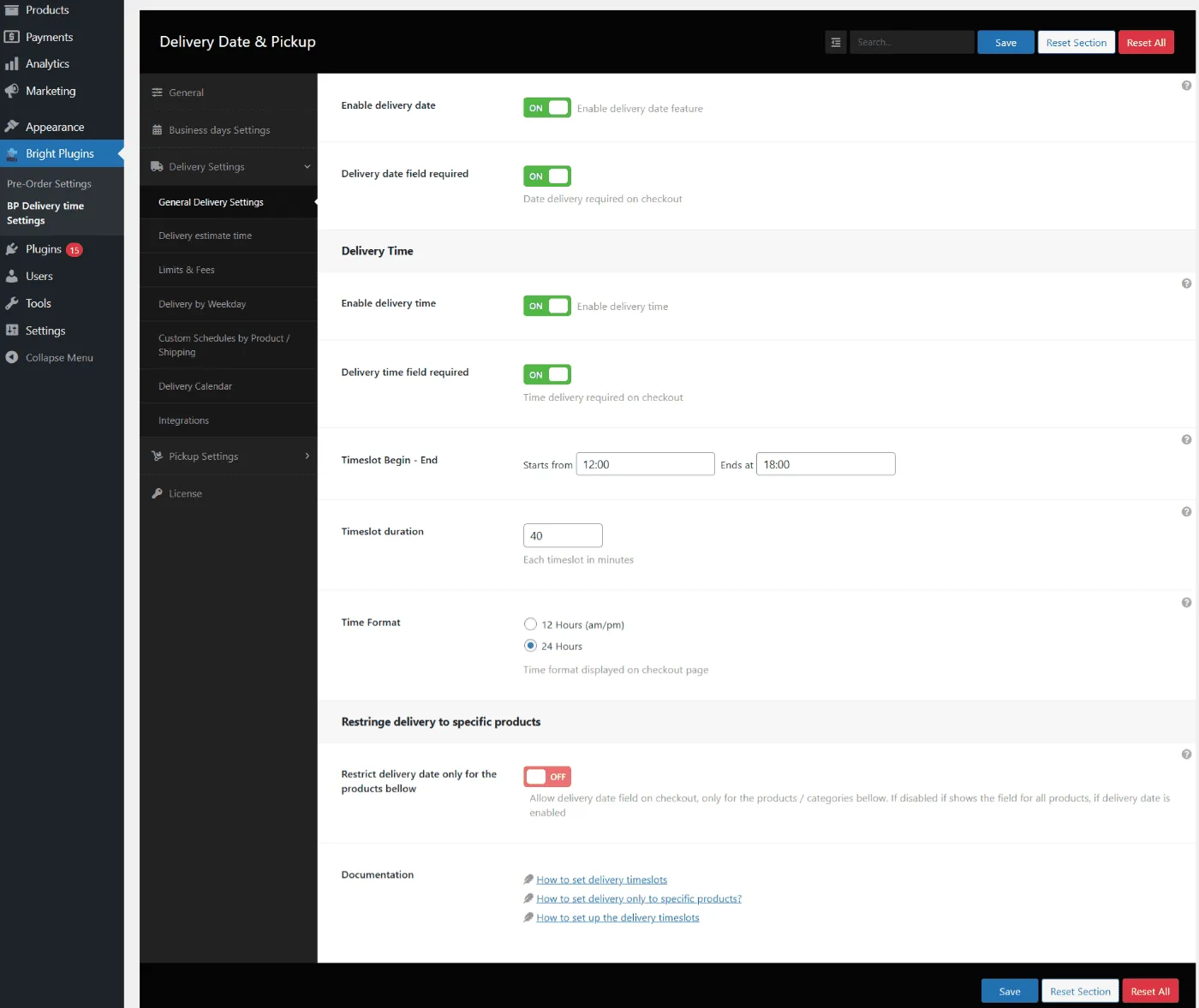
- Define time slots, cutoffs, and pickup locations in the plugin settings
WooCommerce One-Page Checkout#
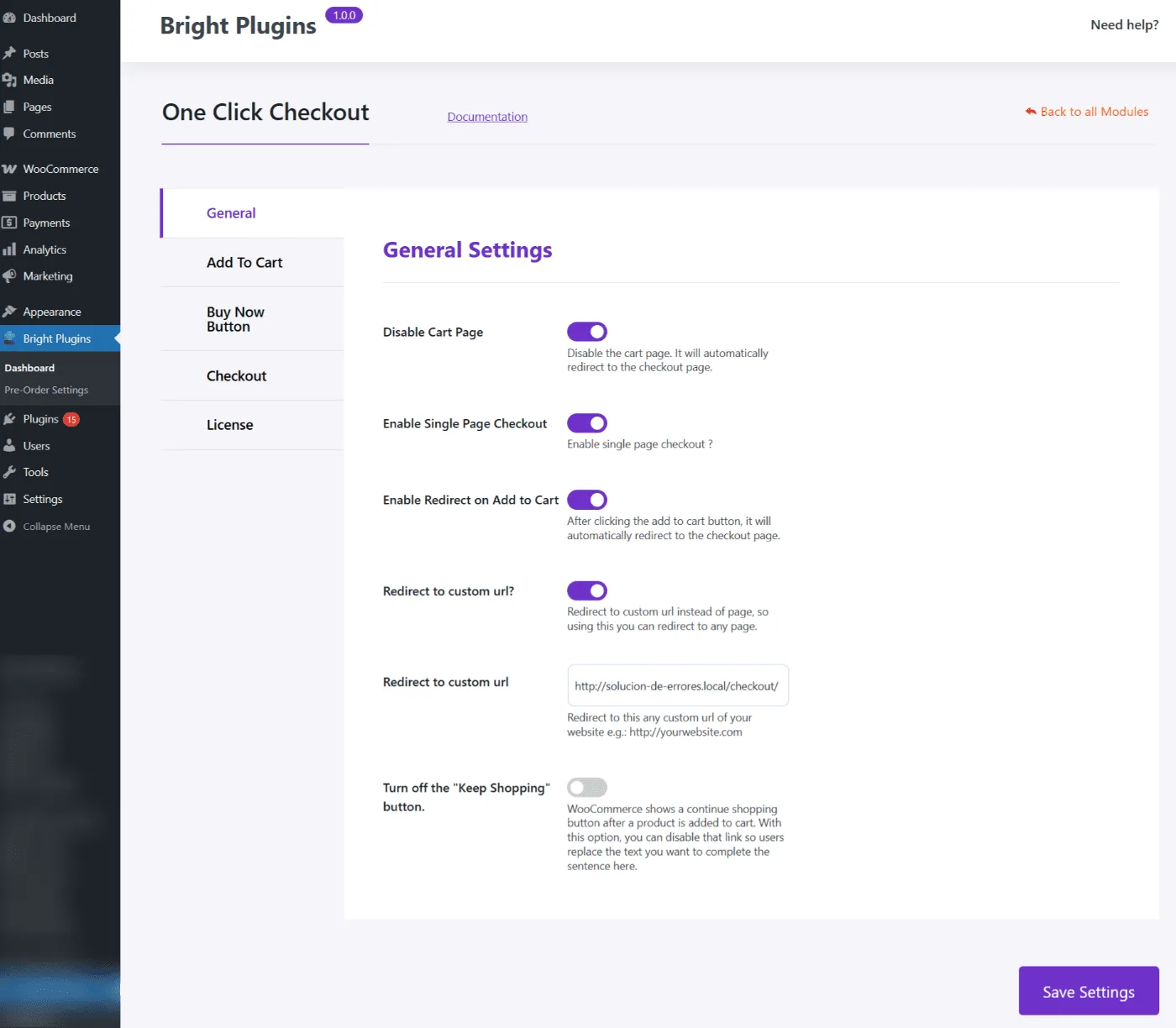
- Create or edit a page → add the One-Page Checkout block/shortcode → test with a product
Billing, Plan & Renewals#
- You can cancel anytime; cancellation stops future renewals. Access remains until the current period ends
- After cancellation/expiry, plugins keep working but updates & support stop
- You may switch between Store Owner and Unlimited Sites from your account (subject to your payment processor’s rules)
FAQs#
Where do I download the plugins?
My Account → Downloads. Download only what you’ll use
Do I get all Pro plugins?
Yes current plugins and any future releases while your membership is active
How do I get priority support?
From My Account → Support. Include site URL, WP/Woo versions, steps to reproduce, and screenshots
Can I use staging/subdomains?
Yes. Staging is recommended before going live
Is there a refund policy?
Yes 14-day money-back guarantee
Troubleshooting#
- I don’t see licenses/downloads: make sure you’re logged in with the purchase email
- Plugin missing from license dropdown: install/activate the Pro version and confirm your membership is active
- Reached activation limit (Store Owner): deactivate on the old site first (My Account → Licenses)
- Update not appearing: confirm the license is active on that site and clear caches
- Conflicts: reproduce in a clean environment (Storefront + Woo + this plugin), then re-enable other plugins one by one
Support#
Priority Email Support is available from My Account → Support
Provide: Order ID, site URL, exact steps, and screenshots
Updated on April 16, 2026 · Need help? Open a support ticket